Step by step process to connect Superleap CRM with Messegy and send messages to your users on WhatsApp.

Prerequisites for Superleap X Messegy integration
Superleap CRM helps manage your customer interactions smoothly. It comes packed with easy-to-use tools like lead management, task tracking, Voice AI, and marketing automation to help you close deals quickly.
Integrating Superleap with Messegy means you can send WhatsApp messages directly from your CRM dashboard using your Messegy account. Use approved WhatsApp templates for common tasks like welcoming new leads, sending reminders, follow-ups, and more.
Let’s quickly see how to get this integration done.
Prerequisites for Superleap X Messegy integration:
-
An active Messegy WhatsApp API account;
-
An active Superleap CRM account;
How to integrate Superleap CRM with Messegy:
Step 1: Open Superleap App Store
-
Log into your Superleap CRM account.
-
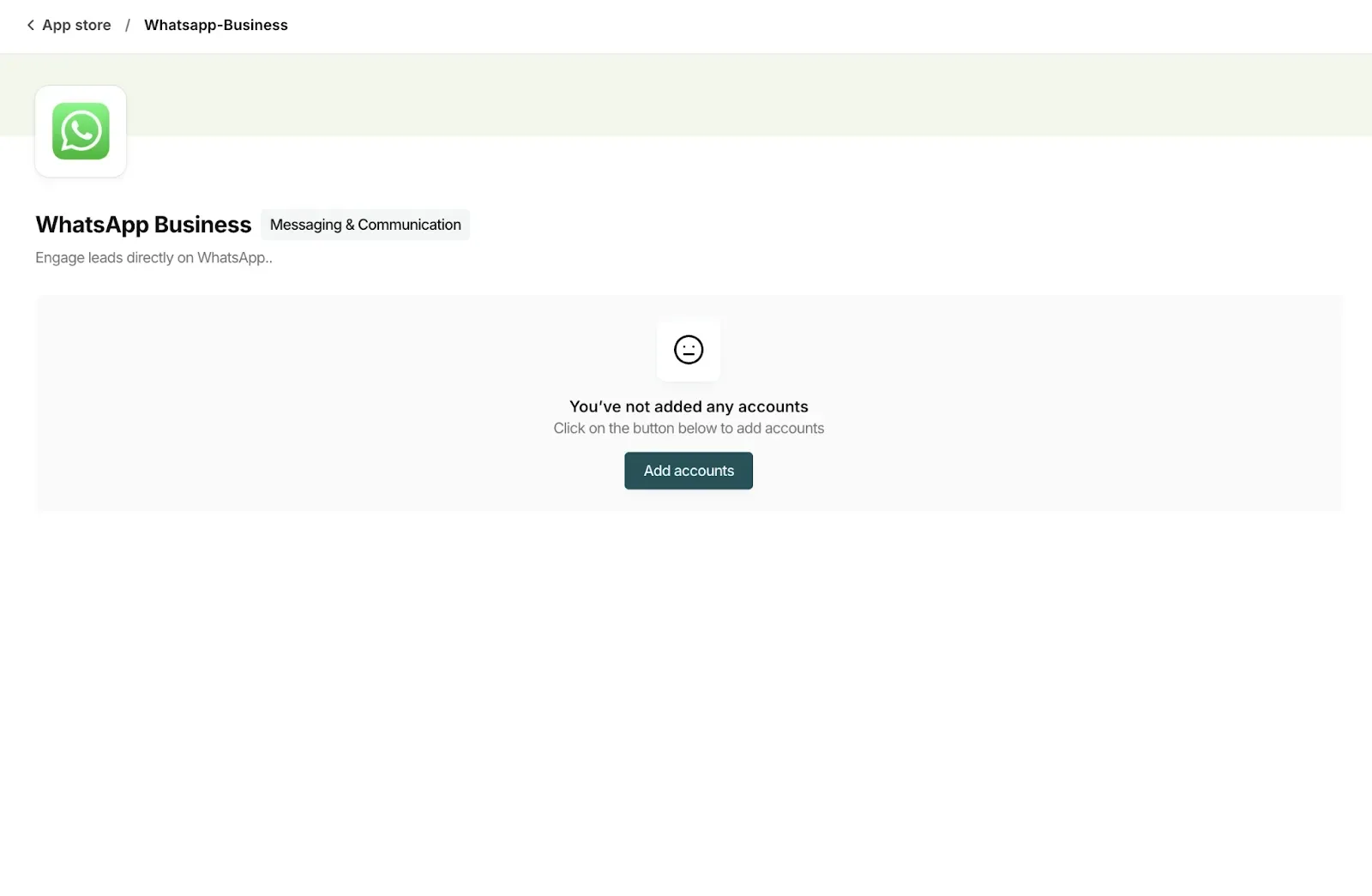
Go to the App Store.
Step 2: Activate WhatsApp Business
- Select WhatsApp Business from the available apps.
Step 3: Enable the Integration
- Click on Enable.
Step 4: Add your Messegy Account
- Click Add Account.
Step 5: Select Messegy as your provider
A simple form will appear:
-
Choose Messegy under the service provider.
-
Enter your WhatsApp Business Number (WABA Number).
-
Set the authentication method to API Key.
Step 6: Enter API Key
-
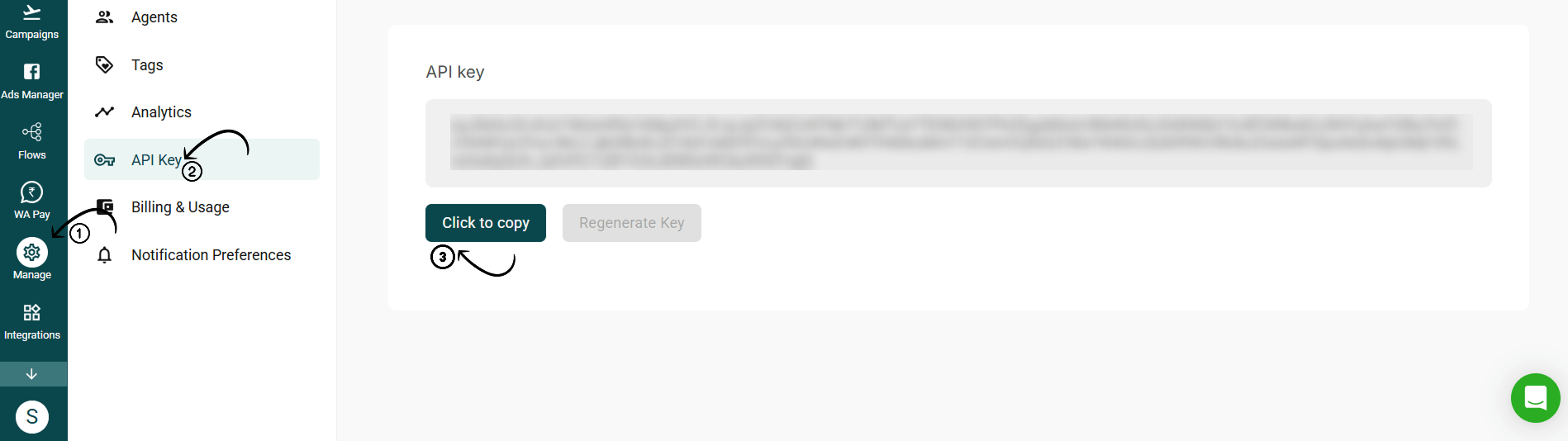
Go to Messegy Dashboard
-
Click on Manage → API Keys
-
Copy the API key provided there (or create a new one)
-
⚠️ Keep this key safe and confidential
-
Share this key with Messegy support. We'll provide you with a password to paste in the required field.
Step 7: Add Project ID and Account Name
-
Enter your Messegy Project ID (16-digit URL).
-
Give your account a simple name (for example: Superleap x YourCompanyName).
-
Click Submit.
Repeat this process if you're integrating multiple WhatsApp Business Numbers.
Creating WhatsApp Templates in Messegy:
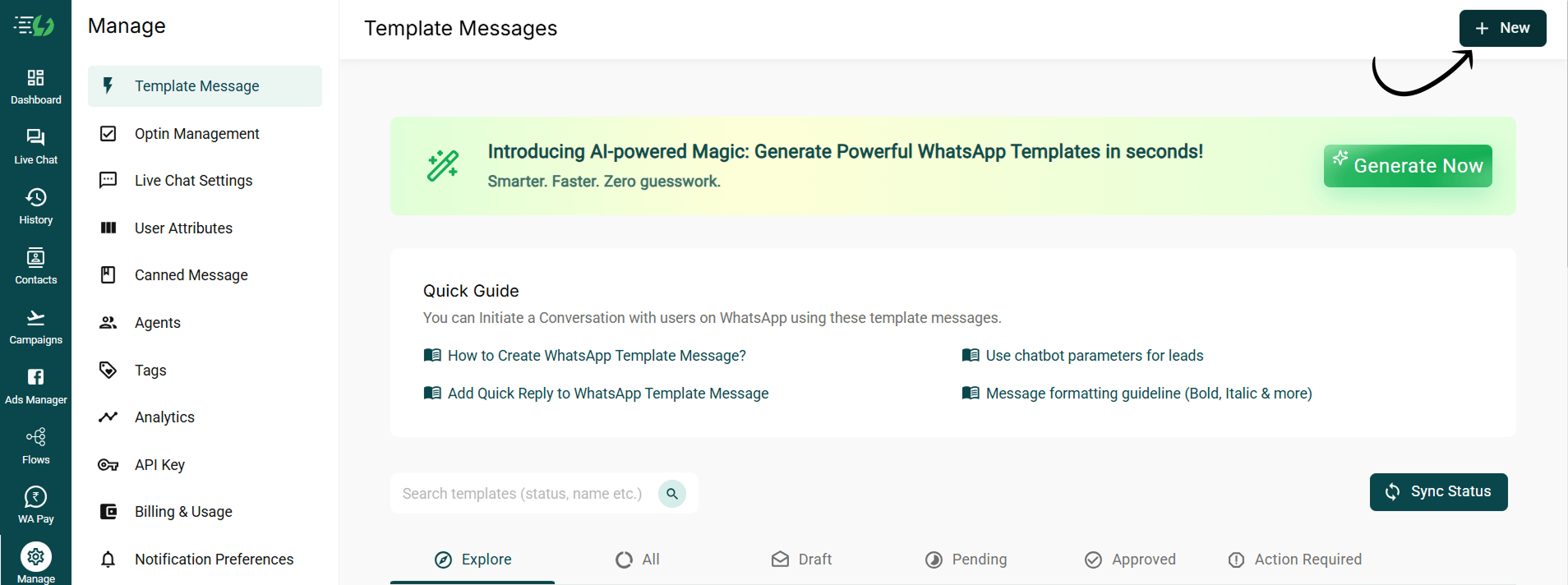
- In Messegy, navigate to the "Templates" section & create a new template message by clicking "+New".
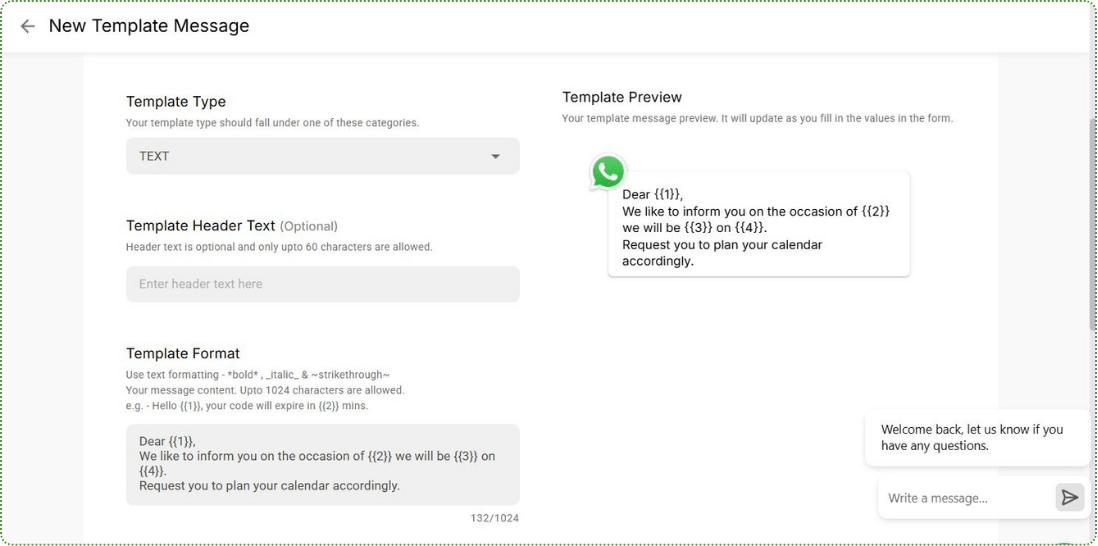
- Provide necessary details such as template name, category, and message content.
For more info on how to create template messages in Messegy, check out this template message guide.
- Submit the template for approval.
Once approved, the template will be available for use in campaigns.
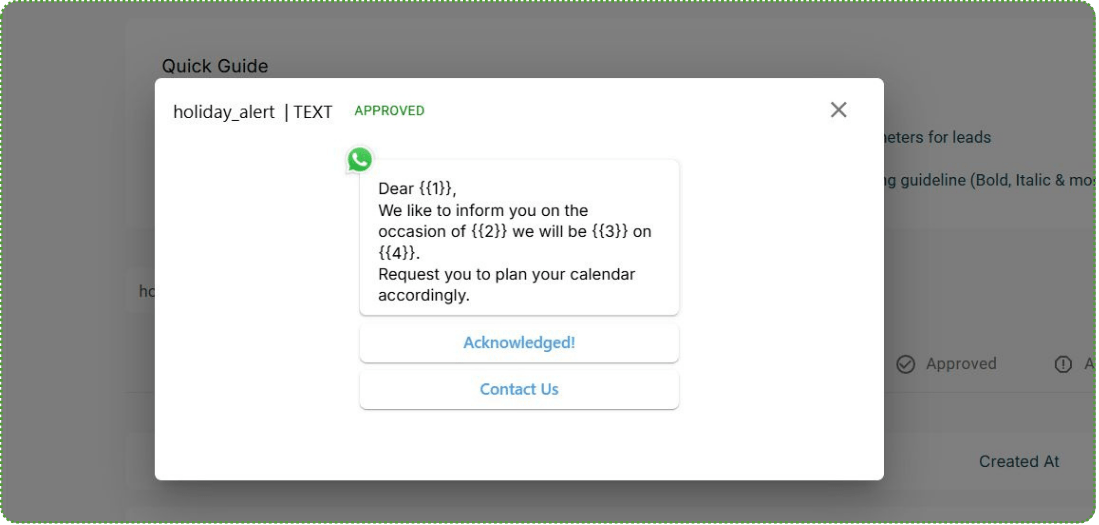
Using WhatsApp Templates in Superleap CRM
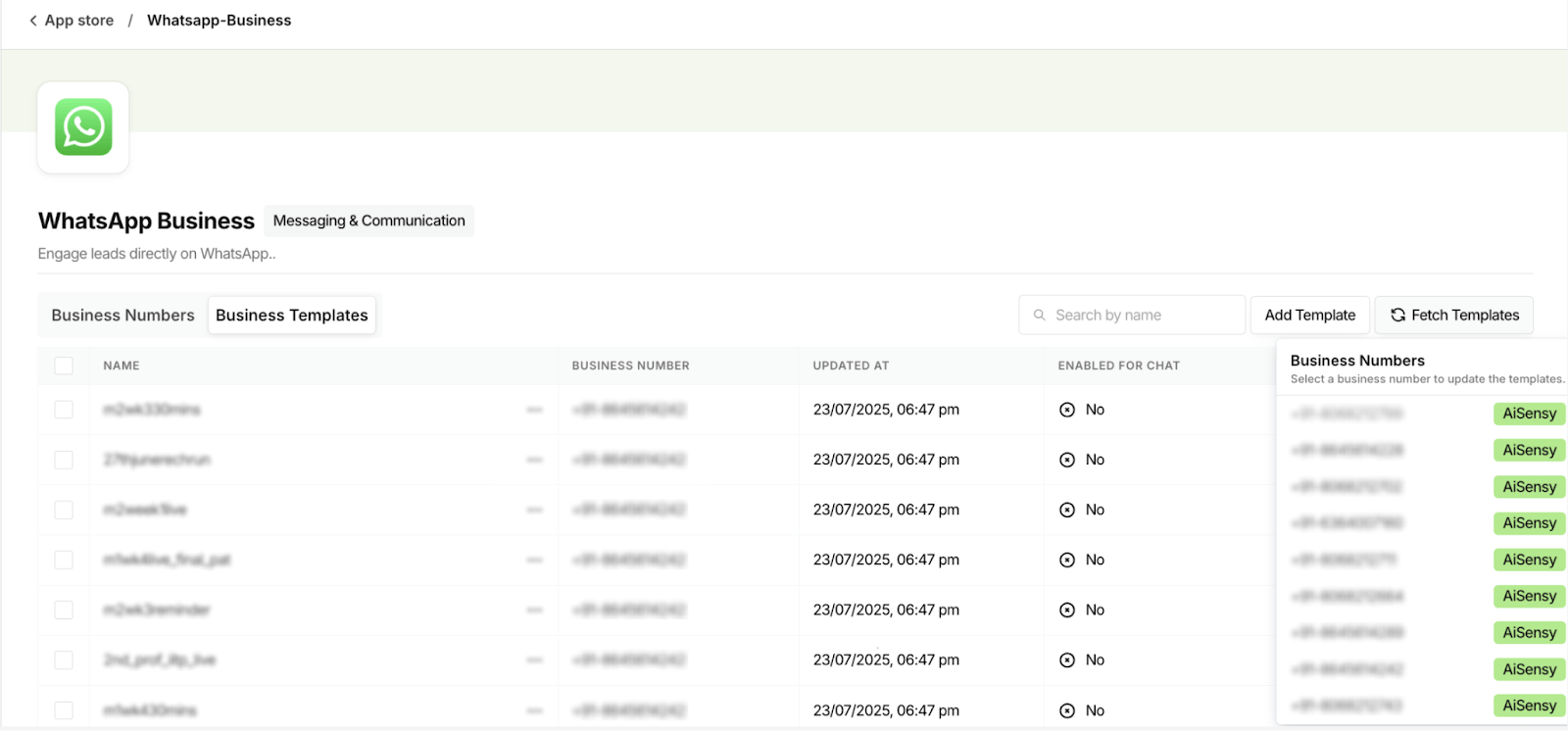
After approval, you can access your WhatsApp templates directly in Superleap CRM:
-
Go to any lead in Superleap CRM.
-
Click Fetch Templates to view available templates.
-
Select the template to instantly send a WhatsApp message to your lead.
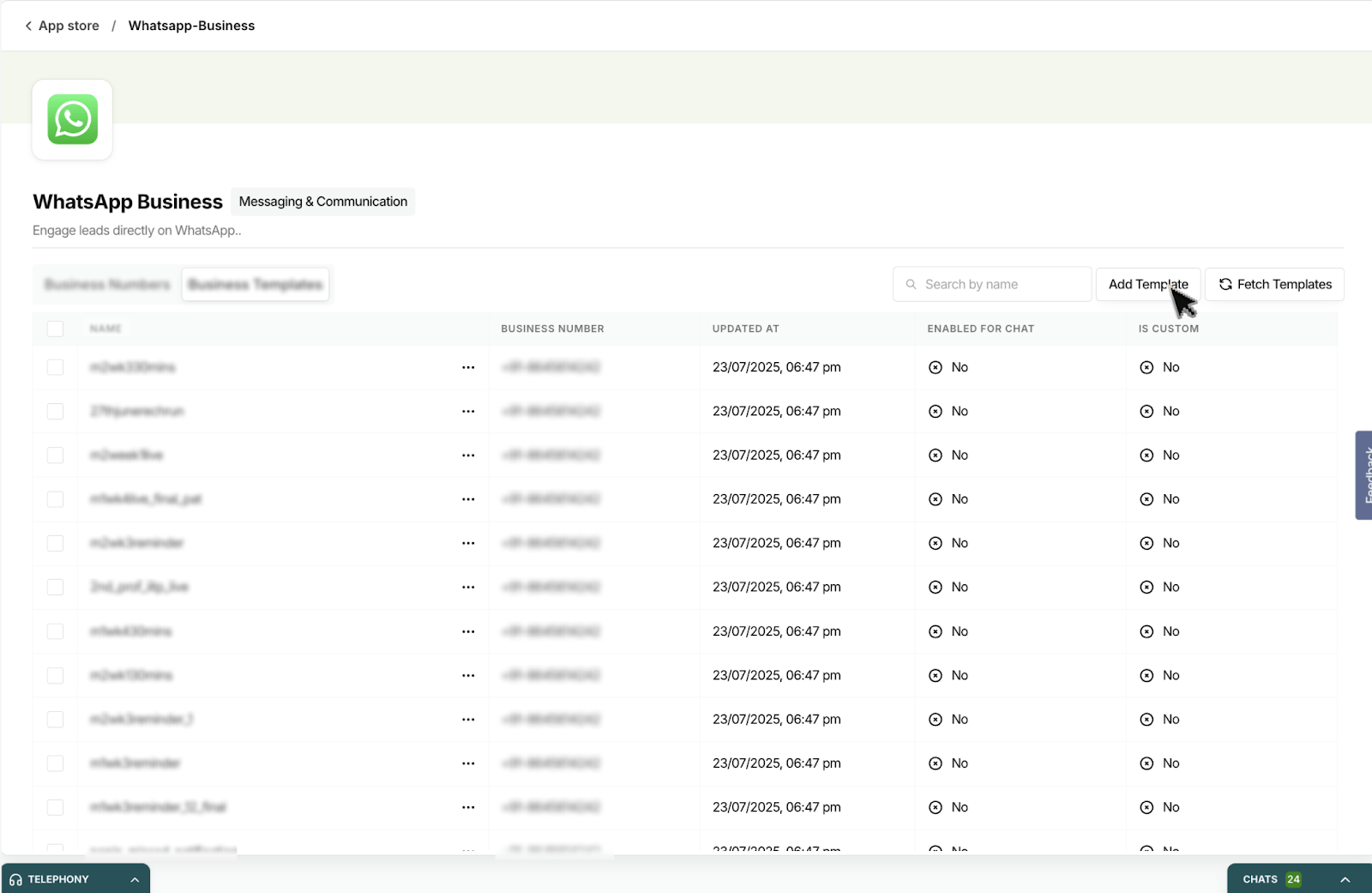
You can also add new templates from Superleap CRM itself. Simply click Add Template and follow the steps shown on-screen.
That's it! Your Superleap CRM is now successfully connected to Messegy.
For any questions or help, reach out to our support team directly through your Messegy dashboard.
🎉 Happy Messaging!