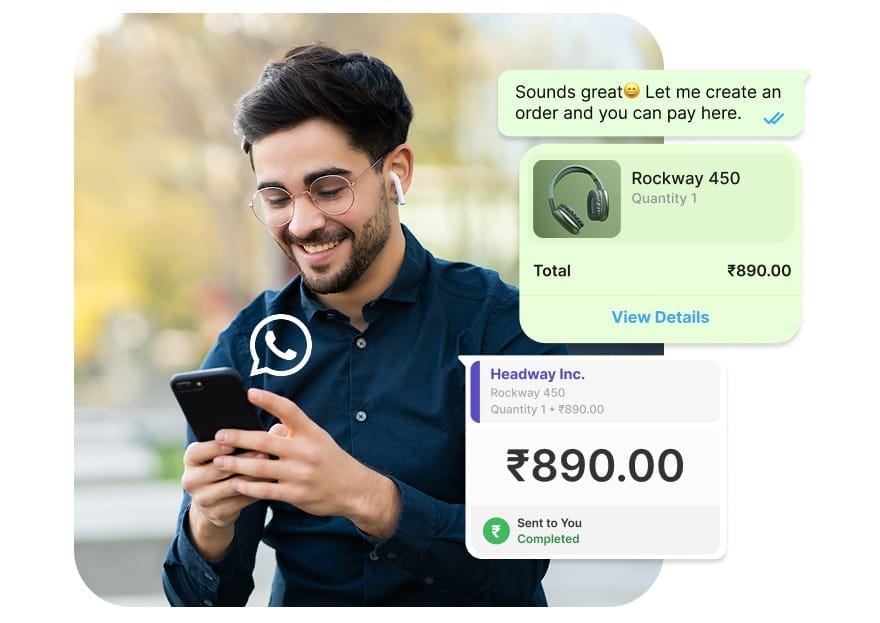
Wish to automate payment links and collect all your payments 3x faster directly on WhatsApp?
In this doc, we'll tell you how to connect PayU with Messegy to enable WhatsApp Pay in just a few simple steps.
How to integrate PayU with Messegy?
Show step by step how to get started
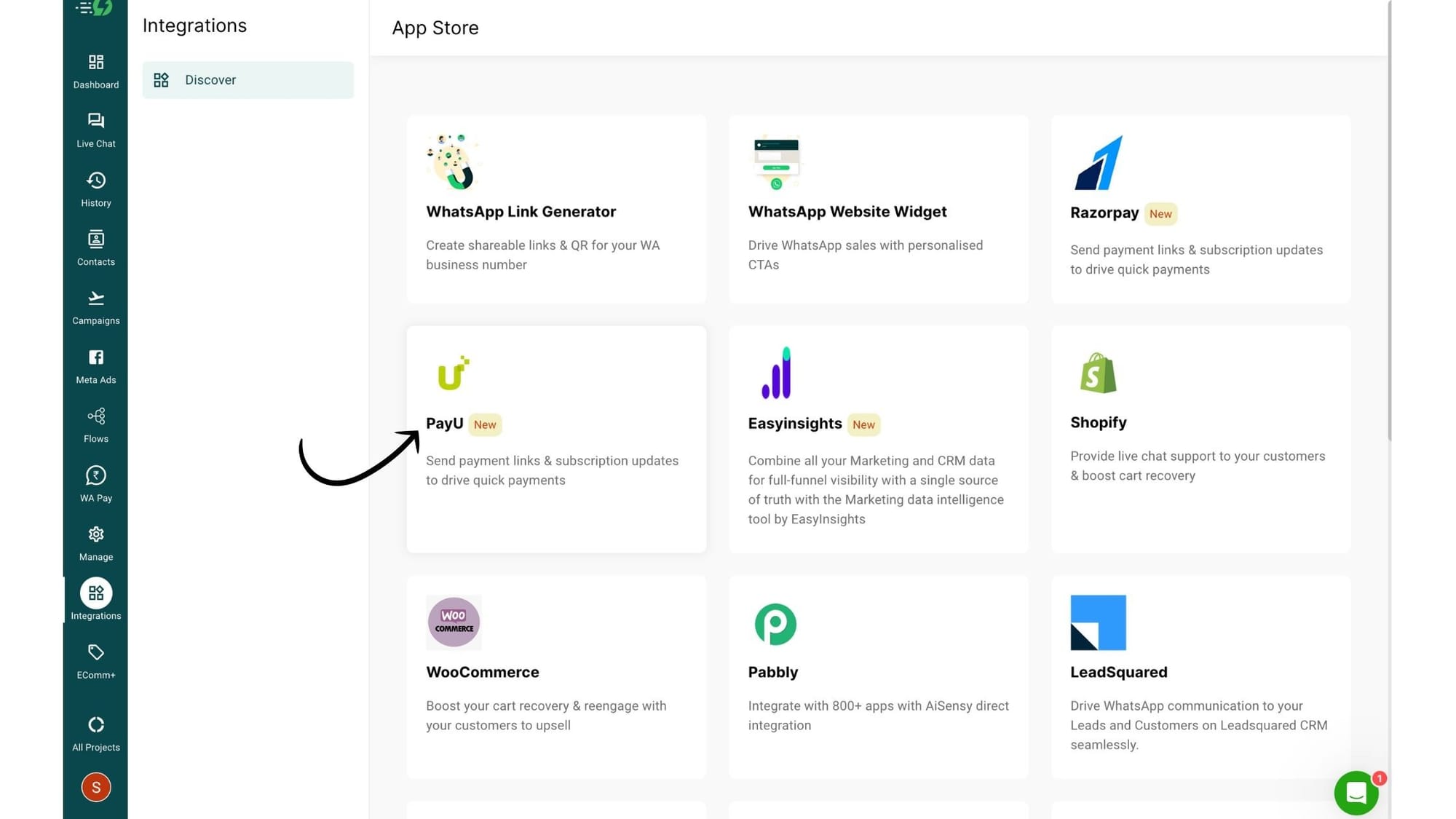
1. In Messegy app, go to Integrations and tap PayU
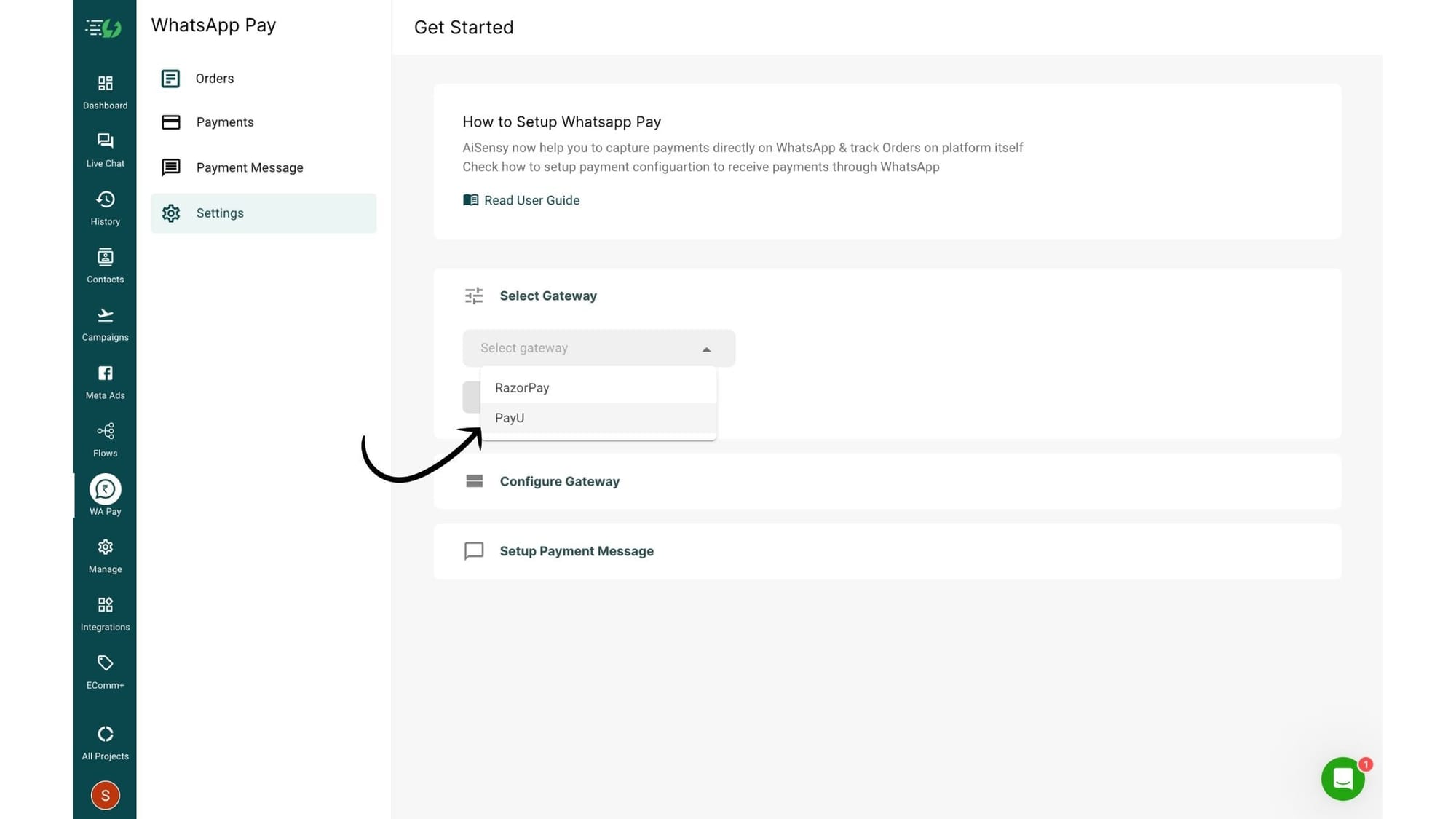
2. Select PayU under Payment Gateway
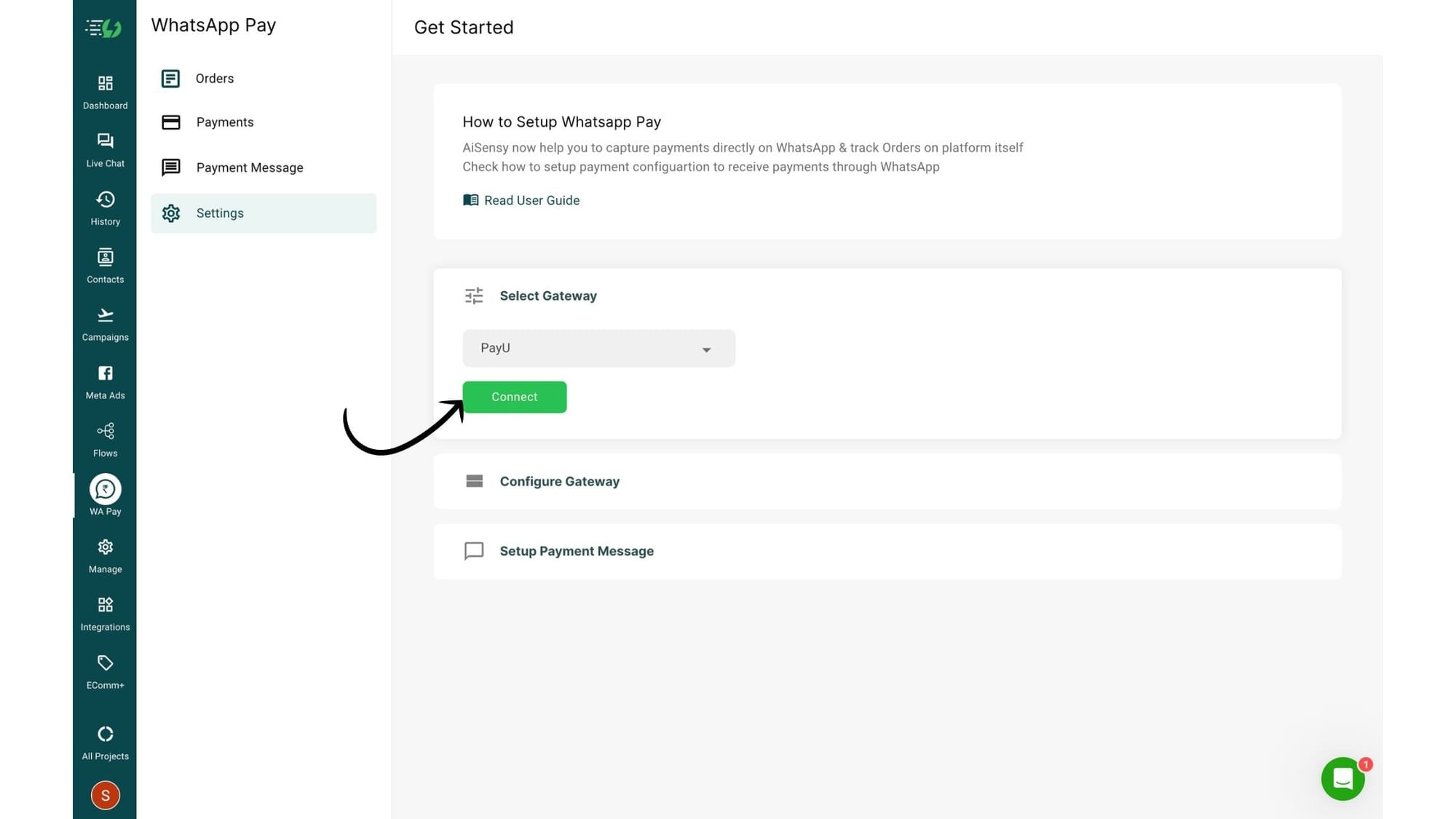
3. Click Connect
... lastly you can invite your team and collaborate to create something super amazing. What are you waiting for? Get started now!
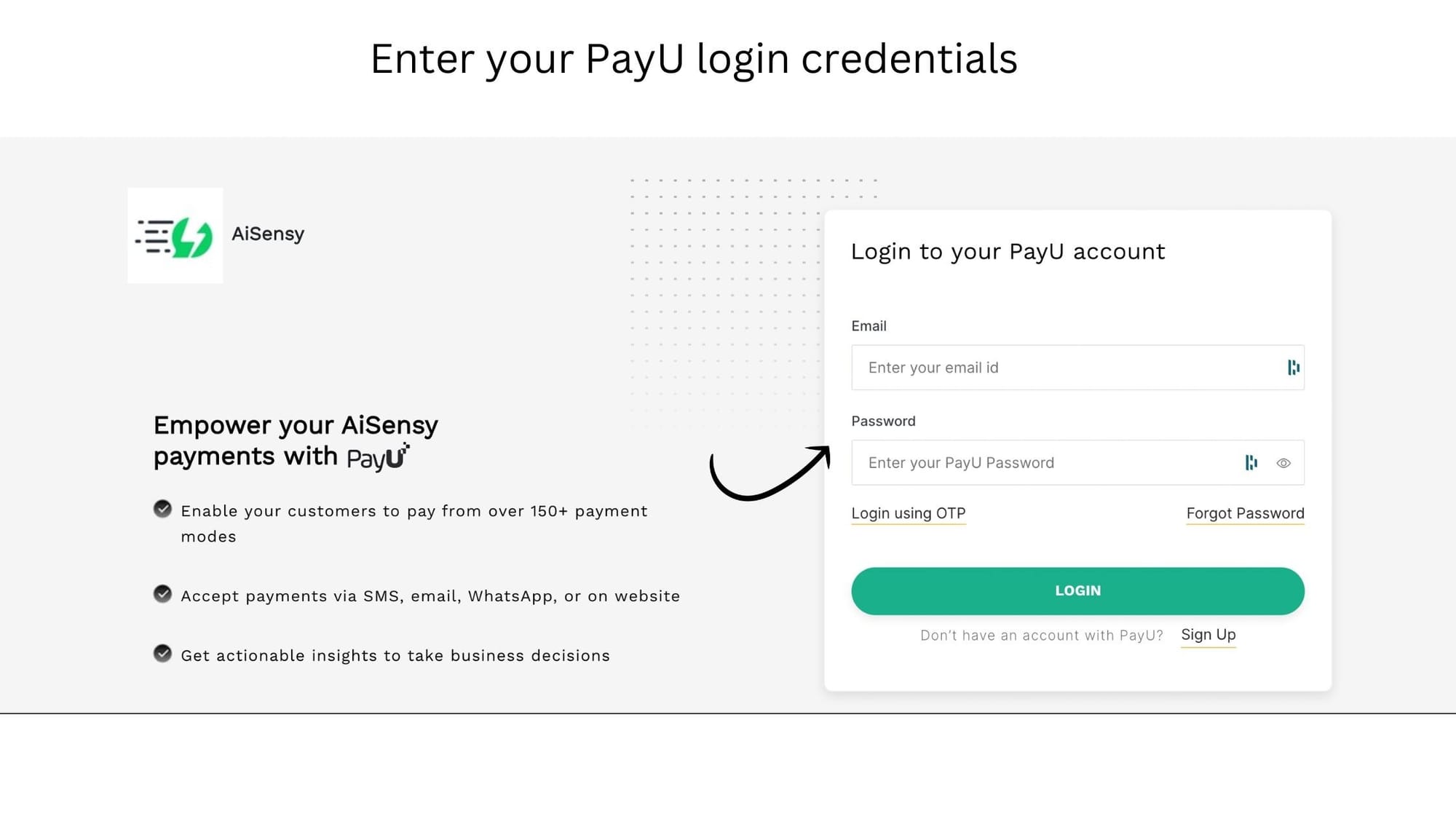
4. You'll redirect to PayU App's login screen. Enter your login credentials & tap Login
... lastly you can invite your team and collaborate to create something super amazing. What are you waiting for? Get started now!
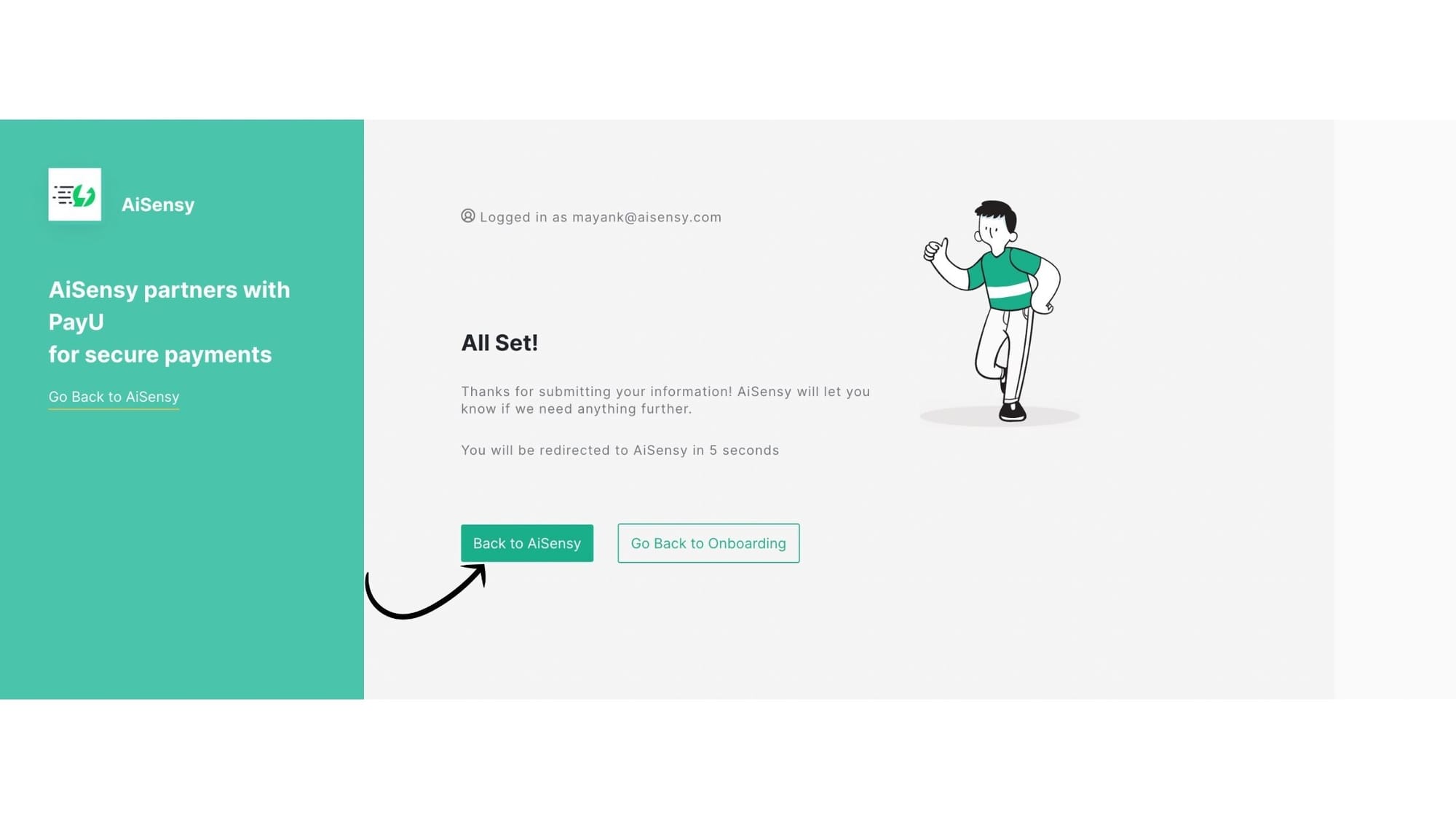
5. Once you Login, this screen will show and in 5 seconds you will redirect back to Messegy
... lastly you can invite your team and collaborate to create something super amazing. What are you waiting for? Get started now!
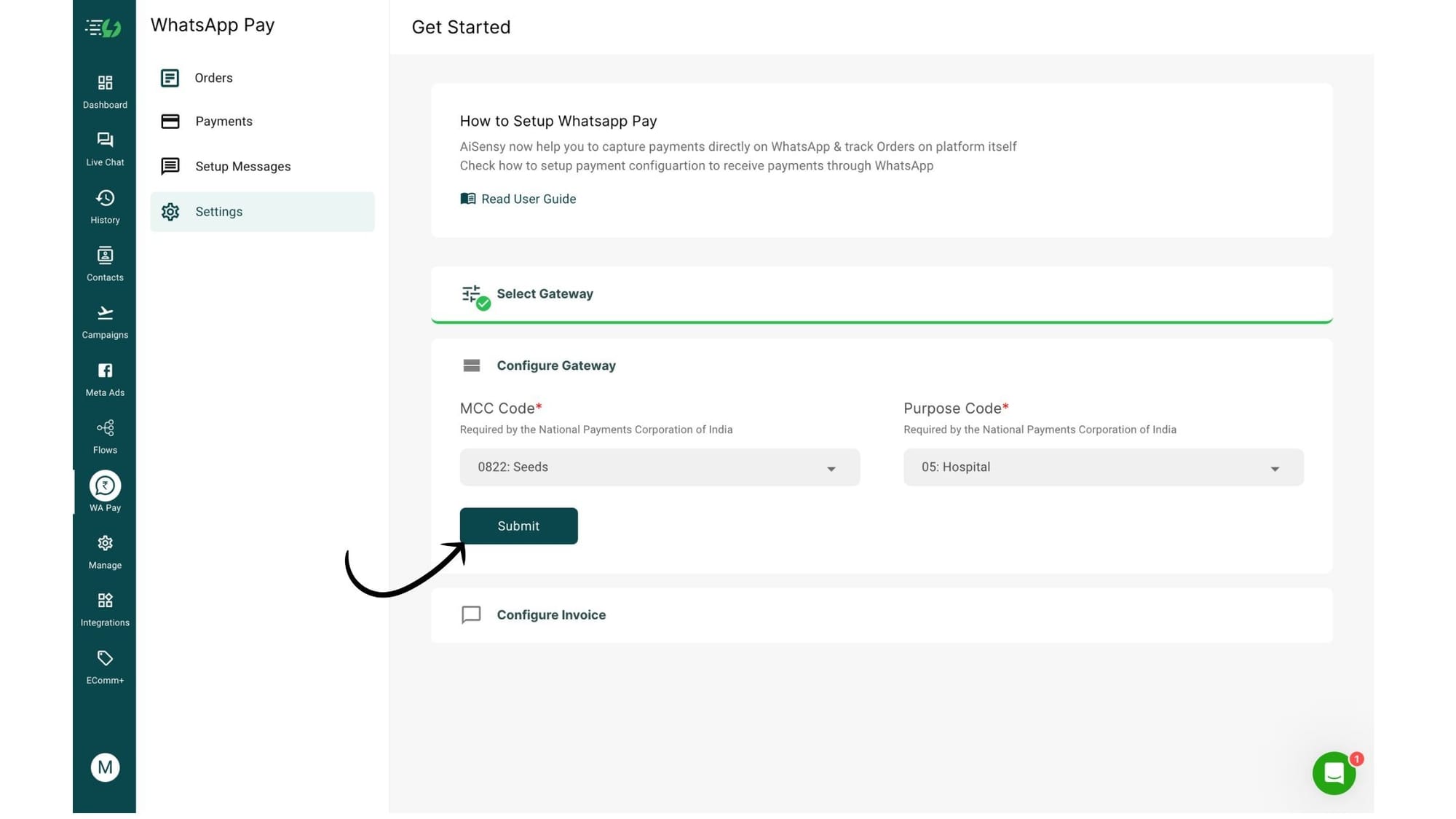
6. Now, enter your business's MCC Code and purpose code
The MCC & Purpose code are required by the National Payments Corporation of India.
If you don't know your MCC code, fill it according to the nature of your business.
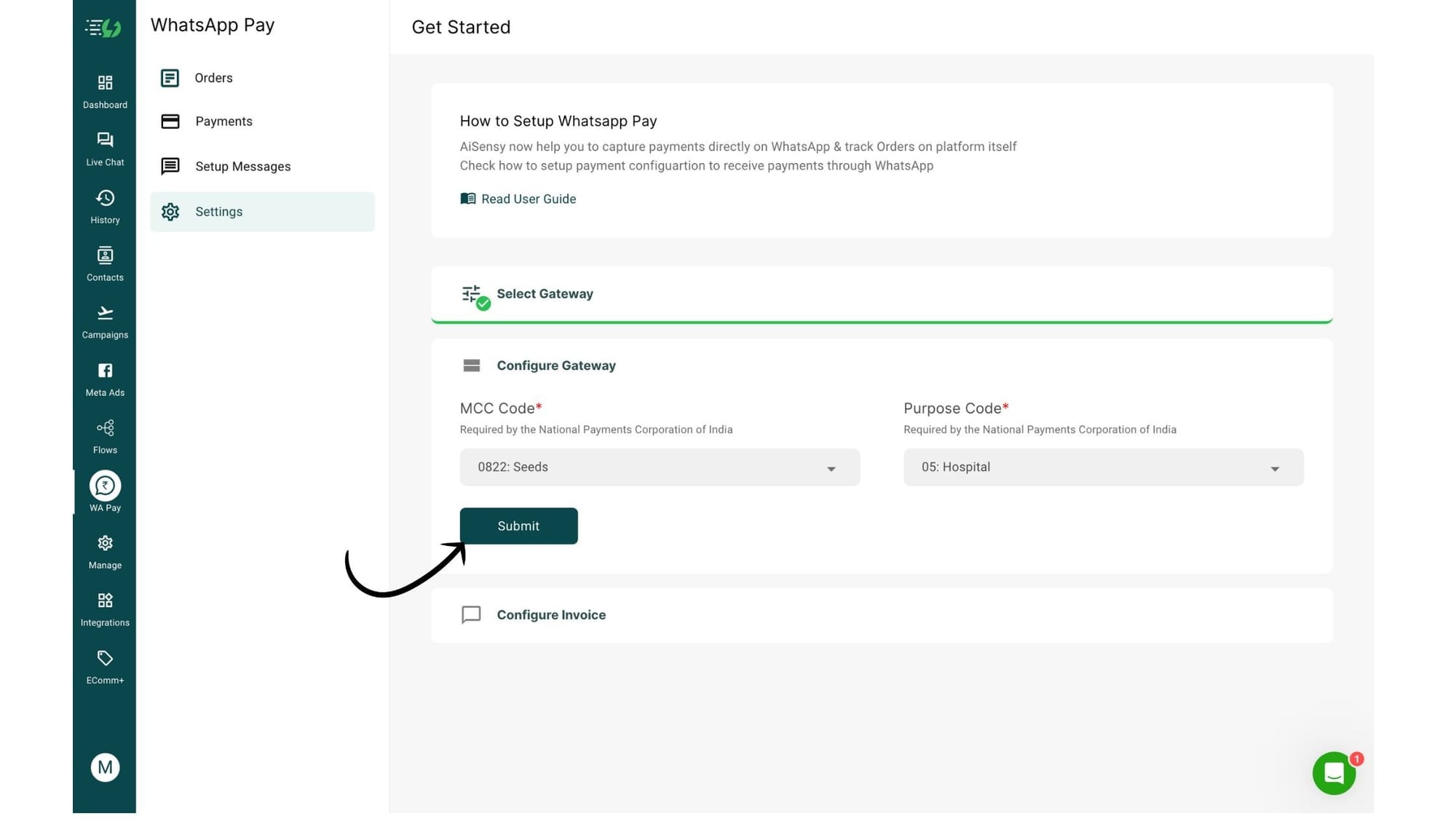
7. After selecting your MCC & Purpose code, click submit
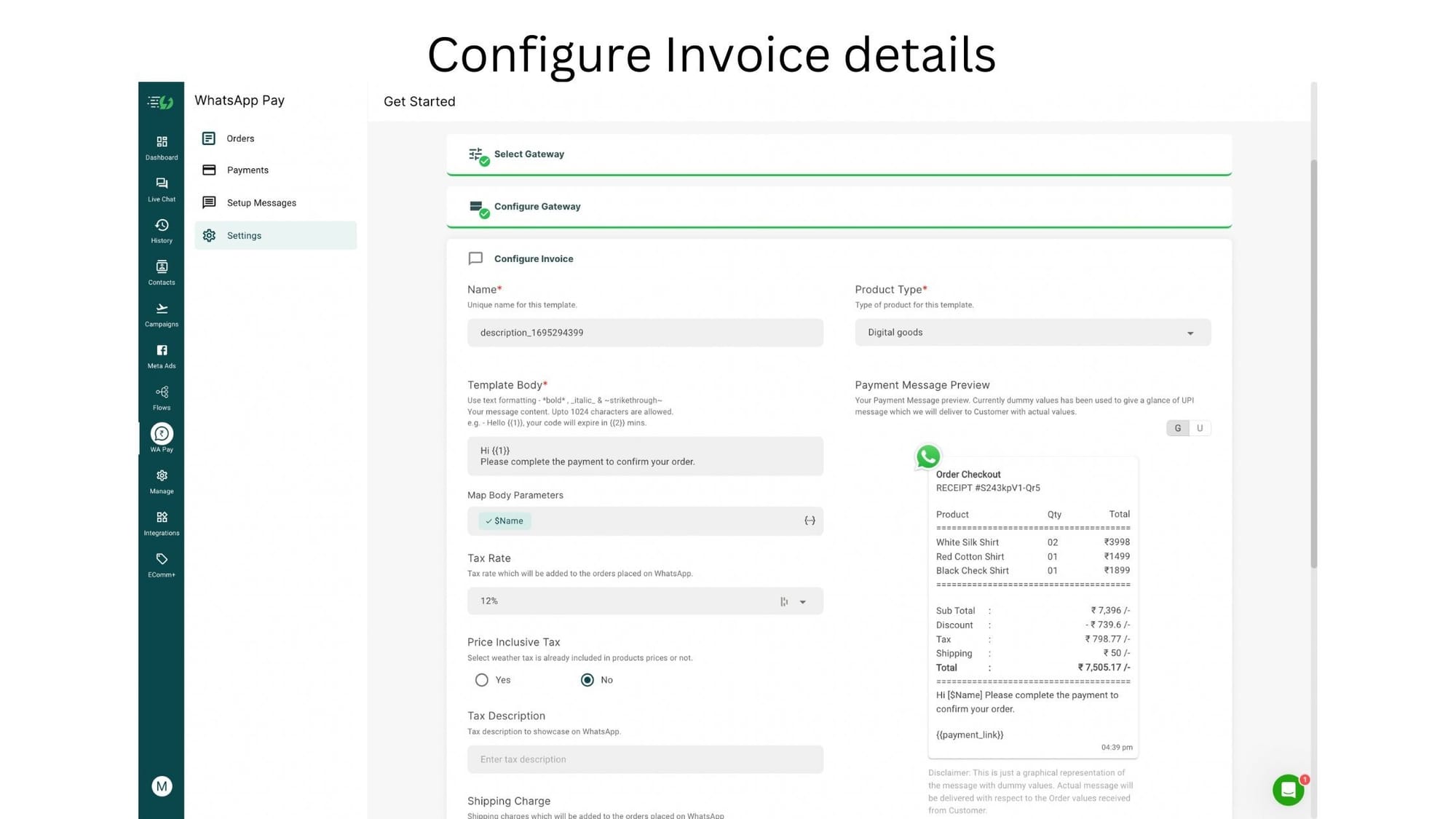
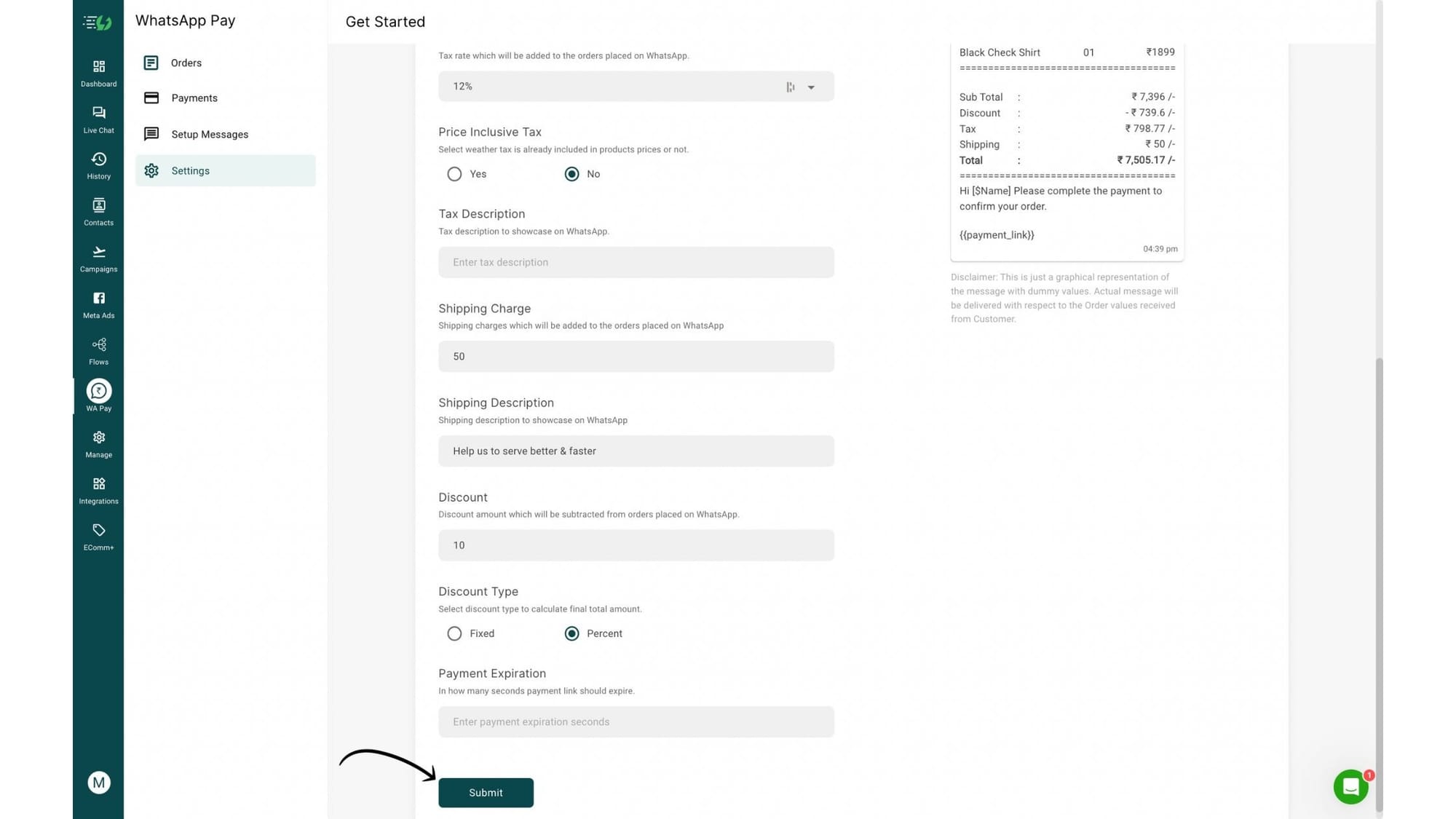
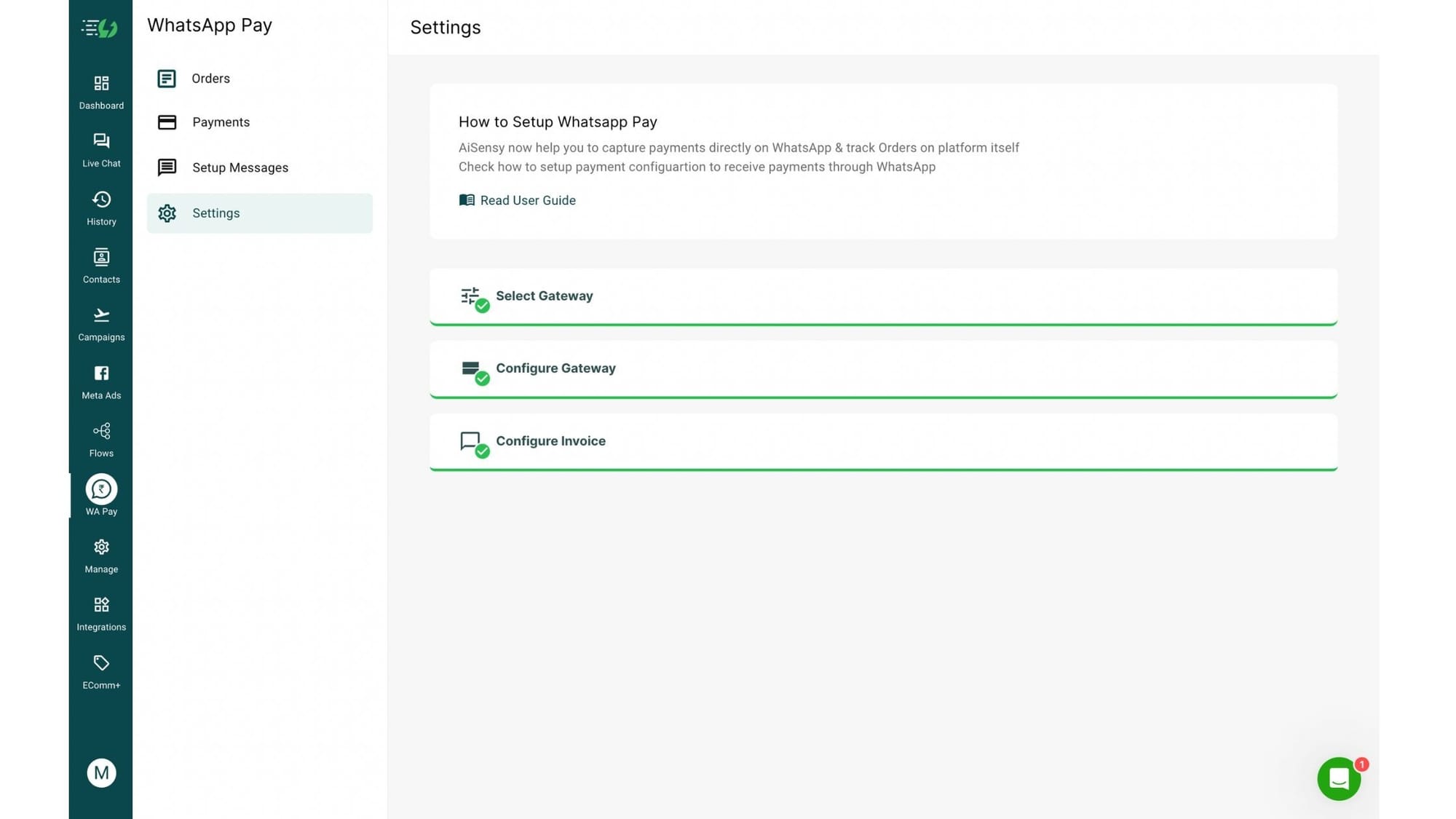
8. Next, configure your Invoice details
Here, you need to configure your invoice format & details that will be sent to users to complete their payment on WhatsApp.