Integrating MoEngage with Messegy allows you to send WhatsApp messages directly through your MoEngage CRM.
Follow these simple steps to quickly set up your integration and start sending WhatsApp messages, tracking delivery rates, and monitoring read statuses through MoEngage.
1. Log in to MoEngage->Go to Settings->WhatsApp->Sender Configuration.
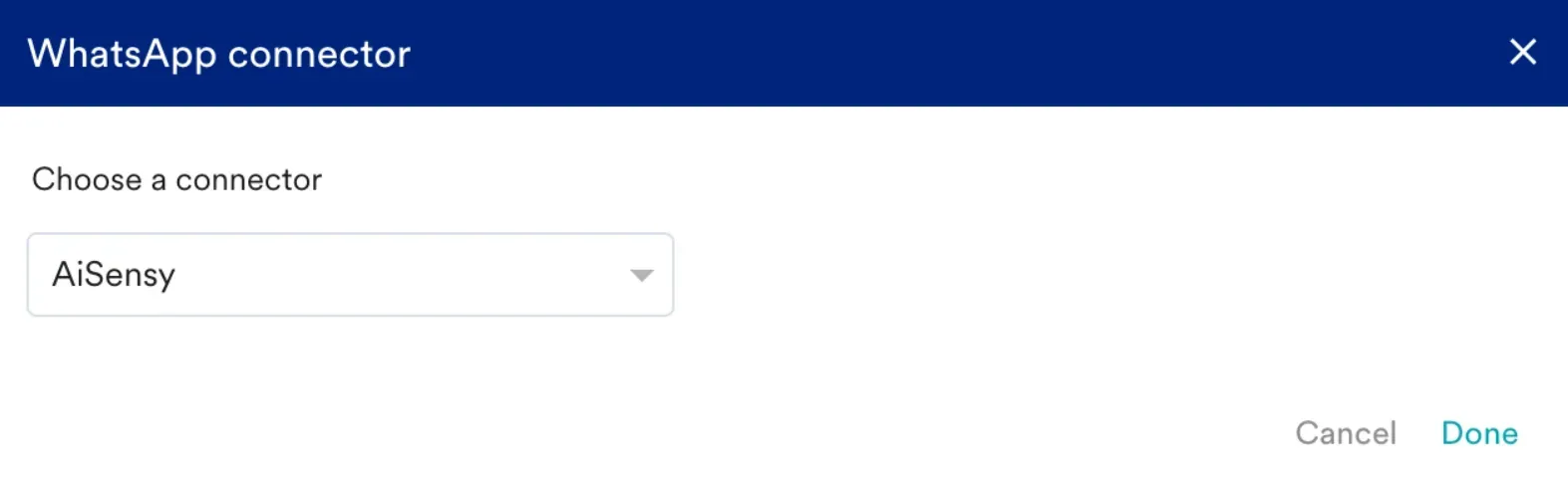
Click +Add connector on the left menu.
Choose Messegy from the list of WhatsApp providers or connectors available in the dropdown and click Done.
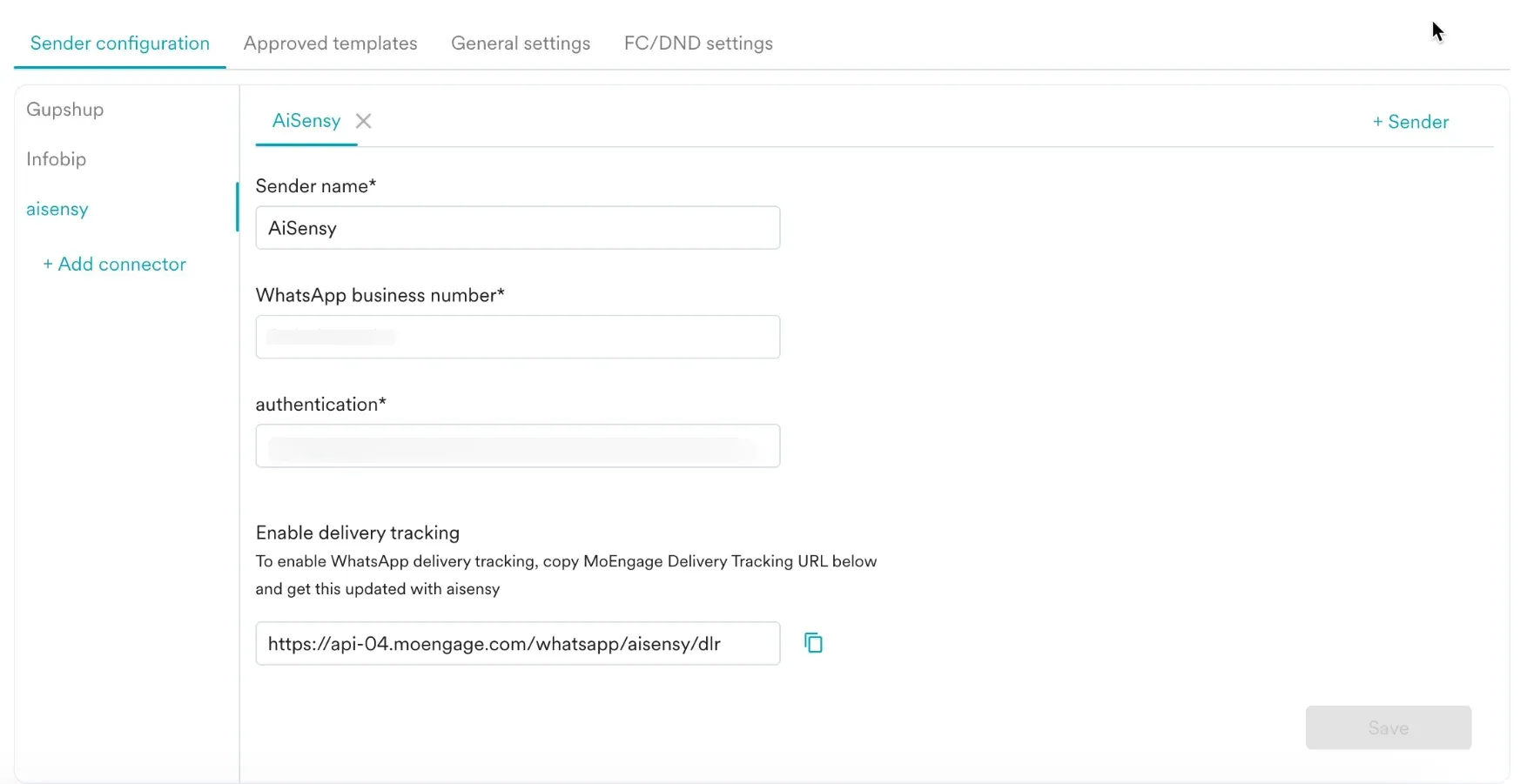
2. Click "+ Sender" (top-right corner) to configure your sender details:
Field Name
Sender name: This field denotes the name you want to provide to the Sender profile. This would be available in the Sender so that you can recognize this easily while using it to create a campaign inside MoEngage. The Sender Name should be between 5-50 characters. (Required)
WhatsApp business number: Provide the registered WhatsApp Business API number (WABA number) used for sending messages via Messegy. (Required)
On Messegy, you can find Sender Details on Channels & Numbers ->WhatsApp ->Senders.
Authentication: Paste your Messegy API key here. (See instructions below to obtain API key.)
-
Login to your Messegy account.
-
Go to the integration section
-
Select MoEngage.
-
In the Get Started tab, navigate to the Connect MoEngage section.
-
Click on 'Click to copy' to copy the API Key.
-
Paste the API Key in the authentication field in the Sender Configuration details on the MoEngage Dashboard.
Delivery-report-callback-url: To track the delivery of your WhatsApp Messages in MoEngage, copy the MoEngage Delivery Tracking URL and pass it to the Messegy team. You should be able to see the URL as shown below:
- Note: The URL is a sample URL. Copy the exact URL from your MoEngage Dashboard while configuring the sender.
To add the delivery tracking URL to Messegy:
-
Login to your Messegy account.
-
Go to the integration section
-
Select MoEngage.
-
In the Get Started tab, navigate to the Connect MoEngage section.
-
Copy and paste the delivery tracking URL provided by MoEngage (in the Enable delivery tracking section) to the Enter MoEngage Webhook URL field in the Messegy Dashboard.
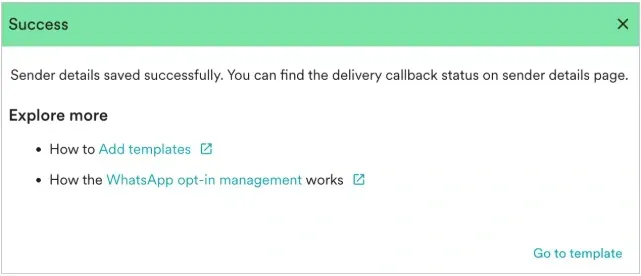
3. Click Save to save the sender's details.
Upon successful integration, you will get a success message.
Things to remember
-
You should have pre-approved templates with Messegy to create a WhatsApp campaign for an Messegy Sender in MoEngage. Check out how to create templates in Messegy.
-
Create the same approved templates exactly in MoEngage. For more information, refer to Add Templates.