Step by step process to integrate Messegy with your Corefactors CRM and automate WhatsApp messages directly via Messegy - without any custom setup or middleware.
What’s this integration all about?
Corefactors is a powerful CRM used by businesses across India to manage leads, track customer journeys, and close sales faster.
With this integration:
-
Every WhatsApp message you trigger via Corefactors will be sent using your Messegy WhatsApp Business API account.
-
You can trigger WhatsApp templates for actions like new lead capture, meeting reminders etc.
-
After the integration, you'll be able to send WhatsApp messages directly from corefactors. No need to juggle between two platforms.
Prerequisites
Before you begin, make sure:
-
You have an active Messegy WhatsApp API account (approved and verified by Meta). For more info, refer this doc
-
You have an active Corefactors CRM account.
Step 1: Get Your Messegy API Key
-
Go to Messegy Dashboard
-
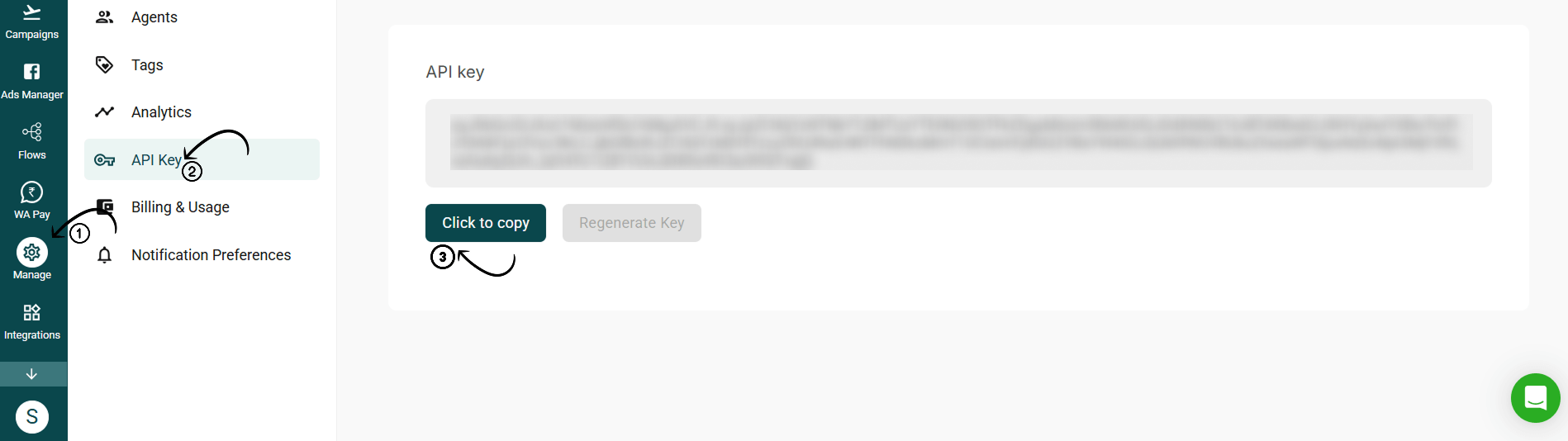
Click on Manage → API Keys
-
Copy the API key provided there (or create a new one)
Keep this key safe and confidential
Messegy Login
Step 2: Connect API Key to Corefactors
-
Log in to your Corefactors CRM
-
Navigate to Integrations → WhatsApp Settings
-
Select "Messegy” under “WhatsApp," click on “Connect”
-
Paste the API Key you copied from Messegy, & Click Save & Authenticate
If the authentication is successful, you'll see the image on the side.
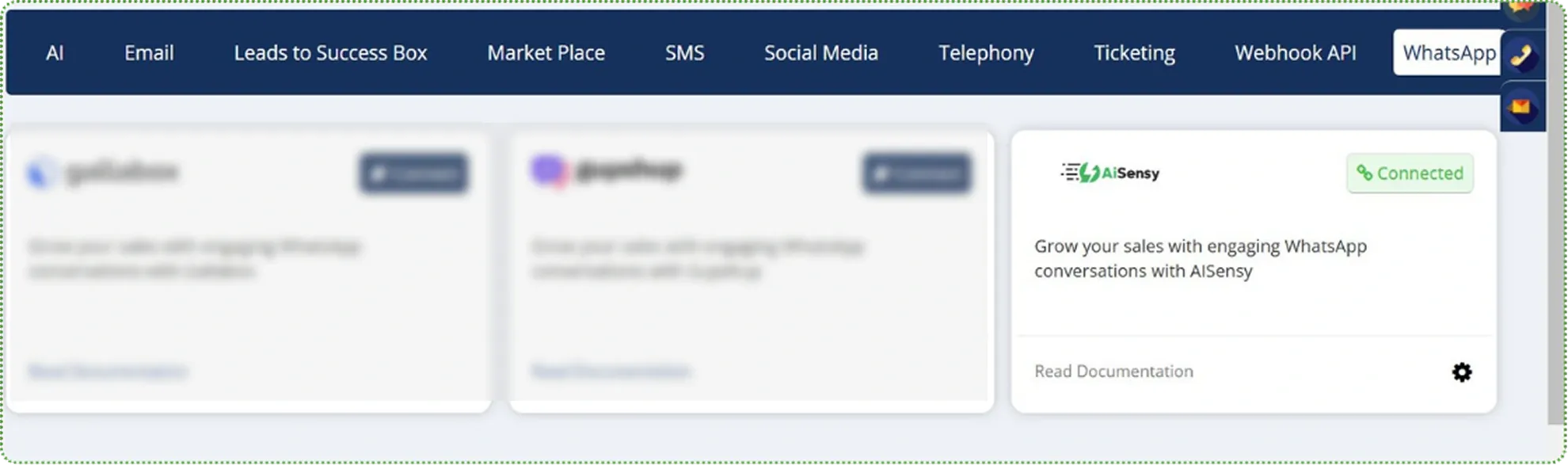
✅ That’s it. You’ve successfully connected Messegy to your corefactors CRM.
Now, let's show you how to trigger WhatsApp messages directly from your Corefactors CRM.
Step 1: Create a WhatsApp Template message on Messegy
In Messegy, navigate to the "Templates" section & create a new template message by clicking "+New".
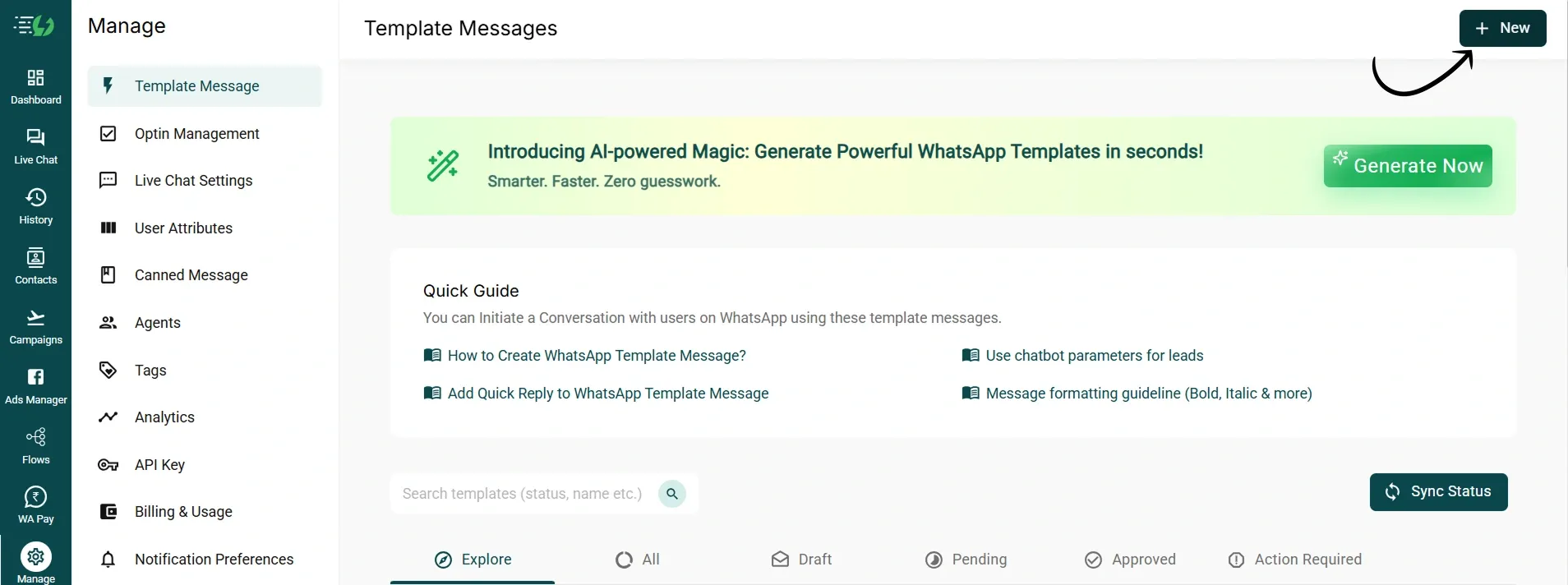
Step 2. Provide necessary details such as template name, category, and message content
For more info on how to create template messages in Messegy, check out:
Template Message Guide
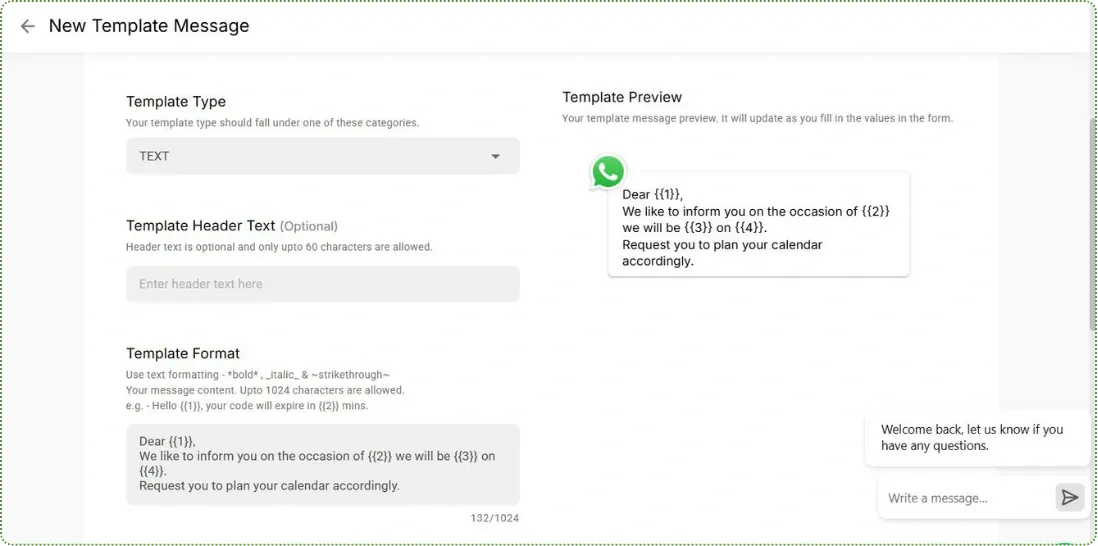
Step 3. Submit the template for approval
Once approved, the template will be available for use in campaigns.
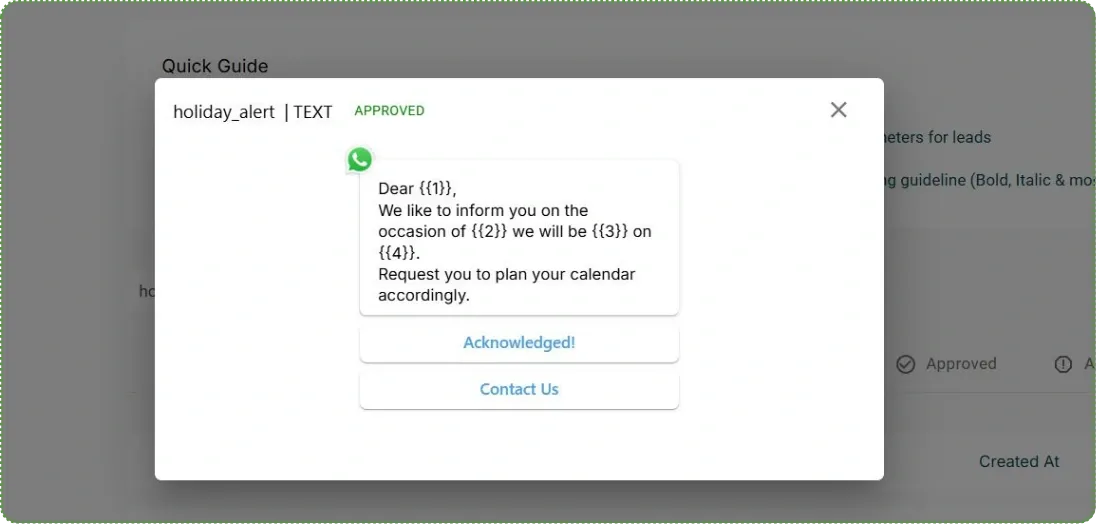
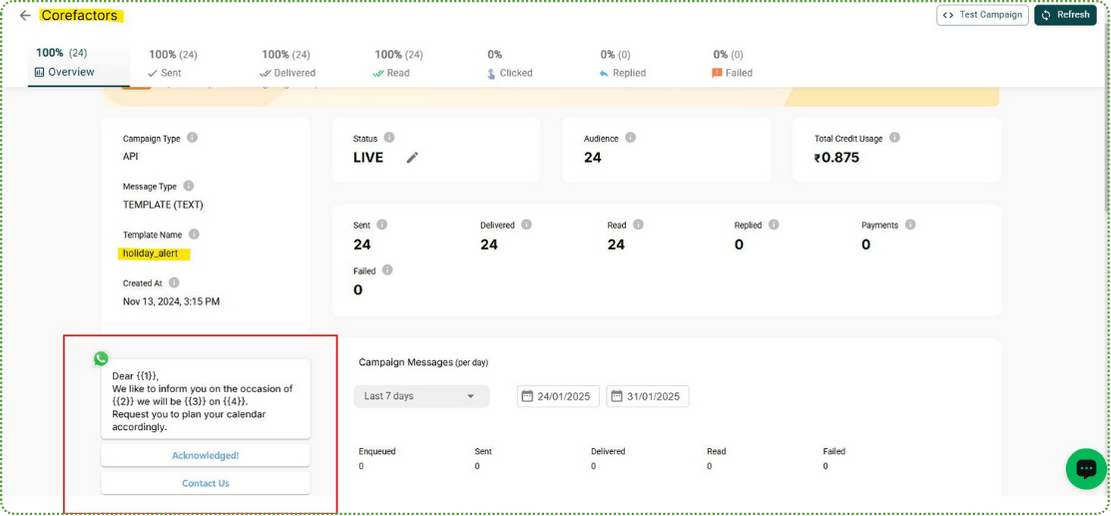
Step 4. Create a Campaign on the Messegy Platform
Go to the "Campaigns" section in Messegy.
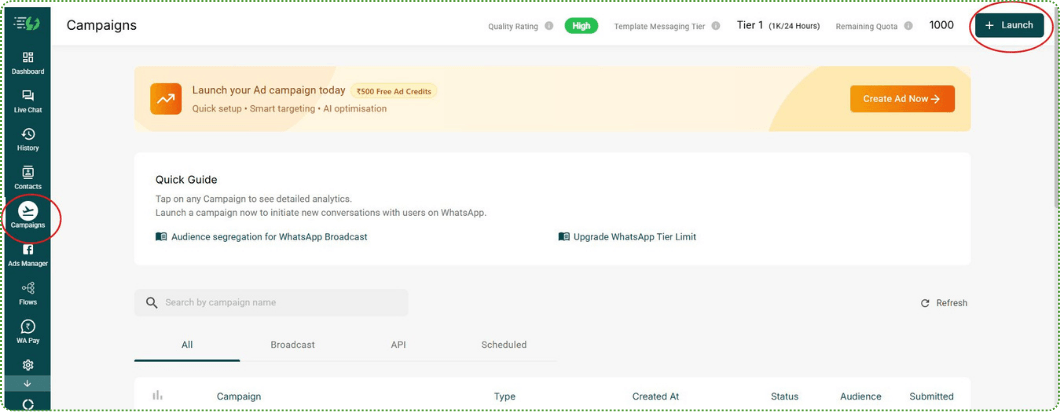
Step 5. Click on "Launch" and select API Campaign
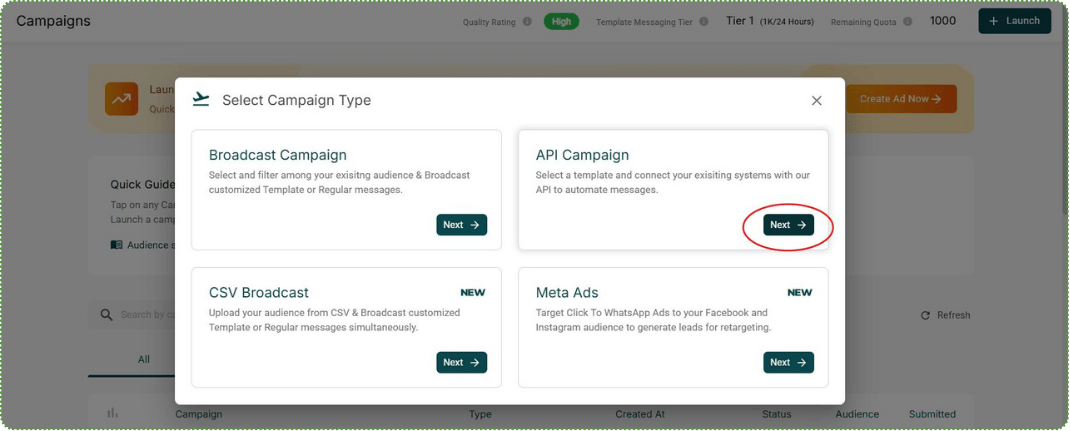
Step 6. Enter a campaign name and select the approved template.
Save and activate the campaign.
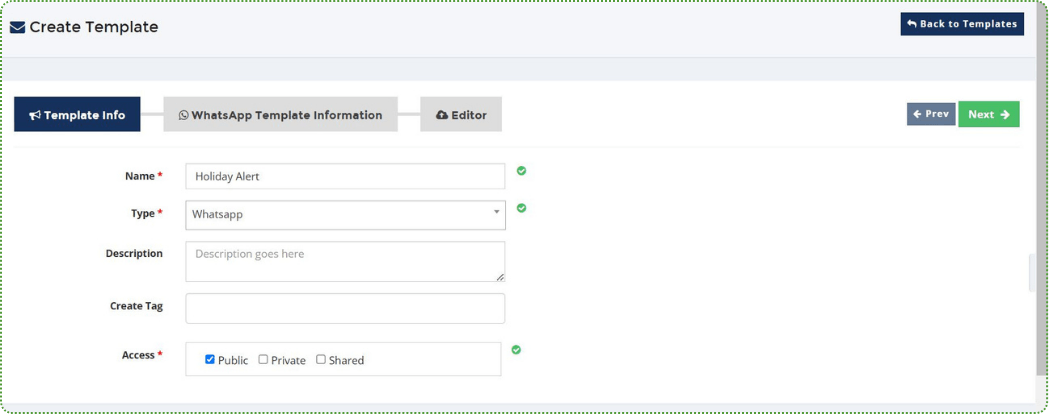
1. Access the Content Manager in Corefactors.
Access the Content Manager in Corefactors and click on "Create New Template."
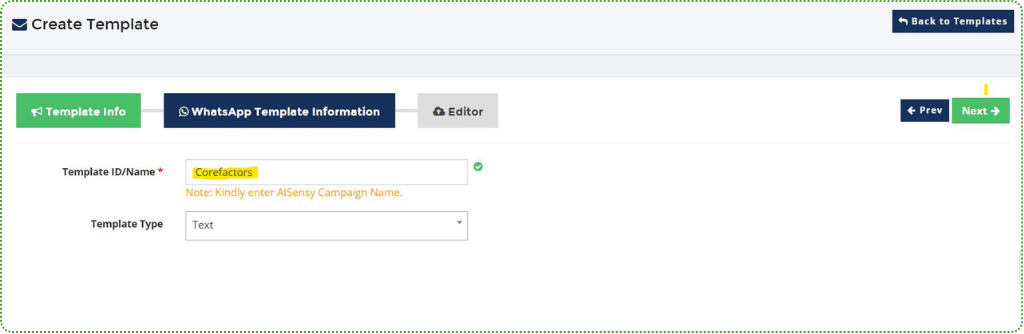
2. Provide a Campaign Name
Provide a campaign name under "WhatsApp Template Information" and compose the message content.
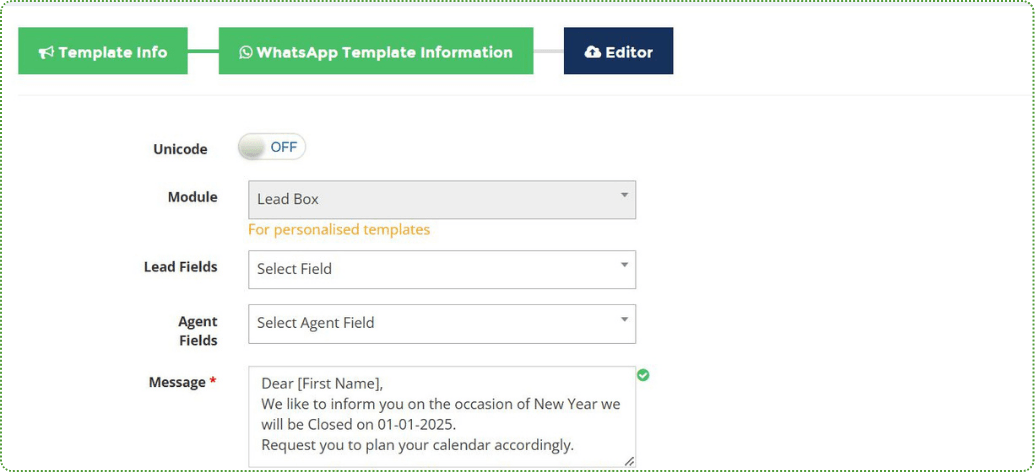
3. Save the template for future use
Open the Lead Box in Corefactors.
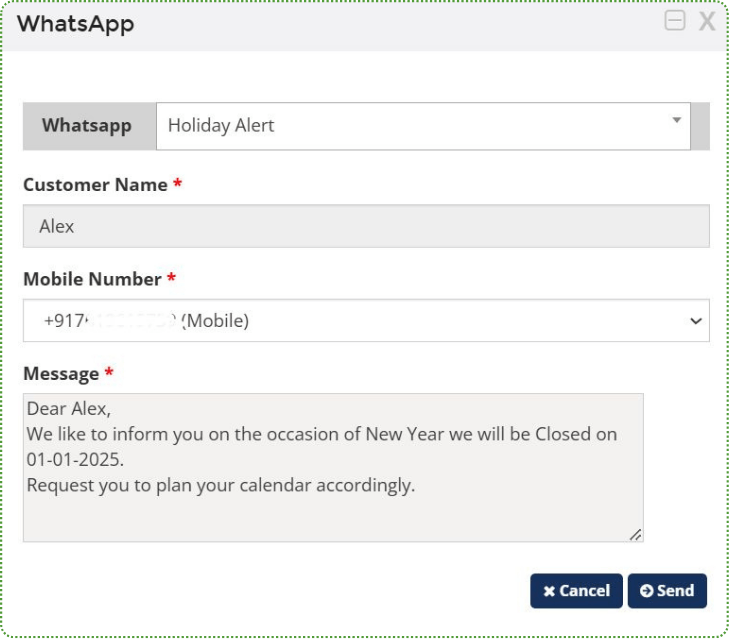
Select the lead for which you want to send a message
-
Click on "WhatsApp Now."
-
Choose the appropriate template from the dropdown menu.
-
Click "Send" to dispatch the message.
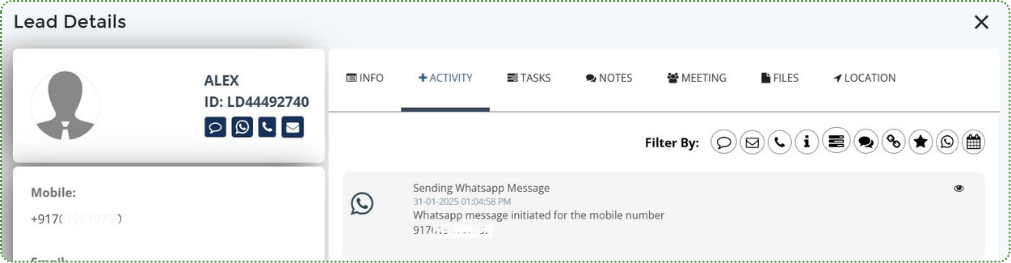
Final Step: Recipient/Lead Receives the WhatsApp Message
Once the message is sent successfully, the recipient or lead will receive it on their WhatsApp account.

Note
-
Corefactors also support WhatsApp Journey through the Messegy integration.
-
With the Messegy integration, corefactors users can send WhatsApp messages directly from the Support Box using the WhatsApp Now feature.