With Messegy's WhatsApp marketing and engagement platform, you can import up to 2,00,000 user contacts easily by creating a .csv file. Along with the names & numbers of all contacts, you can also import helpful information like tags & the lead's source. ⚡️Powered by Official WhatsApp Business API
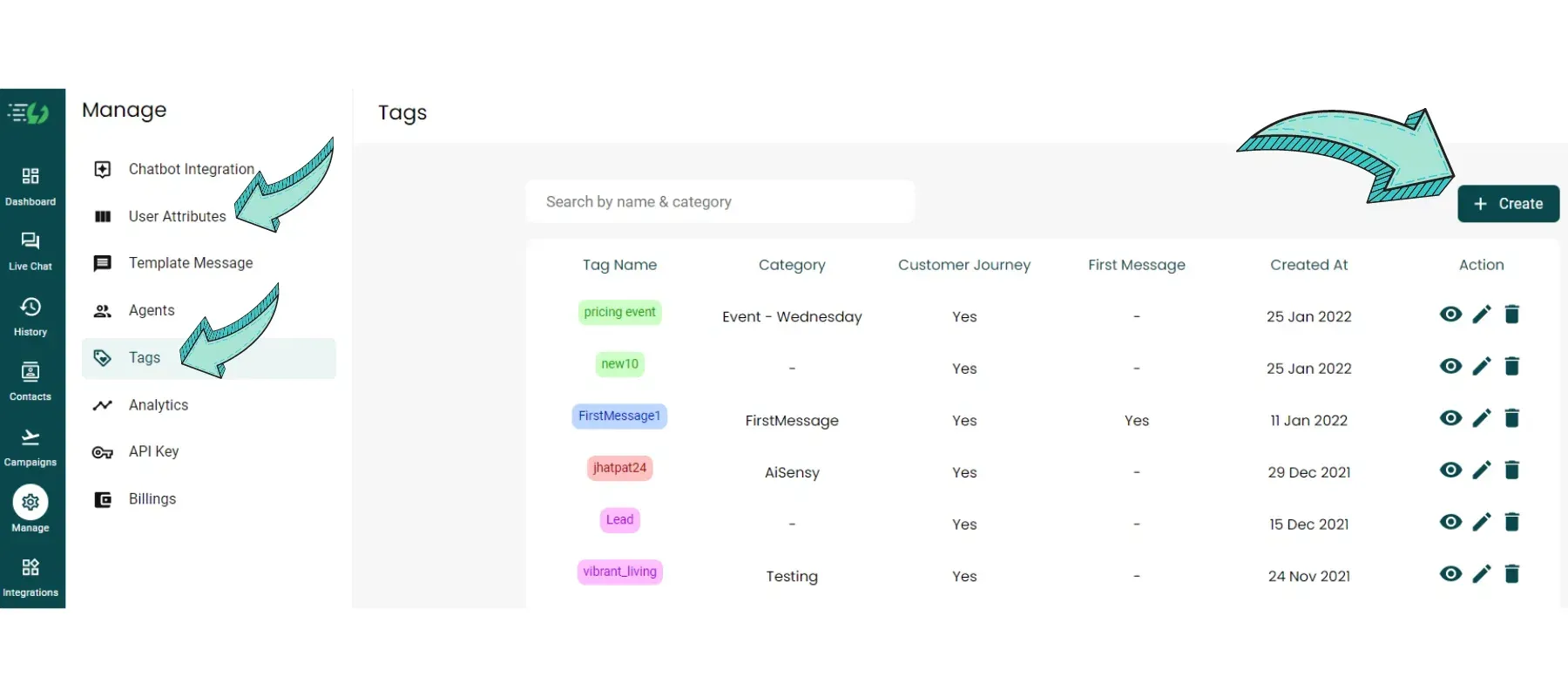
Create Tags & Attributes
To add contacts to Messegy with Tags & Attributes like email, source etc, you need to create Tags & Attributes with the same name in Messegy App. So, go to Manage & create Tags & attributes that match word-to-word with what you will add to your contacts .csv file.
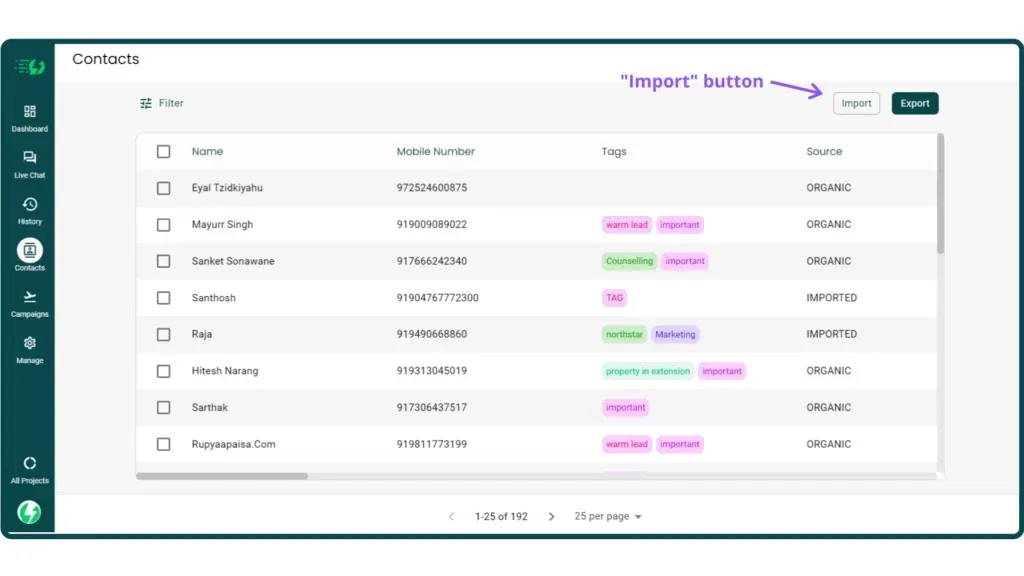
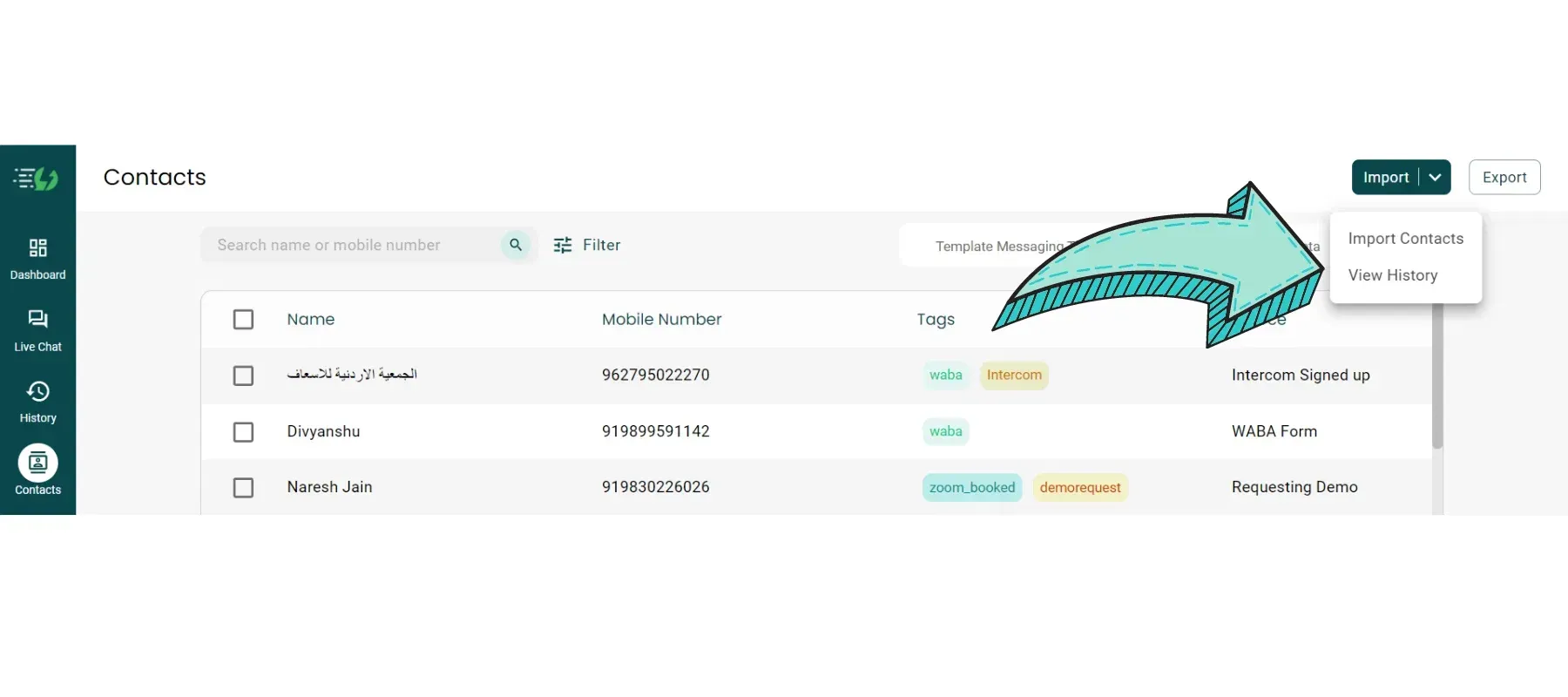
Go to Contacts Page & click 'Import' Button
Click on the “Import” button which is placed on the top right corner of the Contacts Page adjacent to the “Export” button.
Upload a .csv File Format
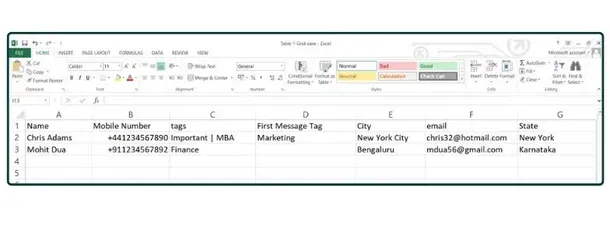
Please refer to the above on the left as the standard format of the CSV file. The First Message Tag field is empty for Mohit Dua, it simply means this field will be empty in the contacts page as well after importing.The headers City, email and State are the Custom Attributes. Also, the mobile number is written with the country code and a '+' sign. All the other fields which are not in the CSV file will be updated automatically or will remain empty according to the field’s property. Click on the button below for a Excel sheet reference.Note: The Blue Columns are mandatory sections.
Sample Excel Sheet
Upload your Contacts in a .csv File
A window will open after clicking on the Import Button where you need to upload the contacts file. Click on “Upload File” and select the file from your system. The format of the file should be .csvFor Excel, make sure to download the file in .csv format!

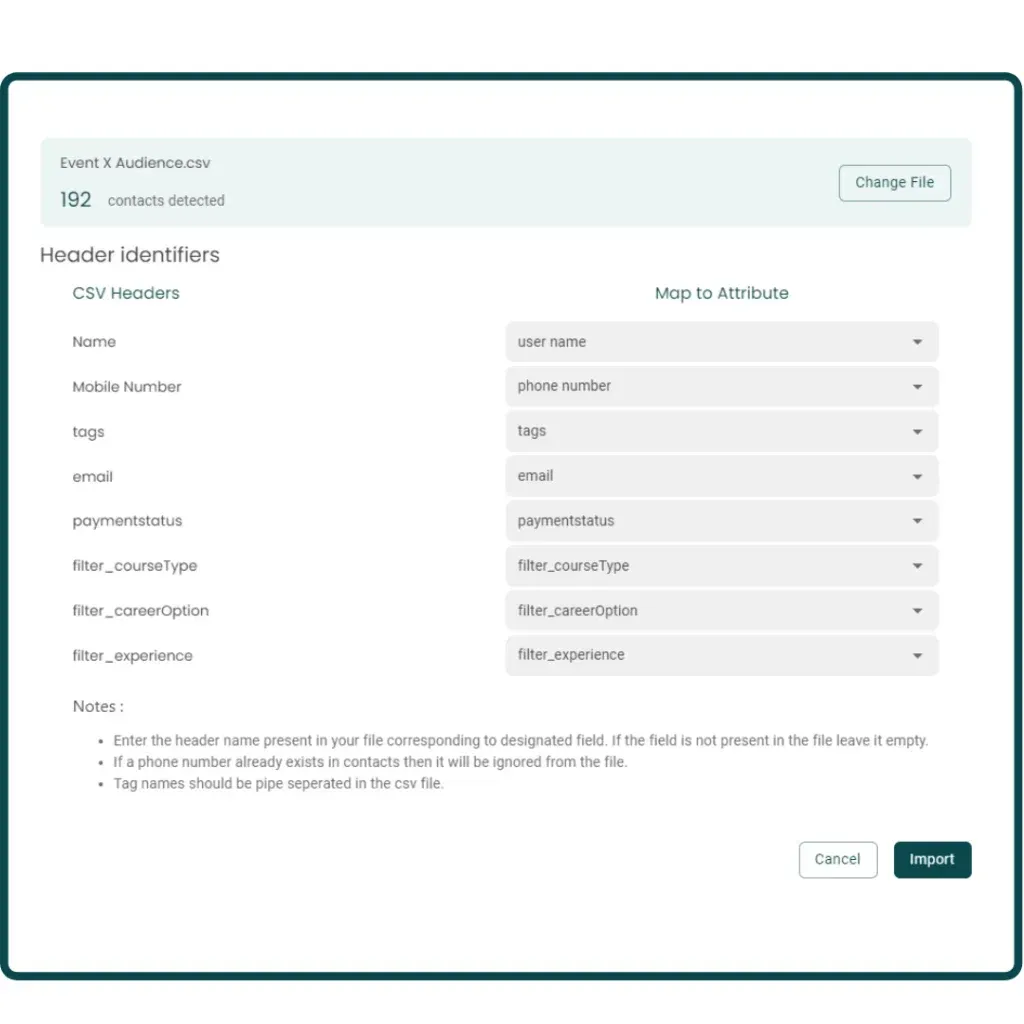
Map the attributes in line with Column Entries
After uploading the required file, you’ll have to map the attributes with the column entries of the .csv file.On the left side, there would be the Column Headings of the .csv file. On the right, there would be the attributes of your Messegy Contacts Page. For example, “Name” will be mapped to “user name”, “Mobile Number” will be mapped to “phone number” and so on and so forth.
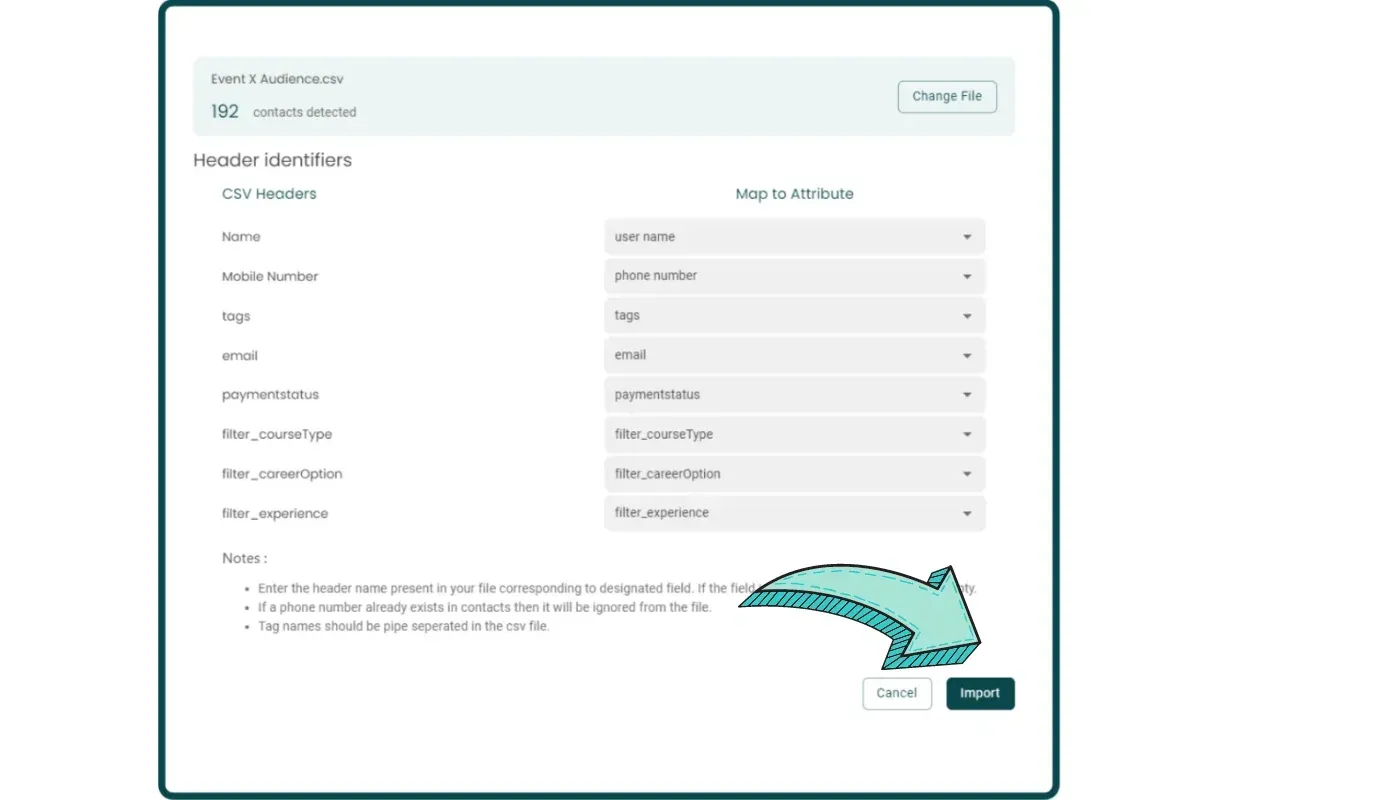
Hit the Import Button
Once every entry is mapped, the final step is to click on the “Import” button placed at the bottom right of the page and all your contact details of users will get imported.
View Contact History
You can view the Contact History & verify whether each of your contacts was imported successfully or not. Click the button 'View History' to view all the list of all contacts added to the Messegy App.
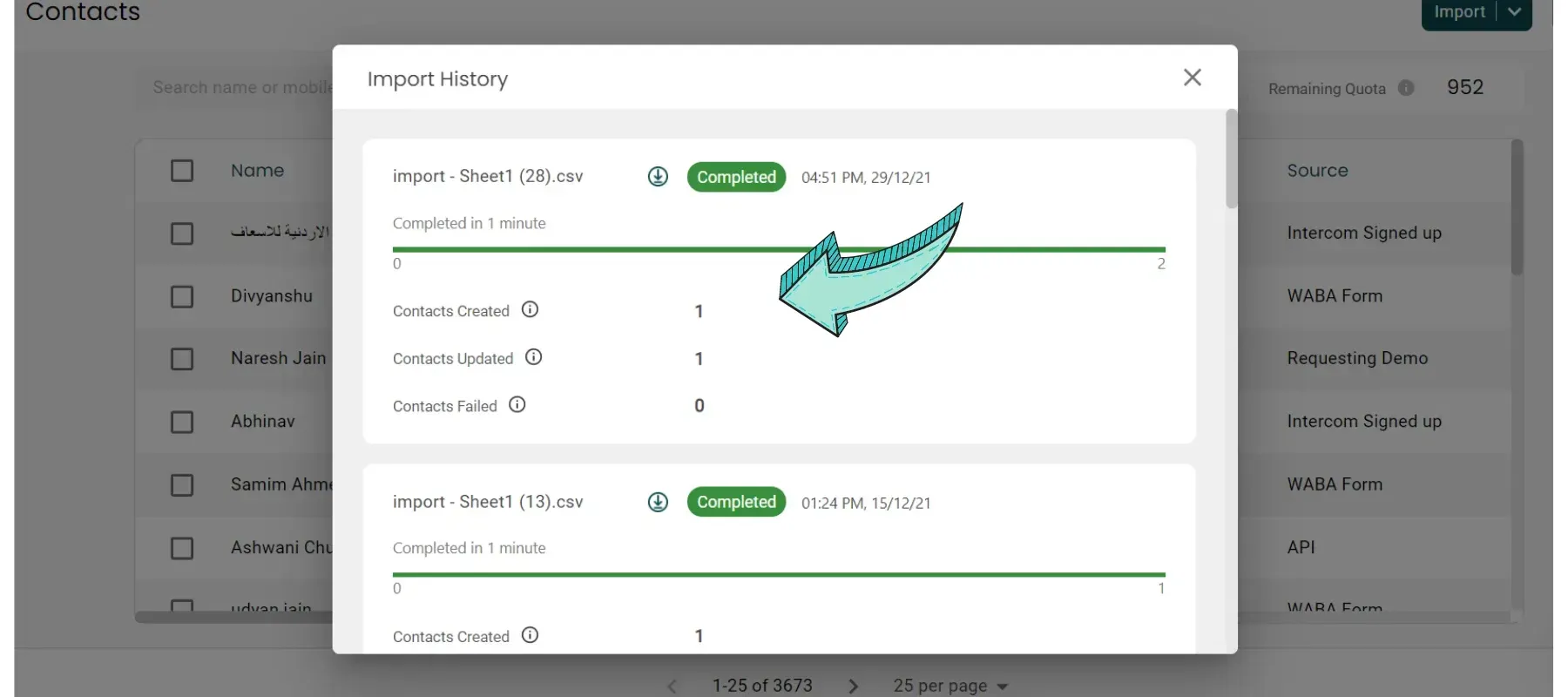
Download Contacts Added, updated or failed list
Clicking the "View History" button will load a window as shown in the image on the left. There you can see the number of contacts added, contacts updated or contacts that could not be added. The Contacts that are already added and you have again added them with updated attributes will show under 'Contacts Updated'. For updated contacts, chats won't be deleted!To know the reason for message failure, download the report & view the reason for failure.
FAQs
Still having doubts? Here are some FAQs
What is the required format for the .csv file?
While uploading the CSV file of the contacts, some fields are automatically created in the Contacts Page and other needs to be mapped manually which has a specific format.Fields that are automatically created and doesn’t need to be in the CSV file.1. Source: This field shows the source of contact creation. For example, “IMPORT” for imported contacts, “ORGANIC” for contacts created when the user-initiated its first conversation with WhatsApp Business API number, “API” for the contacts created through API campaigns and so on and so forth.2. Status: This field simply shows whether the user is ACTIVE (in 24 hours window) or INACTIVE.3. State: This filed shows the current state of the user. For example, “Intervened” if the chat is intervened, “Requesting” in case the user is waiting to get intervened, “Closed” if the query is resolved by the Agent and ticket is closed and “Handled by Assistant” if the WhatsApp Chatbot is handling the chat completely.4. Last Active: This filed shows the Date and Time of the last message sent by the user.5. Created At: This field shows the Date and Time when the user contact was first created in the Messegy Dashboard.Fields that need to be entered manually in the CSV file and their format:1. Name: This field is simply the user name. It has the standard Name format. The Name Attribute in the dynamic broadcast messages is fetched from this field such as $FirstName, $Name or $LastName.Example:Name: Mohit Dua$Name: Mohit Dua$FirstName: Mohit$LastName: Dua*The Name field is mandatory to upload a CSV file.2. Mobile Number: Mobile numbers in the international format with a + sign and the country code.Example: +15417543010 (For USA)For INDIAN Phone Numbers: It’s just the 10 digits mobile number or with 91 (the country code) or +91. All of them are valid. Example-: 9876543452 or 919876543452 or +919876543452For Note: If a phone number is entered without a country code and + sign, the Messegy Platform considers it as an India Phone Number and automatically adds 91 as the prefix.*The Phone Number field is mandatory to upload a CSV file.3. Tags: Various tags can be assigned to the users based on lead qualification, current state, specific stages and many other parameters. If a single needs to be assigned to a contact, just write the tag name exactly as mentioned in the Messegy Platform. In case multiple tags are assigned to a contact, then the tags should be separated by a “|”.Example- Let’s suppose there are multiple tags in the education sector namely MBA, Marketing and Finance. Now, three different contacts need to be assigned a single, two and three tags. The format of the tags will be:Contact 1: MBAContact 2: MBA | FinanceContact 3: Marketing | Finance | MBANote: Make sure the Tags which needs to be uploaded with contacts must be created beforehand in the Tags Section of the Messegy Platform otherwise the Tags won’t be assigned to the users. Also, the Tags field will remain empty in case you don’t put any value or even don’t have the Tags header in the CSV file.4. Source: The Source field is the Source Name of the Lead generated. But since it is customisable and can be changed as per the will of the business while uploading, it can be used for specific intents of action planned through Messegy Platform. The format is quite simple, just write the Source Name in the CSV file and it will be replicated in the Contacts Page.The Souce Field in the Contacts Page also gets mapped automatically such as “API” if the contact is created through the API campaign, “Organic” in case the user creation is done organically when a new user sends an incoming message and “Imported” if the CSV file is being imported without the Souce Field.Note: The Source field will remain empty in case you don’t put any value or even don’t have the Source header in the CSV file.5. First Message: This is a Tag automatically assigned to the users on the basis of their first message. The format of this field is exactly the same as that of the Tags field. The only difference is that it can’t have multiple values, it is singular.Now you must be wondering about how to configure the First Message Tag? This is covered in the Tags Page of the Messegy Varsity.Note: The First Message field will remain empty in case you don’t put any value or even don’t have the First Message header in the CSV file.6. $Custom_Attribute: This field contains some data points or qualification parameters or attributes of each user. These attributes are used to filter down the contacts on certain interest points in order to send them targeted WhatsApp Broadcast campaigns. These can be automatically collected in the form of questions from the users using a chatbot or can be manually uploaded while importing the contacts.To create these Attributes fields in the Contacts Page, go to “User Attributes” in the “Manager” section of the Messegy Platform.Now, you must be wondering how to collect the Attributes from users automatically using a chatbot? This is covered in the User Attributes Page of the Messegy Varsity.Note: The $Custom_Attribute field will remain empty in case you don’t put any value or even don’t have the $Custom_Attribute header in the CSV file.
How to Export the data and in which format it will be exported?
In the Contacts Page, there is an Export Button beside the Import Button. By clicking on the button, all the contacts on the page get exported in a CSV file. In case you need to export some specific contacts, you can simply segregate them using the filter option and get them exported in a CSV file.
Can I export the data of a certain group of users?
Yes, you can export the data of a certain group of users. Just filter down the audience on the basis of various attributes such as Campaigns, Tags, Name, Created At, etc. you want to export and click on the Export Button to get the data in the CSV file.
What if I import a contact that already exists on the Contacts Page?
If you import a contact that already exists in the Contacts Page of the Messegy Platform then the contact gets updated with the new values imported through the CSV file. Early chats won't get deleted for updating contacts.
Can I change the values of the fields from the Contacts Page?
Yes. You can change the values of the fields from the Contacts Page. In case you need to change some specific values of a particular contact, Go to the Contacts Page 👉 Select a Contact 👉 Under actions, choose Edit Contact 👉 Edit Contact Value 👉 Press Save.
Ready to get Started?
Get Started for FREE. No Credit Card needed.⚡️Powered by Official WhatsApp Business API
Book a DemoStart for FREE