Messegy's Live Chat Page is the one-stop destination to receive & respond to all WhatsApp Chats. This tutorial is all about how to optimally use the Live Chat Page without the WhatsApp Chatbot in place.
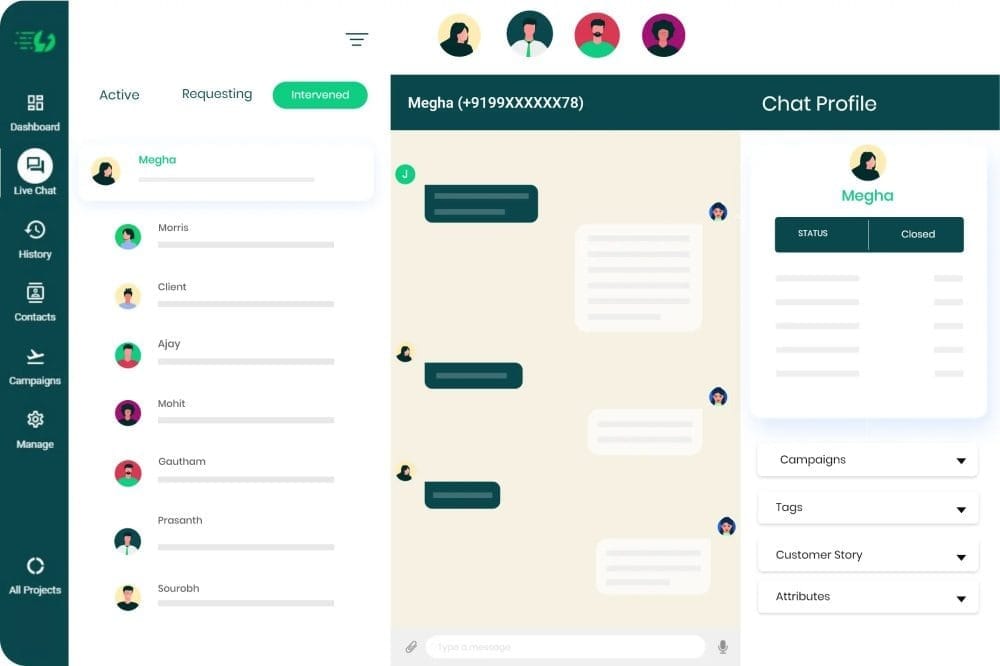
User Profile
The User-profile summarizes all the information you need to know a user's intention to connect & send them relevant broadcasts & messages.
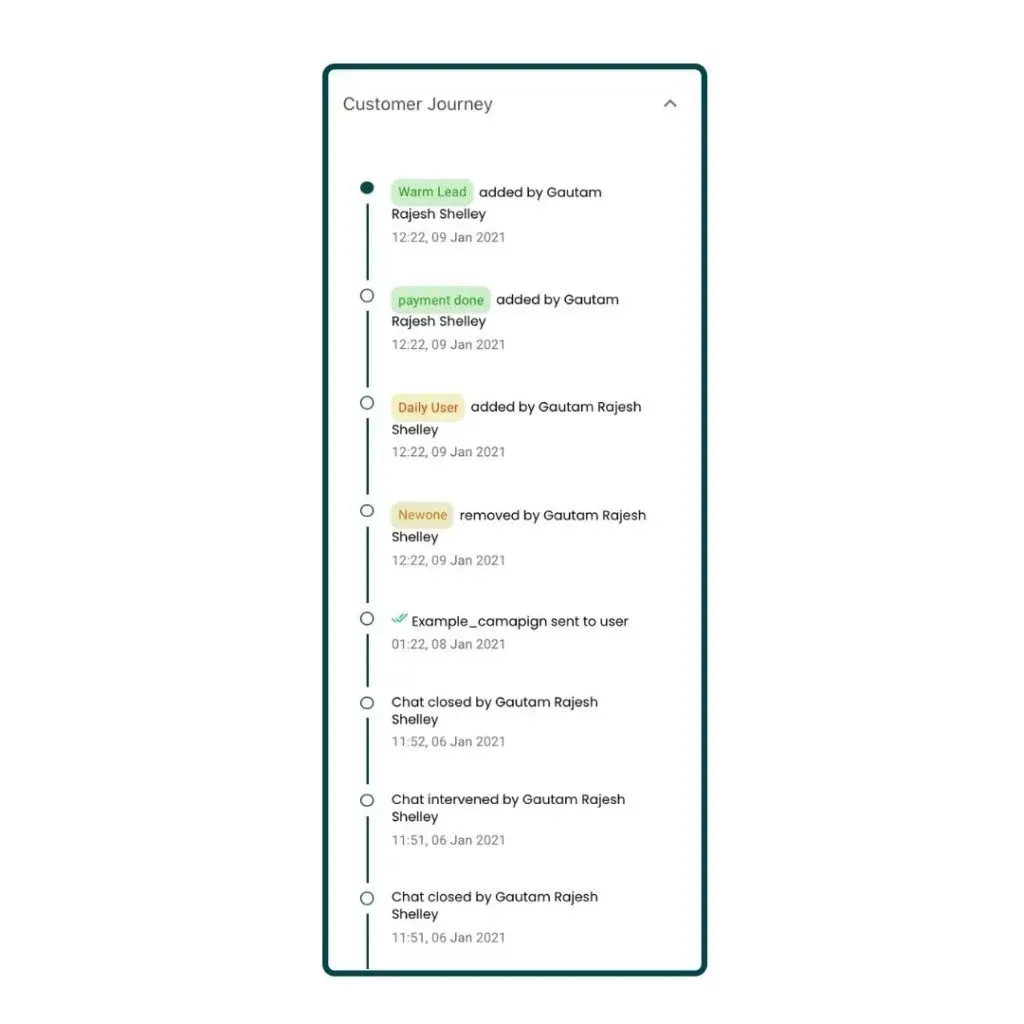
Customer Journey
Customer Journey tracks all the actions exchanged between your agent & customer.
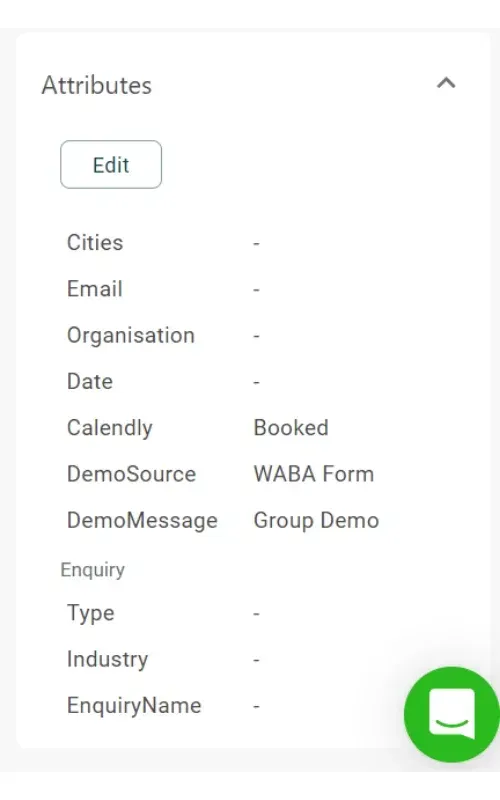
Attributes
The attributes are considered as the qualification parameters such as Email, Country, Organization name based on which the Chatbot will suggest suitable products.
Requested Chats
Chats that need customer agent intervention.
Intervened Chats
Chats that have been intervened by Live Chat Agent.
User sends you a text on WhatsApp
Whenever a customer messages you, the chat transfers to Active Chat handled by the WhatsApp Chatbot. But, in this case, the chat will directly go to the 'requesting' section. Thus, you can only interact via human intervention without WhatsApp Chatbot in place.
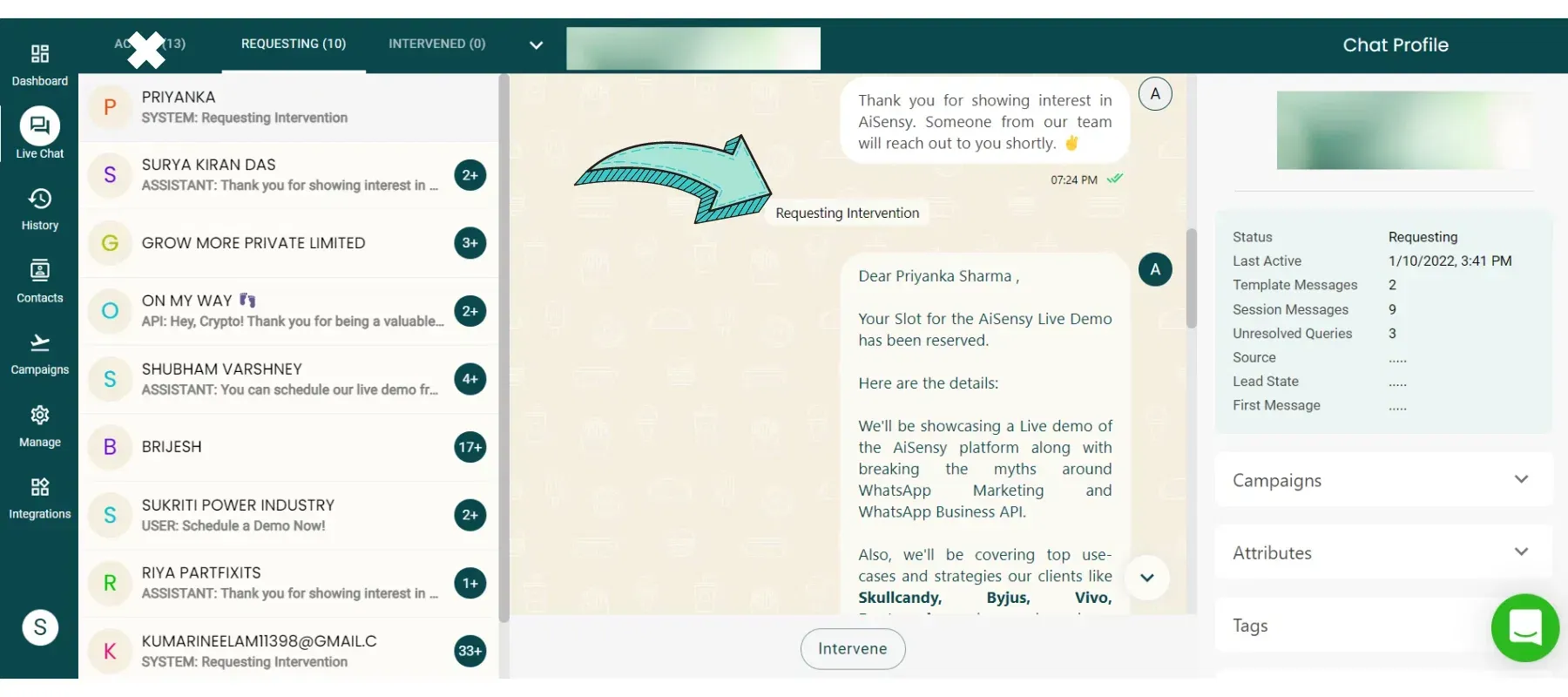
Live Chat Agent Intervenes the Chat
Without WhatsApp Chatbot, conversations are only possible through Live Chat. Upon Intervention, your user & Live Chat Agent can talk in real-time. This enables your agent to provide answers to the user's query!
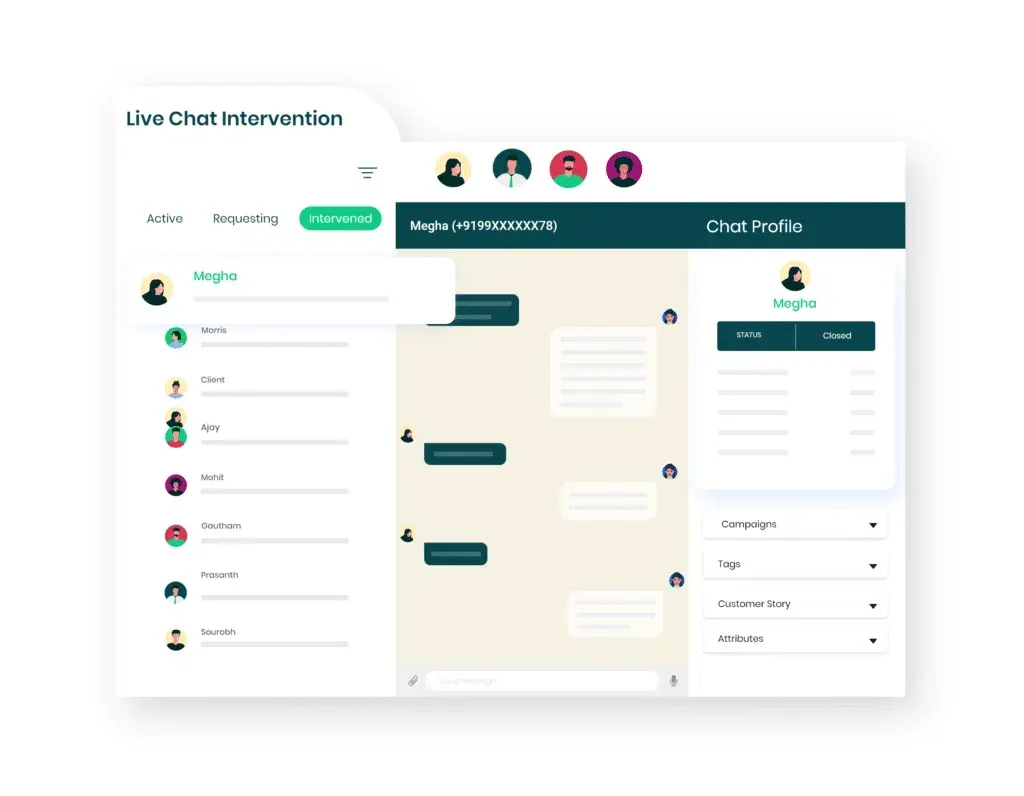
Click 'Resolve' upon completion of query
The agent that intervenes the chat is the only one who can view the Chat. So, upon successfully resolving a query, ask your agent to click the 'Resolve' button so that the chat is visible to everyone. 24 hours after the last conversation with the user, the chat will go to History Page.
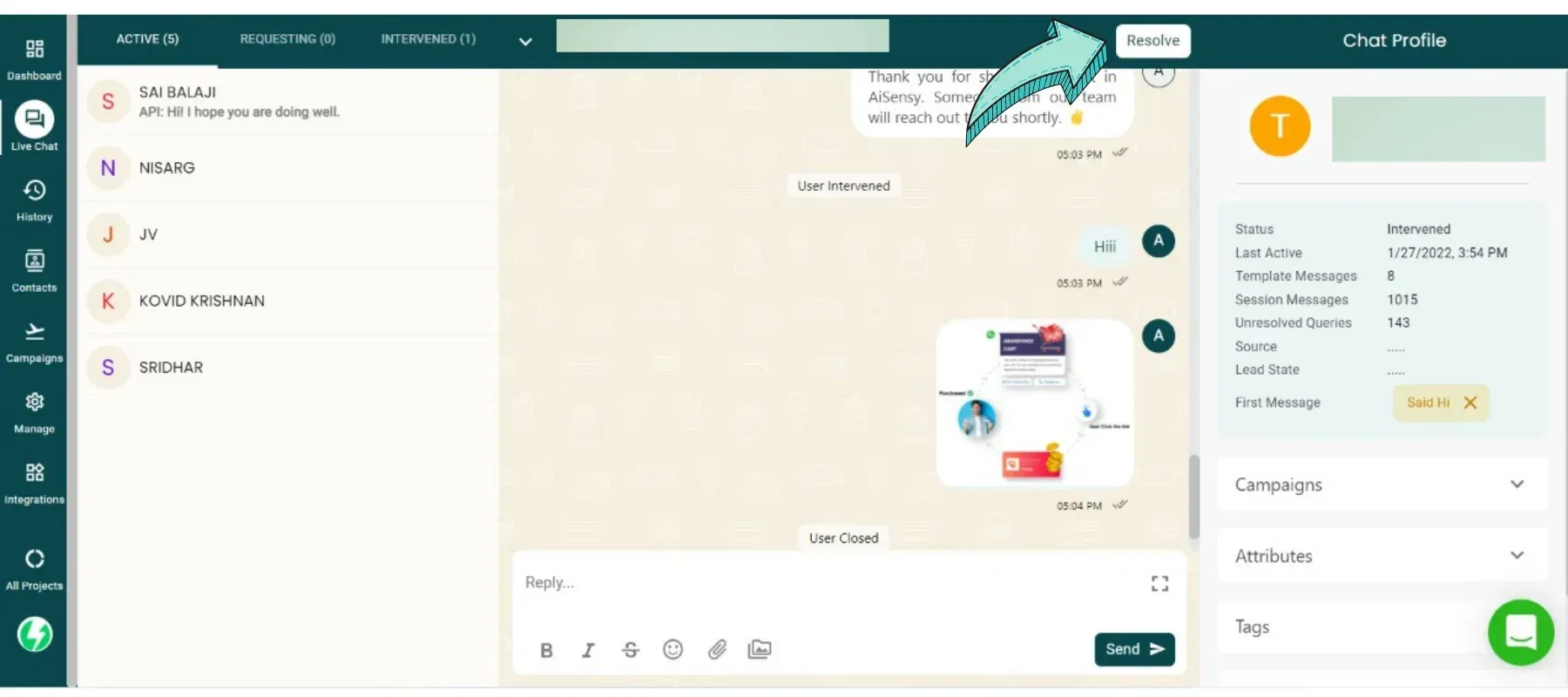
Add/ Edit User Attributes
So, your agent successfully answered the user's query. But, while answering the query, they discovered that the user's email id had changed & wanted to save the new email ID. The attributes section in User Profile allows your agent to update the user's Email ID in the User Profile.
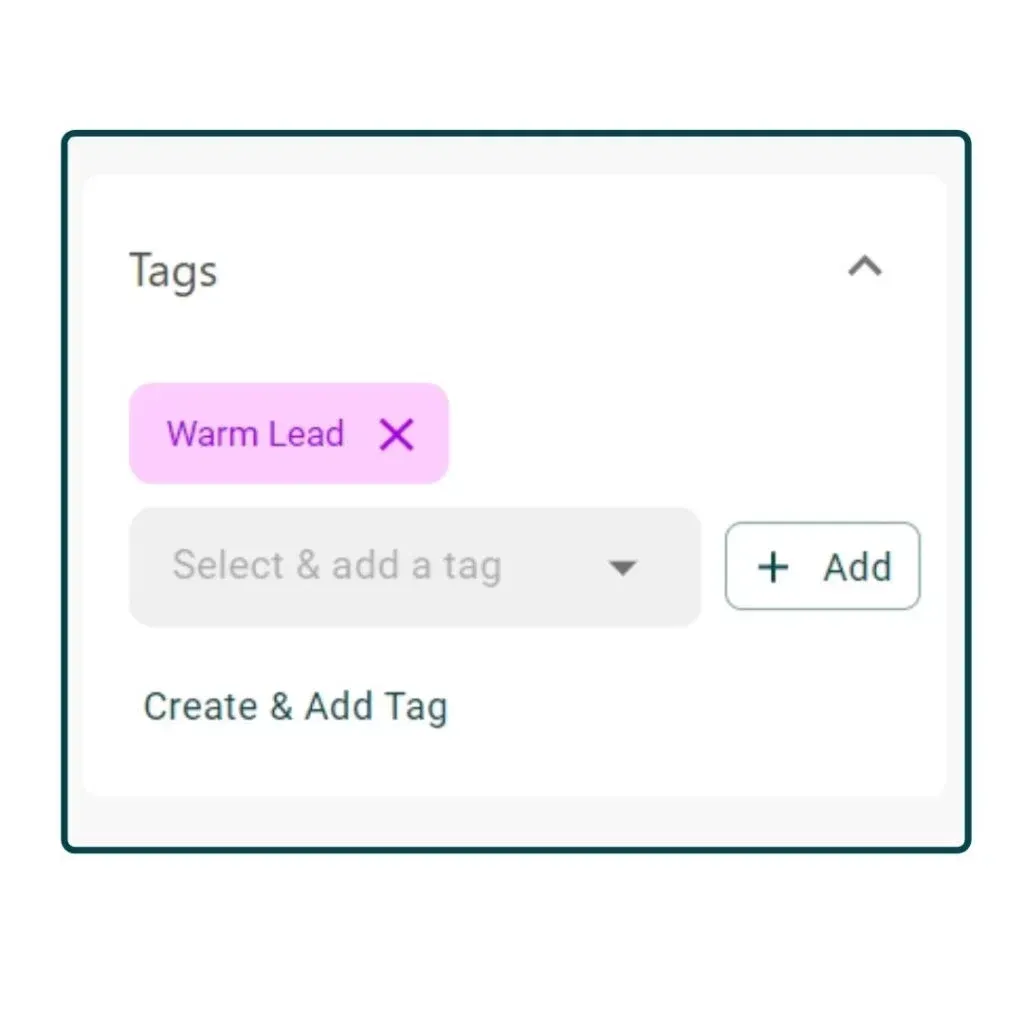
Adding/ Editing Tags
There are 2 Types of Tags: Automated & Manual Tags.Automated tags include "First Message Tag", "API Tags", "Broadcast Tags".Manual Tags are added by you or your live chat agents. Assigning tags to users is really simple. First, configure all the tags that are relevant to your use case from Tags Category in Manage Section. Next, your agents can click the drop-down button as shown in the image on the left & manually allot the tag to a particular user.
Monitoring a user's Customer Journey
Customer journey keeps a track of all the events exchanges between the Agent and the User. For example, which Agent intervened in the chat, which agent added which tag, what all campaigns have been sent to the user and so on and so forth. Moreover, the date and time of each event are also mapped.Customer Journey gives you a proper idea of a user's intent & helps you send them better campaigns & template messages that lead to conversions,.
FAQ
Still having doubts? Here are some FAQs
What is the Chat Profile?
The chat profile contains all the parameters of the user interaction with the business. Also, it maps all the events triggered by the business to qualify the user according to their interests which are used for sending personalized and targeted campaigns to the users in future. The chat profile includes Basic Parameters, Campaigns, Attributes, Tags and Customer Journey.
What are the parameters such as Status, Last Active, Source etc?
There are various parameters in the user profile for individual user details:1. Status: Active, Requesting, Intervened and Closed are the 4 different user status.Active: If the user is in the Active section, the status is “Active”. This means the chat is handled by the WhatsApp chatbot.Requesting: If the user needs an agent intervention, the status changes to “Requesting”. All the chats in the requesting section would have Requesting as their status.Intervened: The status changes to “Intervened” once the chat is intervened by the agent.Closed: Once the query is resolved after intervening in the chat and the agent clicks on the “Resolve” button, the status changes to “Closed” and the chat is again transferred back to the chatbot.2. Last Active: This shows the date and time of the last message sent by the user to the business. For example: 03-28-2021, 07:37 PM.3. Template Messages: This shows the number of template messages sent to the user by the business.4. Session Messages: This shows the number of session messages exchanged between the user and the business.5. Unresolved Queries: This shows the number of queries for which requesting intervention got triggered. Basically, it shows the count of all those queries that the chatbot wasn’t able to solve and requested the agent intervention.6. Source: It shows from where the user came in the Messegy platform.Organic: If the user initiates the message with the business on WhatsApp, the source is assigned as Organic.API: If the chat is initiated via an API campaign with the user, the source assigned is API.Customized: You can import the data to the Messegy platform in CSV format. While uploading it, the source can be customized to anything.7. First Message: In this parameter, the first message tag will be assigned to the user according to the pre-defined message sent by the user. For example, there will be a different pre-defined message for different product/service pages, different ads within different ad sets. Now, if a user is coming from the “Product A” page, the “Product A” tag will be assigned to the user as a first message tag.
What is the significance of the First Message tag?
Any tag can be created as a first message tag. While creating different tags from the “Manage” section, there is an option to make the tag a First Message Tag. You just need to implement that feature and it will be used for the first message tag.
Can audience segmentation be done on the basis of First Message tag?
Yes, you can segregate your audience on the basis of First Message Tags and can send a personalized & target broadcast campaign.
What is the significance of double green tick after each campaign name in the Campaign Column of User Profile?
The double green tick is similar to the read receipts in WhatsApp App. This shows that if the user has seen/read a particular campaign message and which campaign message got ignored/unnoticed.
What is the attributes section?
This has all the attributes parameters of the users collected automatically via a chatbot in a conversational manner. The attributes are considered as the qualification parameters of the users. Moreover, according to these attributes, the WhatsApp chatbot will suggest to the users some products or courses according to different use cases
Can I customize these attributes according to my use case?
Yes, all the attributes are customizable. Moreover, you can configure the attributes at any point in conversation within the chatbot.
What is the maximum limit on the number of attributes?
20 is the maximum limit on the number of attributes. This is more than enough to qualify the leads. Moreover, there are tags to further qualify the lead.
Sign up for FREE WhatsApp Live Chat
Get Started for FREE. No Credit Card needed.⚡️Powered by Official WhatsApp Business API
Book a DemoStart for FREE