Do you want to automatically send Welcome & off-hours messages to users?By setting up Welcome & off-hours auto-replies, you ensure that a user immediately receives a message from your end depending on the time they connect with you.
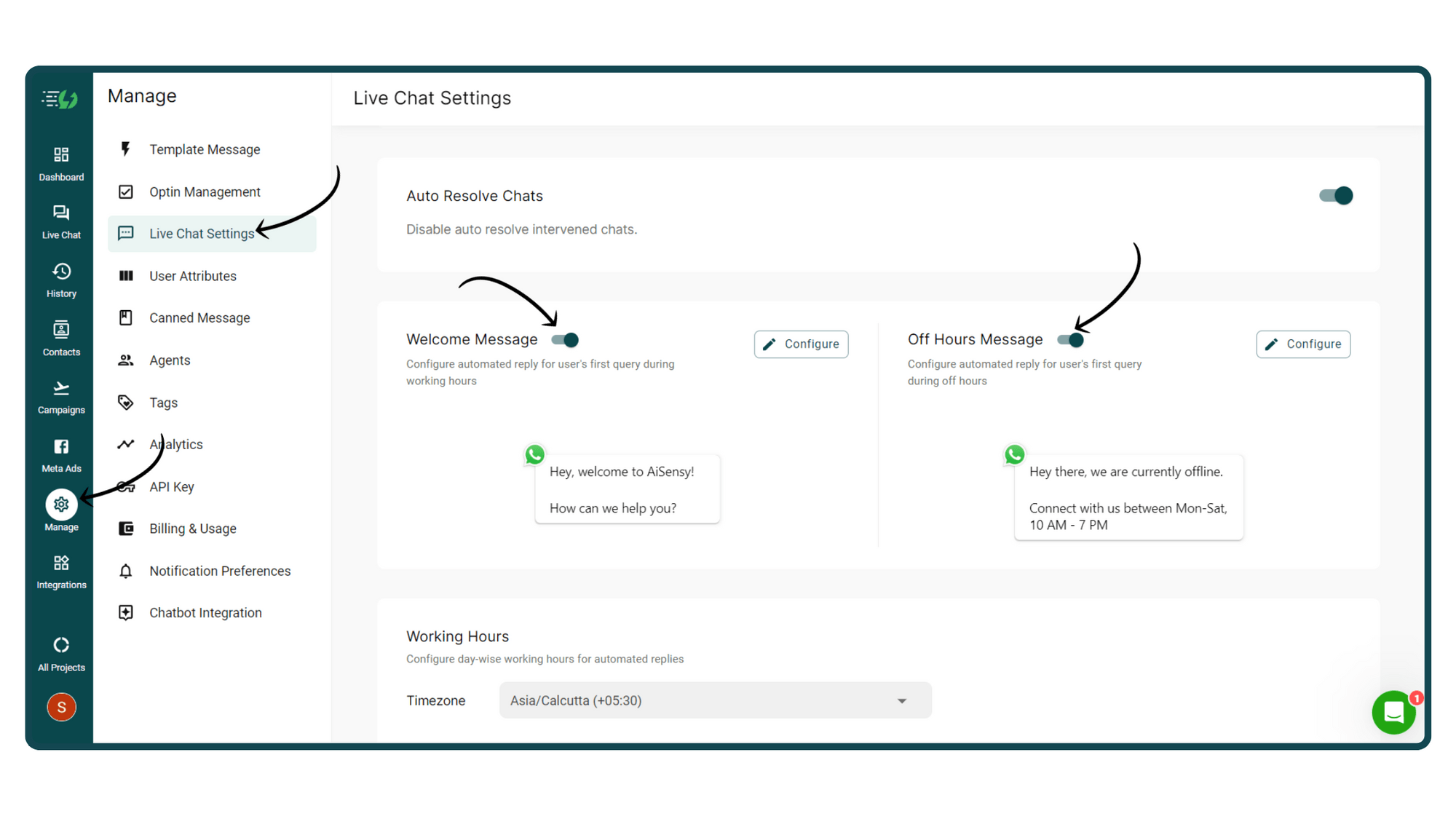
Go to Live Chat settings
To set up a Welcome / Off-hours message, go to Manage & choose Live Chat settings.In Live Chat settings, enable Welcome & Off-hours messages as shown in the below image.Make sure to turn on the Enable button if you wish to automate the auto-replies.
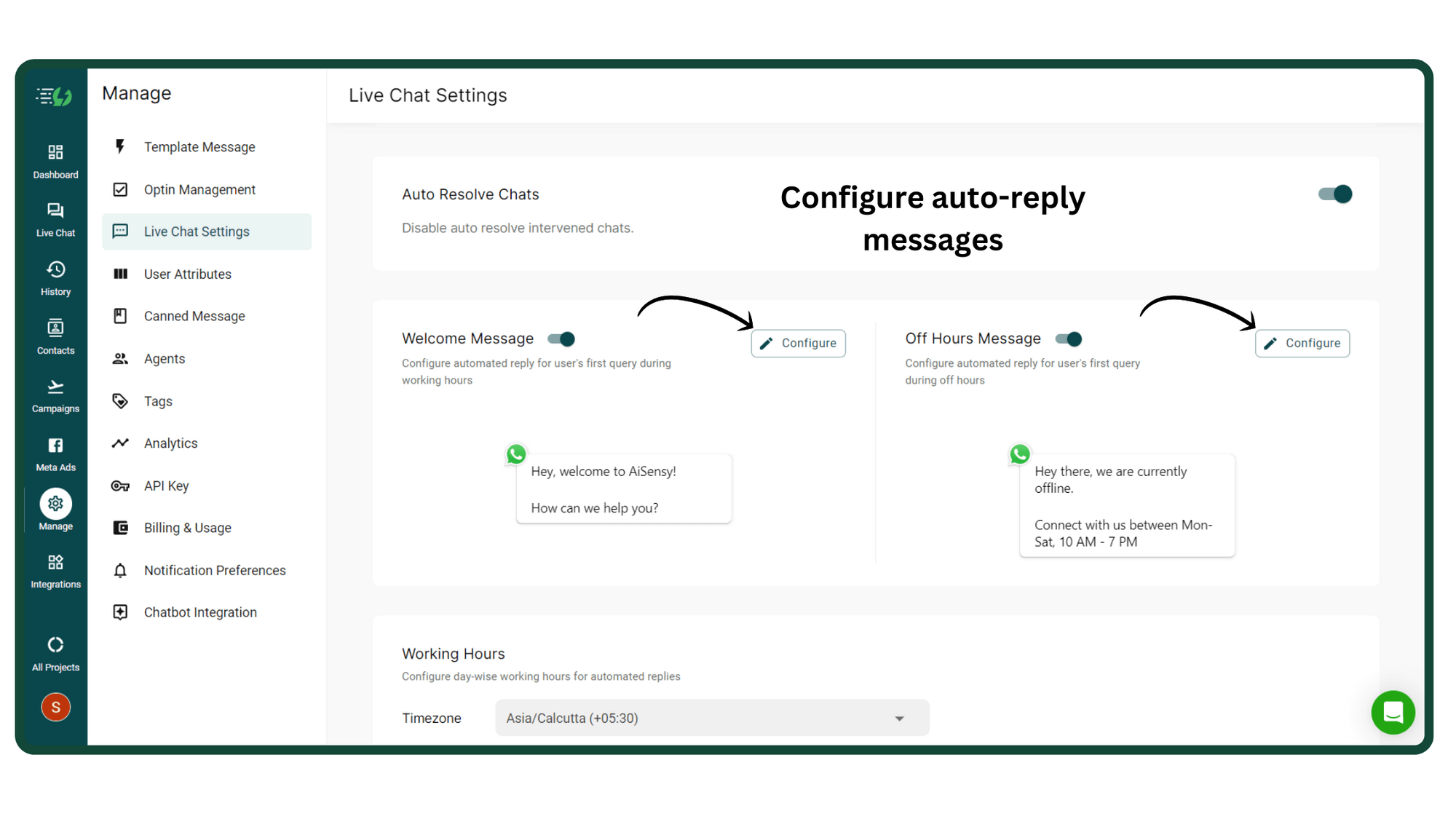
Configure Welcome & Off-hours message
After enabling Welcome & off-hours messages, let's configure the message you wish the user to receive.Hit the Configure button to configure the messages.
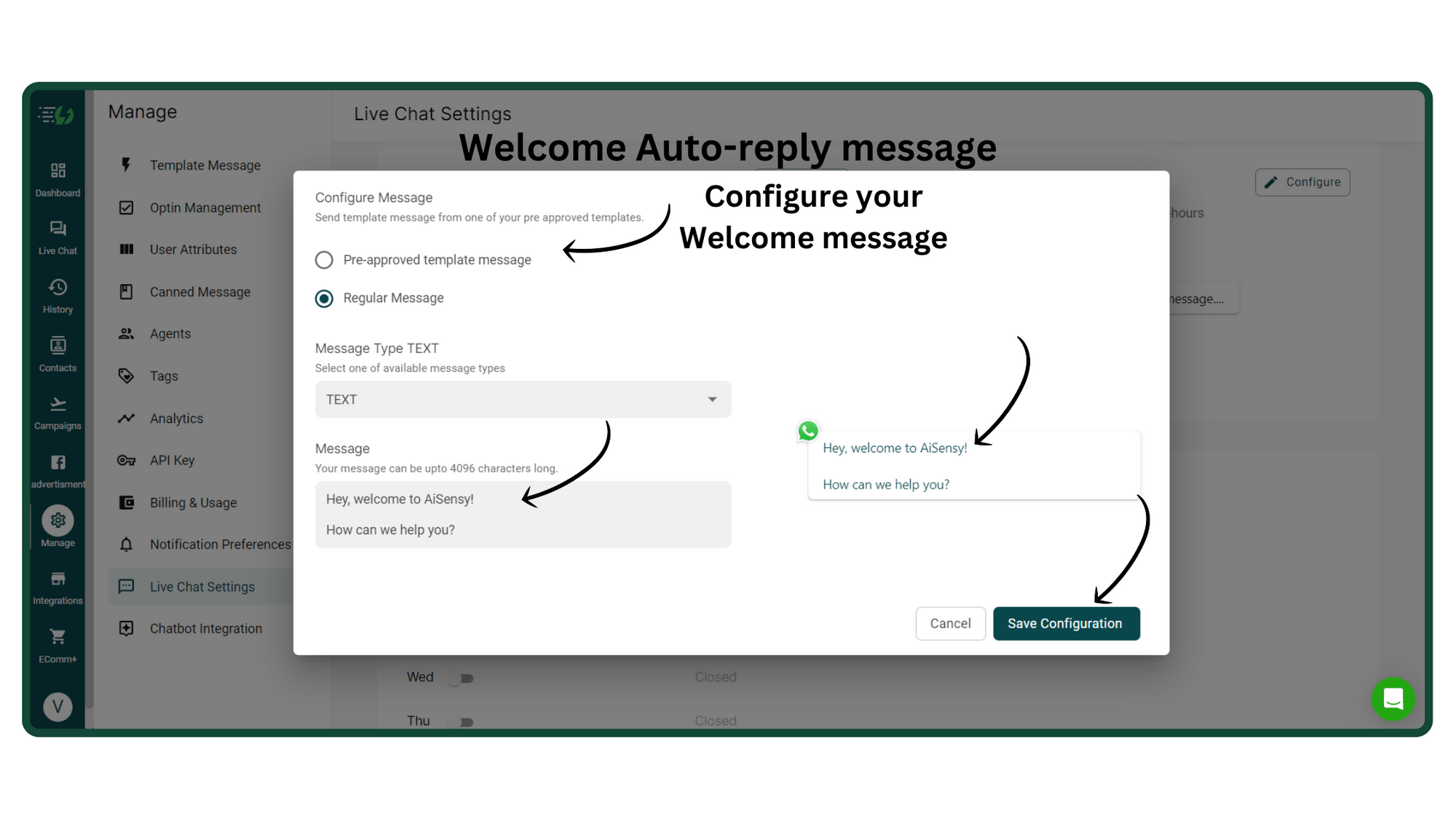
Configure Welcome Message
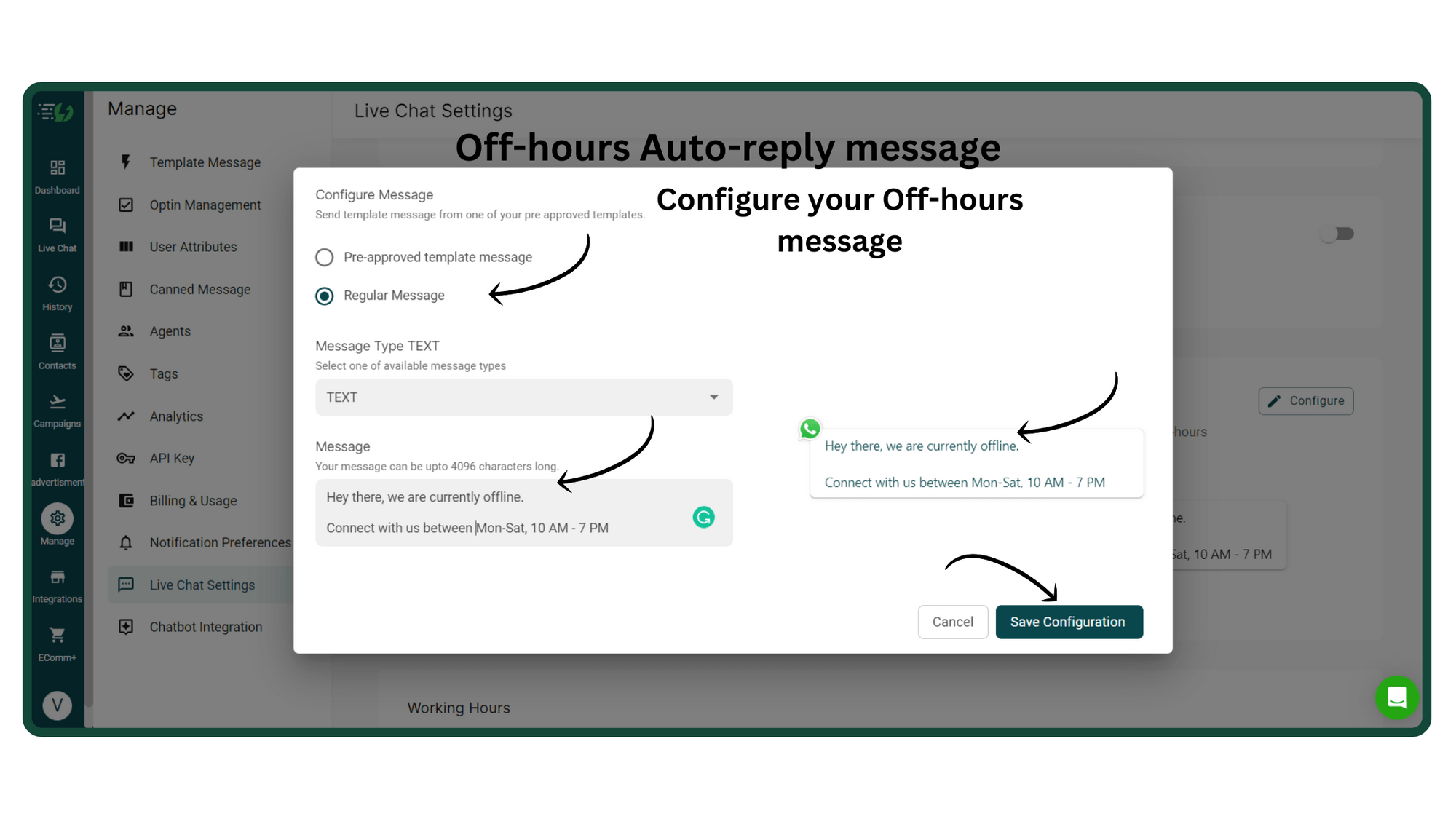
Let's first set up a Welcome auto-reply message.This message will be automated to users that message you during your set working hours.You can either choose a pre-approved message or create a Regular message to automate to users.You can choose whether to send a text message, an image message or even send a file for your welcome text.After configuring the message, click on Save Configuration to save your message.
Configure Off-hours message
Repeat the same process to set up your off-hours message.This message will be automated to users that message you outside your set working hours.
Set Timezone & working hours
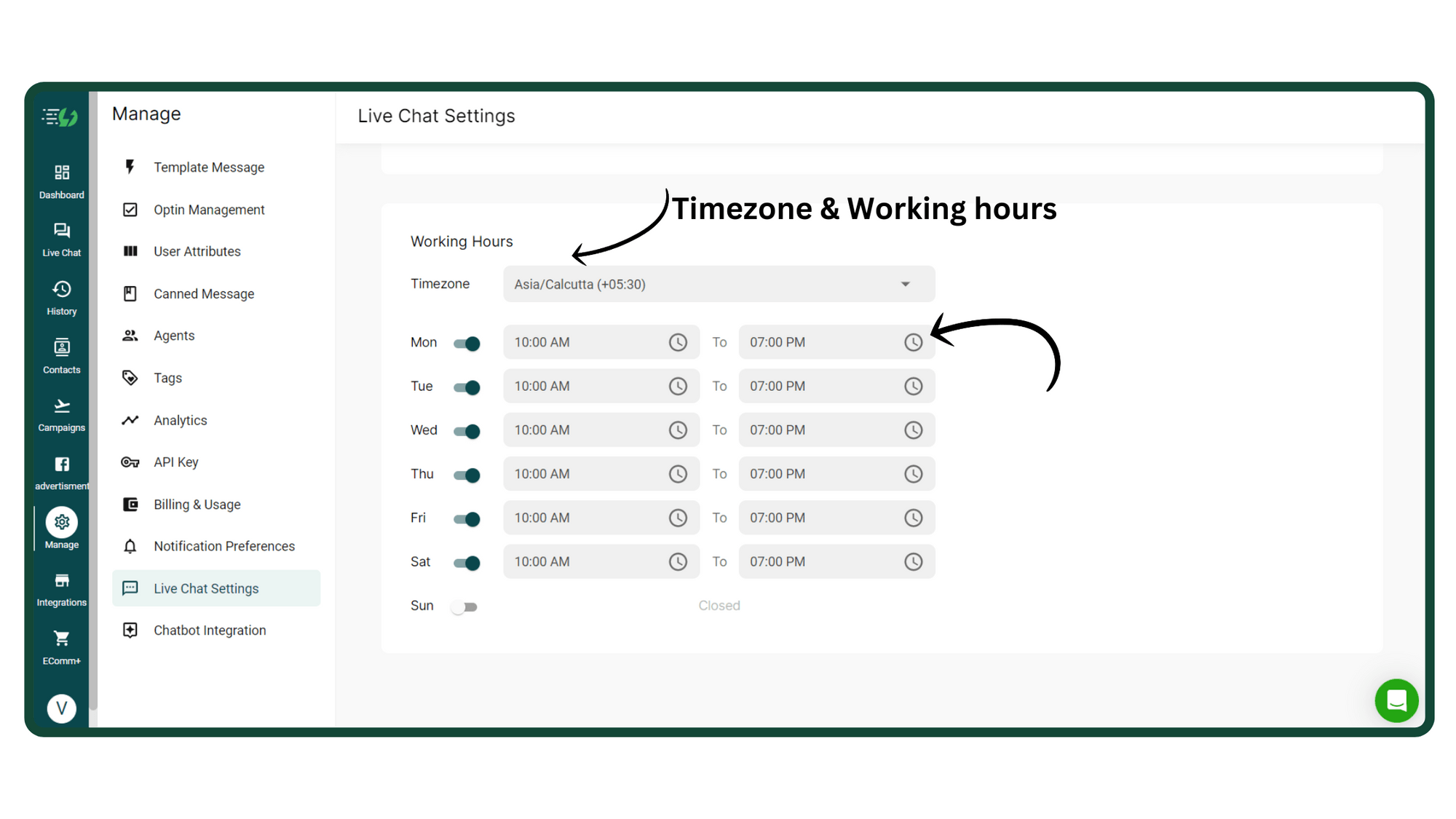
Last, select your preferred timezone & working hours of your business.Your users will receive the message based on the timezone you choose.In the below image, if a user messages you between 10 AM - 7 PM from Monday to Saturday, they'll receive a welcome message.However, if they message you anytime outside this timeframe, let's say 8 PM on a Tuesday, they'll receive an off-hours message.
Ready to get Started?
Get Started for FREE. No Credit Card needed.⚡️Powered by Official WhatsApp Business API
Book a DemoStart for FREE