Learn how to delete contacts in Messegy WhatsApp marketing and engagement platform with this easy-to-follow guide. Keep your contact list organized and manage your Messegy account more efficiently.
How to delete contacts in Messegy App?
Currently, you can't permanently delete contacts in Messegy App. But, we have a better alternative using which you won't need to delete your contacts. You can:- Reimport contacts (contacts will update automatically & no duplicate contacts will form)- Opt-out uninterested users (these users won't receive your Broadcasts)Note: In case you wish to delete contacts who are not on WhatsApp, then you don't need to do the extra work. WhatsApp doesn't charge for Conversations.
How to Reimport Contacts
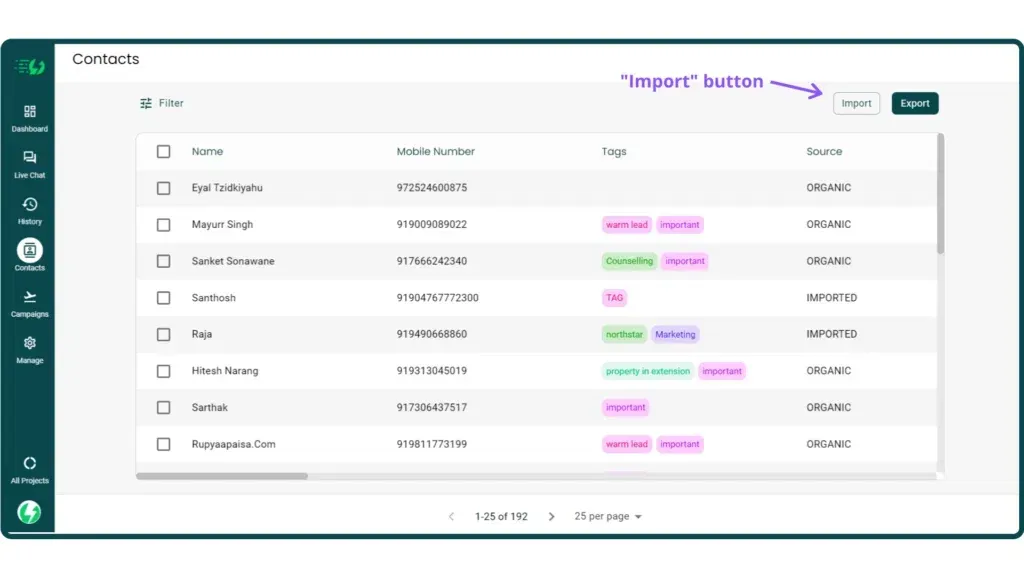
If you imported contacts with the wrong details, you can reimport these contacts with the correct information & the details will update automatically on Messegy Dashboard.Rest assured! The contacts won't duplicate.The earlier entered information will disappear & get updated with the latest one keeping your contacts section clean & ready to Broadcast.Check out:
How to import contacts in Messegy
How to Opt-out users/ Assign an Opt-out Tag
If you have uninterested contacts who don't want to receive WhatsApp updates, you can opt them out of future updates directly from their Chat profiles.When you opt-out contacts in Messegy, they'll automatically be opted out of future communications.Here's how to do it:
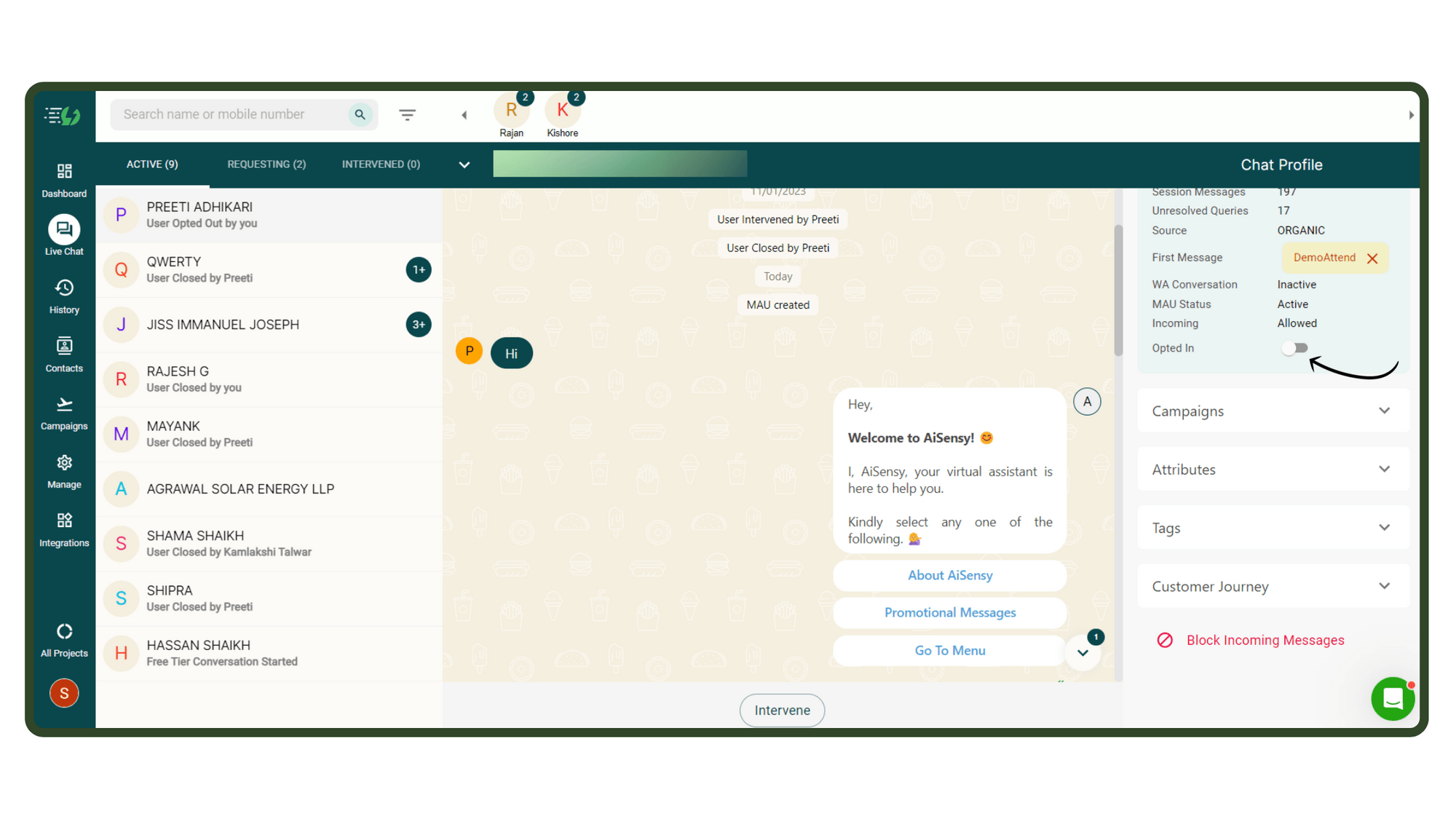
Opt-out users whom you don't wish to send WhatsApp Updates
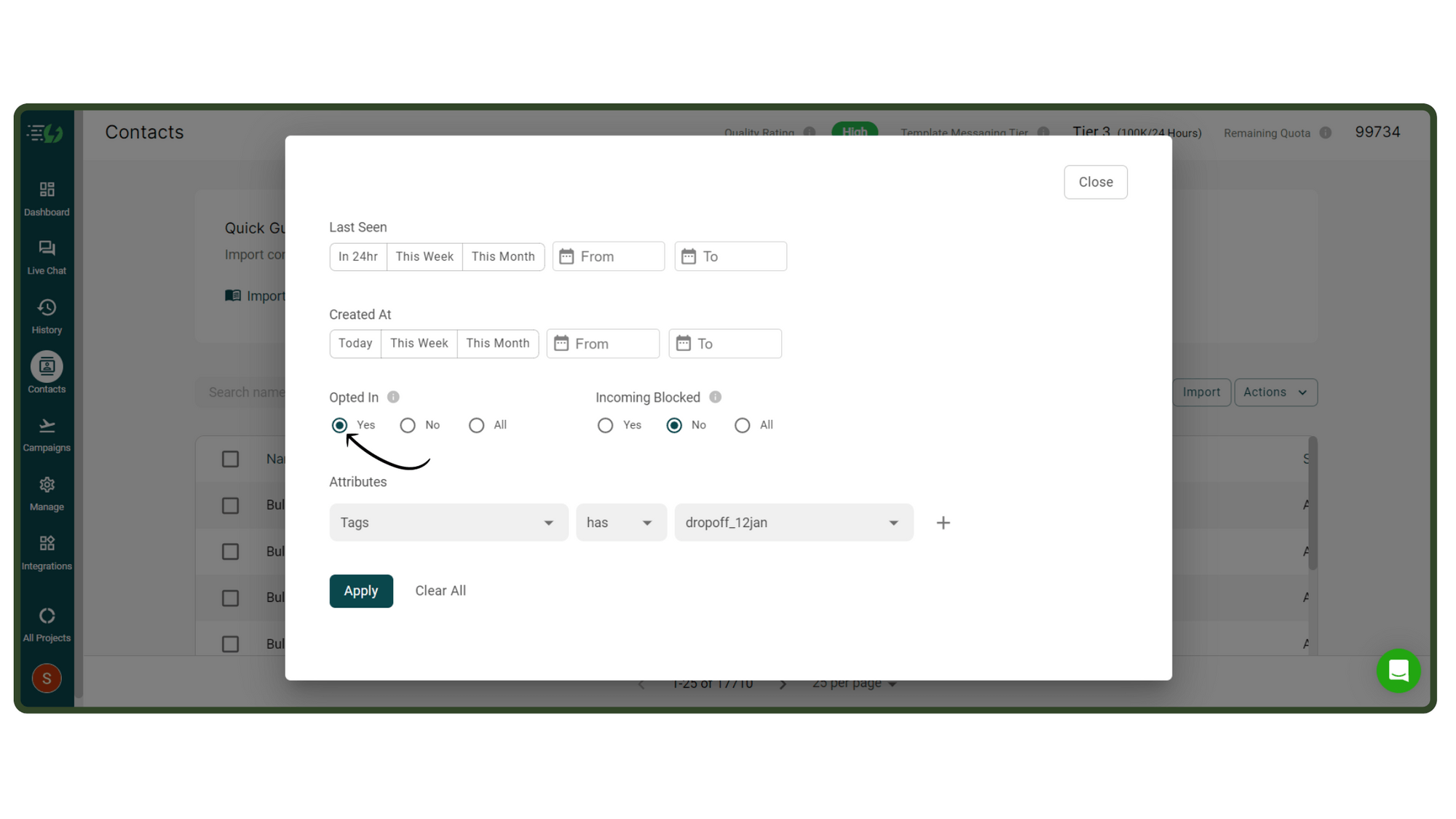
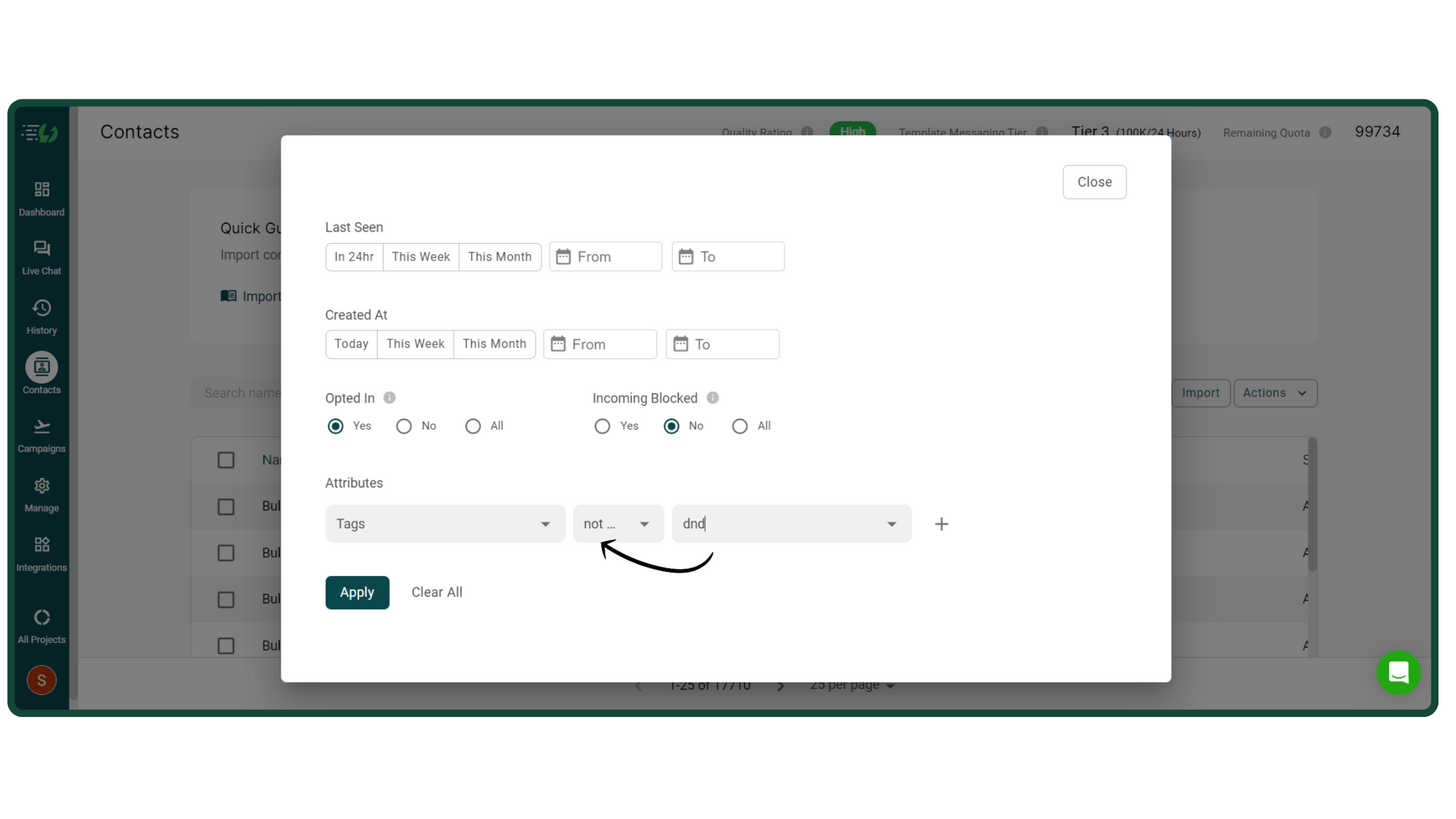
Once you've opted out a user, they won't show while sending a WhatsApp Broadcast.Just ensure that while filtering the contacts, you've enabled Broadcasting only for Opted-in contacts. As shown in the image:
Assign an Opt-out tag
You can create a custom tag to remove uninterested users from your Broadcast list.So, let's say you create a tag dnd.Now, assign this tag to people whom you wish to not send Broadcast on WhatsApp.Now, while sending the Broadcast, just select this filter under attributes:Tags👉not has👉dndThis will automatically filter out the users who have the tag dnd.
Ready to get Started?
Get Started for FREE. No Credit Card needed.⚡️Powered by Official WhatsApp Business API
Book a DemoStart for FREE