You can directly view, edit & update your WhatsApp Business Profile from Messegy Dashboard. Business information such as Description, Address, Email, Business Vertical can be updated in seconds! Here's how.
Start for FREEBook a Demo
WhatsApp Business Profile
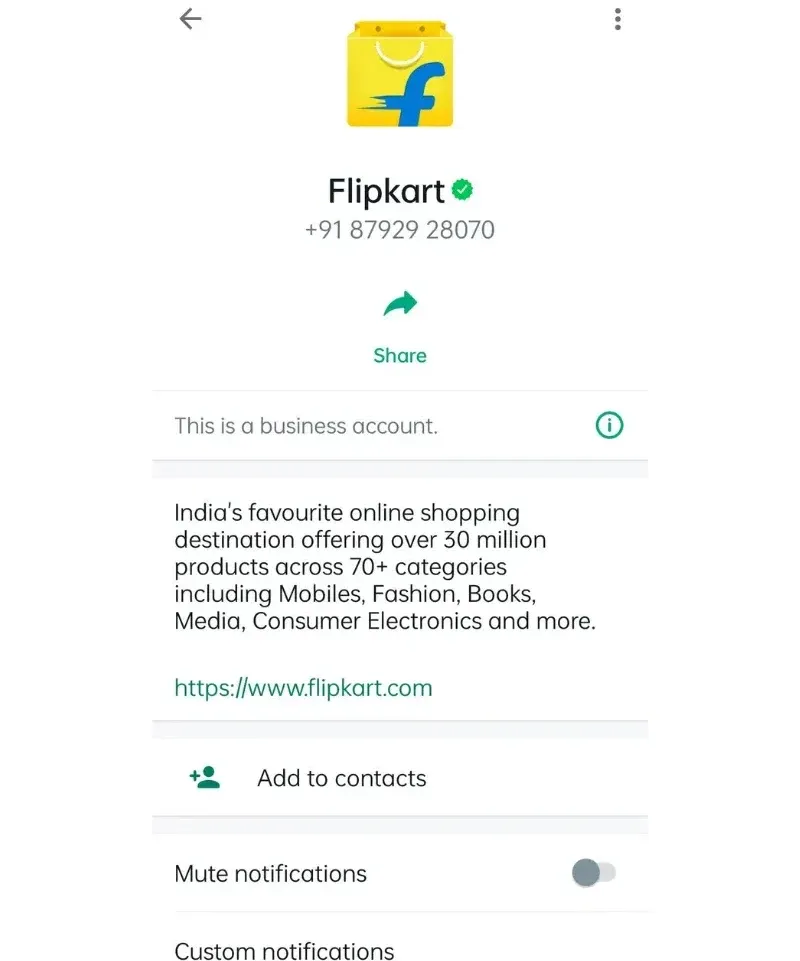
The image on the right is how your WhatsApp Business Profile appears to your customers. As you can see, the profile includes details such as:1. Business Logo2. Business Description3. Website URL4. Official Email5. WhatsApp Business API NumberSo, how can you too customize your profile? It's very easy! You can do it right from the Messegy Dashboard. Here's how👇
Go to the Messegy Dashboard
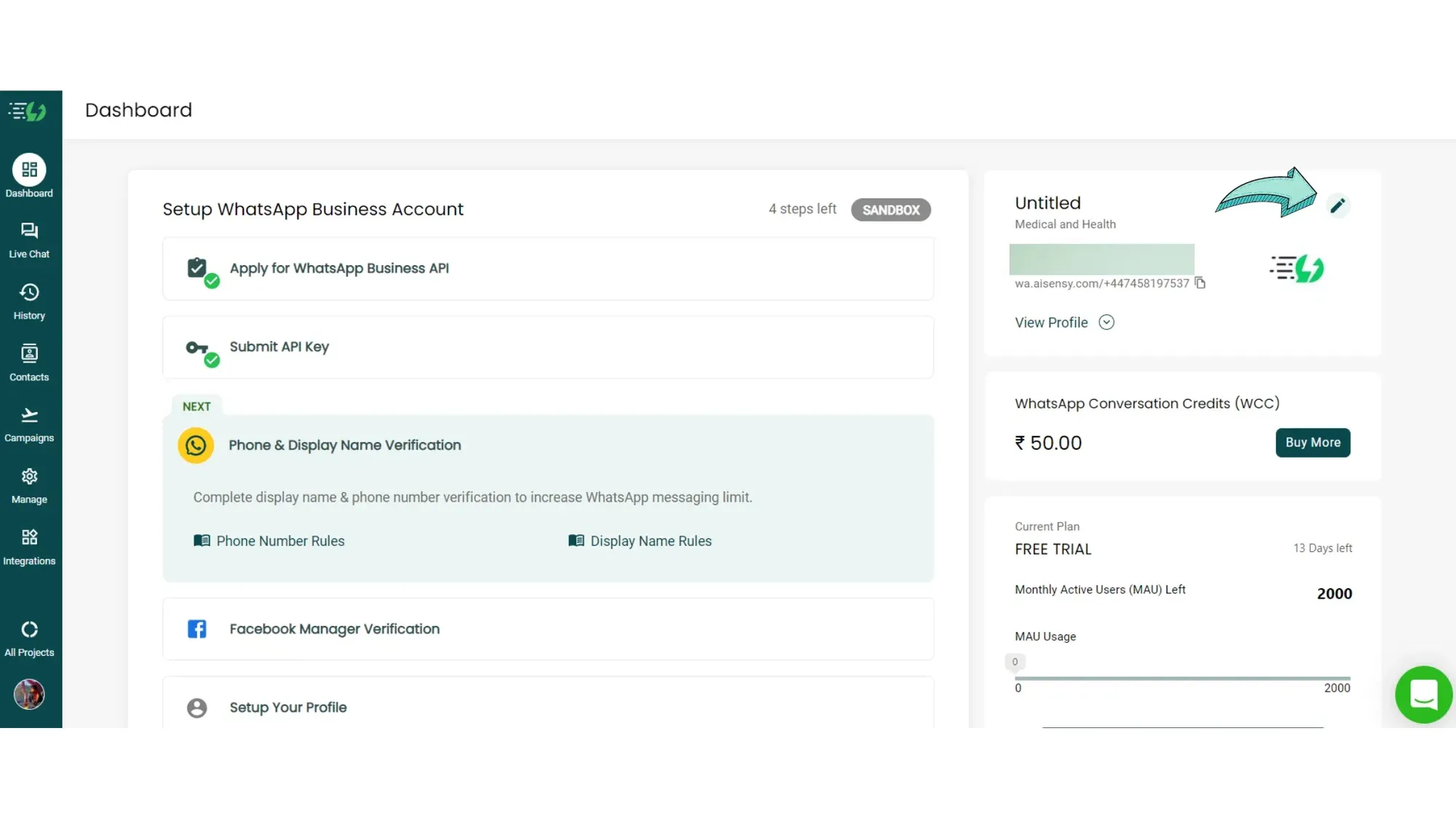
The image on the left shows the Messegy Dashboard.You can check your WhatsApp profile by clicking the 'View Profile' button. To edit your profile, click the pen icon as shown in the image which will open this window.Note: Only owners can edit the Business Profile. You must have the owner's access to the WhatsApp Business API Account.
Customize your WhatsApp Business Profile
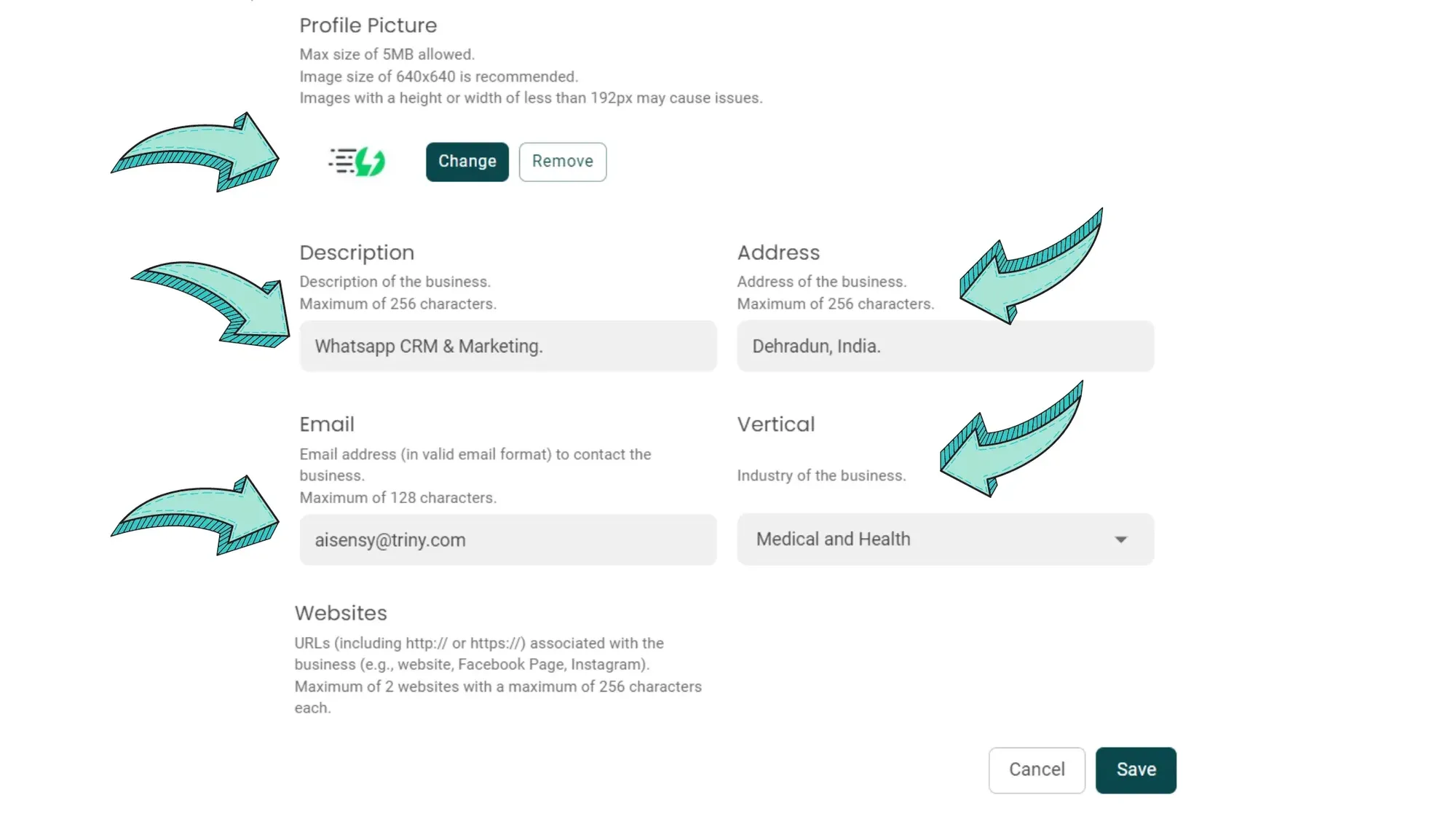
You can customize these things in your WhatsApp Business Profile via AISensy Dashboard:1. Logo- Upload a 640x640 (recommended) size logo of your brand. Make sure that the file is below 5 MBs. Otherwise, it won't upload. 2. Description- Add a small description of your brand in under 256 characters. 3. Address- Add your official business address here in less than 256 characters. 4. Email- Here, add your business email where you want to receive communication from customers. 5. Vertical- Add the industry that your business belongs to. If you can't find one, choose the one that comes closest to your industry. 6. Website URL- Add your Website URL, which upon clicking will redirect people to your website. When you've made the respective changes, don't forget to press save & close the window.