Understand the role of Live Chat Settings in Messegy
What are Live Chat Settings?
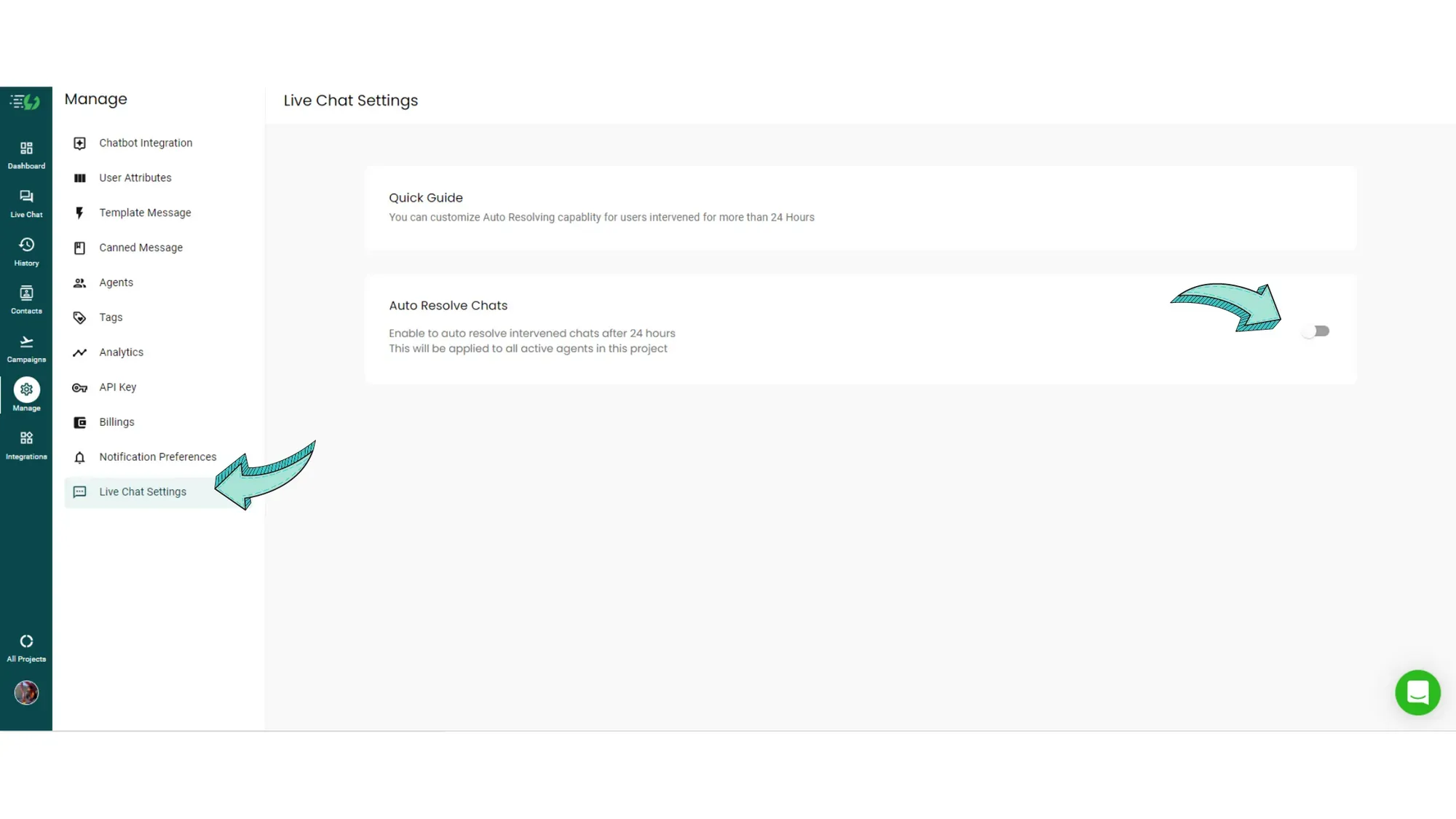
Earlier, if an agent intervened a chat but failed to click 'Resolve' after solving the query, the next time when the same user sends a message, the chat would not appear active in any other agent's Messegy Live Chat section. It would only appear active in the same agent's Live Chat & only he would be able to resolve the chat.
The chat would go to the History page after 24 hours of inactivity, but it will still appear in the same agent's intervened chat column.
Now, this can be a problem, especially if the owner or manager deletes that agent. If they do so, new chats from those users wouldn't be visible to your other agents. They would not be visible, even if they've sent you a message.
That's where Live Chat settings come in!
Enabling the 'Auto-resolve Chat' will automatically resolve chats after 24-hours of inactivity, even if the agent forgets to press the 'resolve' button.
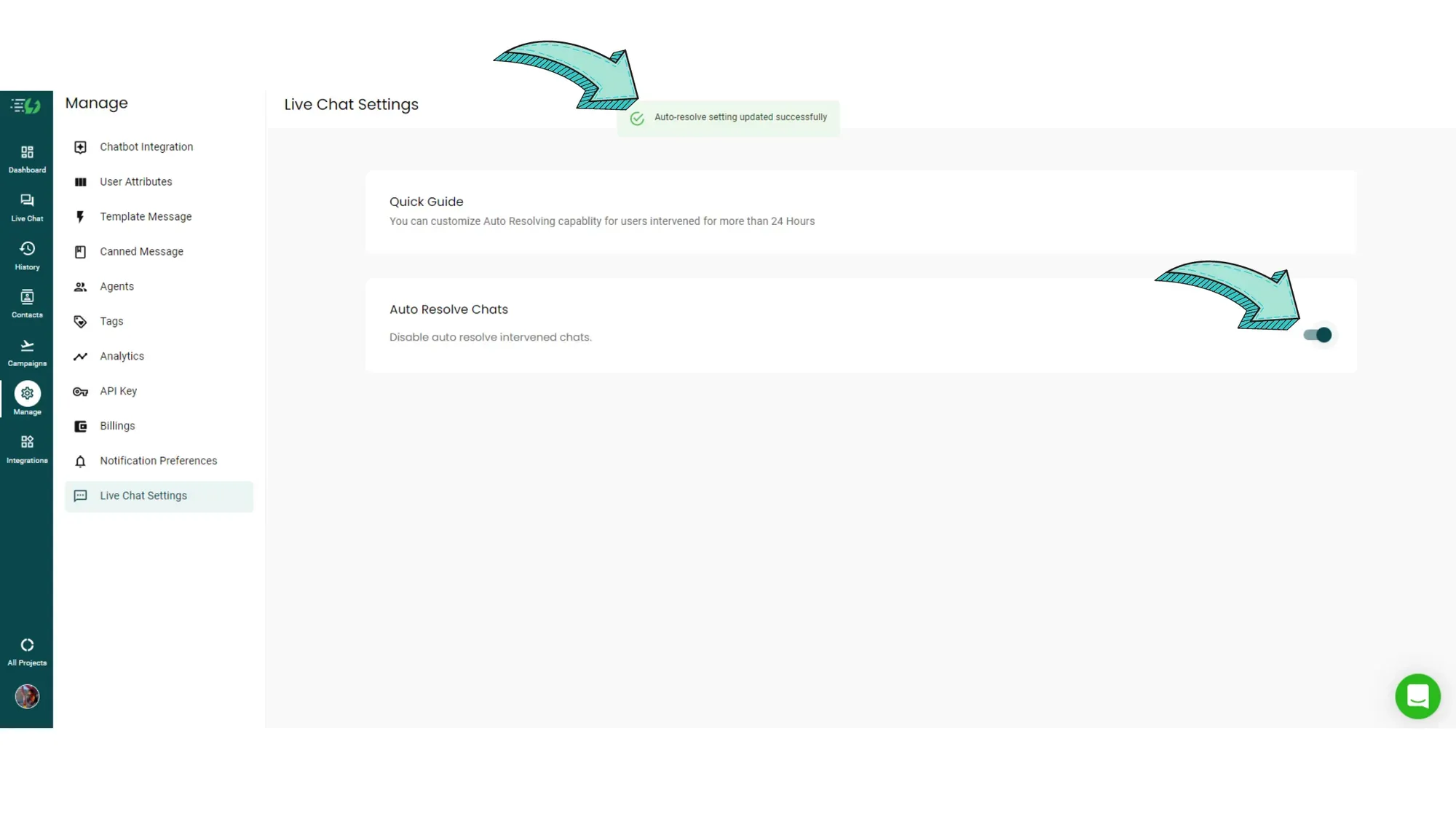
This would enable all chats to be resolved automatically & appear in all agent's Live Chat sections whenever the user messages again.
Example of 'Auto-resolve' feature
Let's understand the 'Auto-resolve' feature with an example of 2 Agents: Agent 1 & Agent 2.
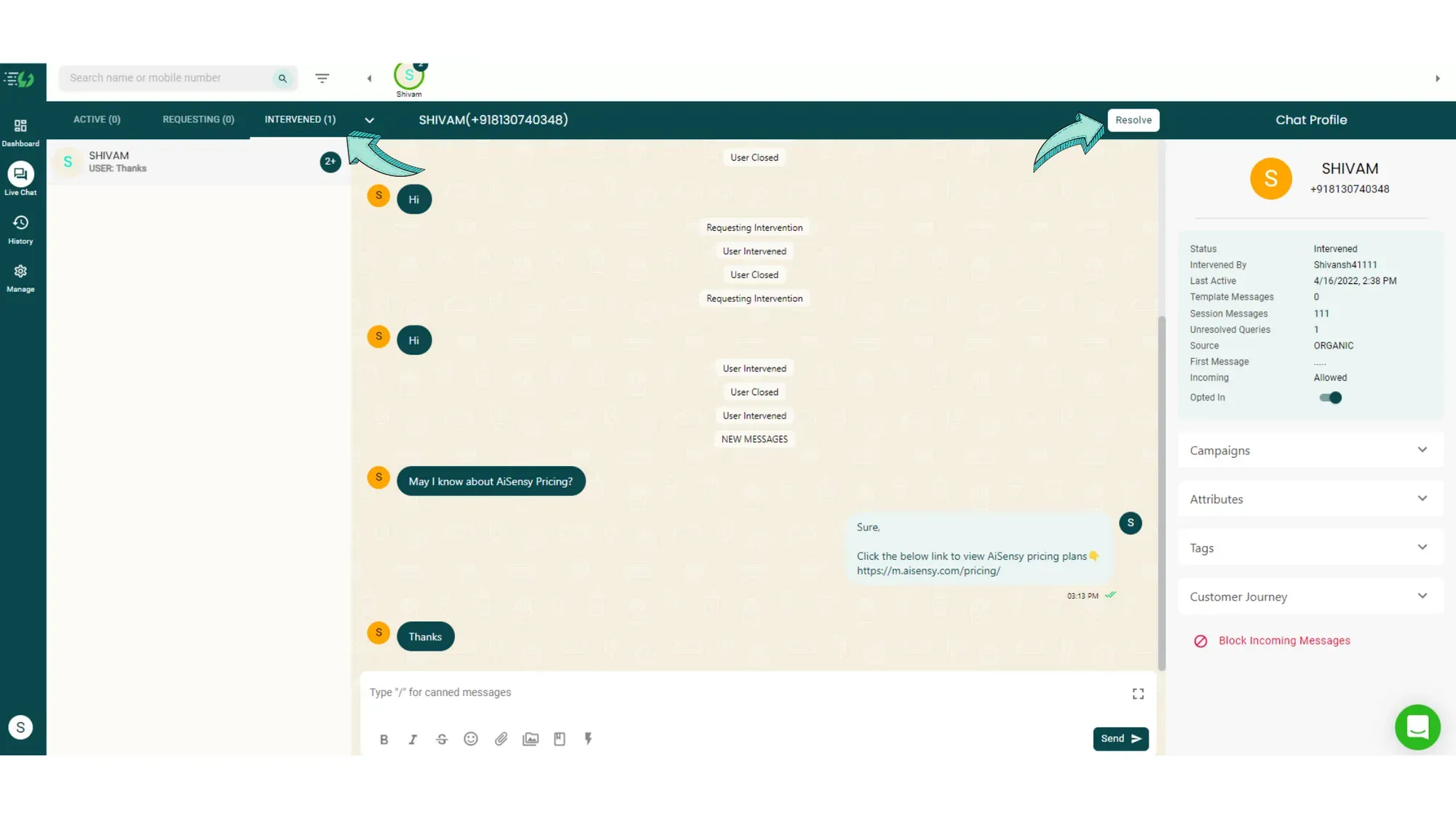
Agent 1 Intervenes a User 'Shivam'.
Now, he has solved the user's query but forgot to click the 'Resolve' button at the top of the screen as shown in the below image.
Now, let's check the point of view of another agent with access to the same project. Let's name him Agent 2.
Since the chat is still in the intervened state at the end of 24-hours, here's what Agent 2's POV will be👇
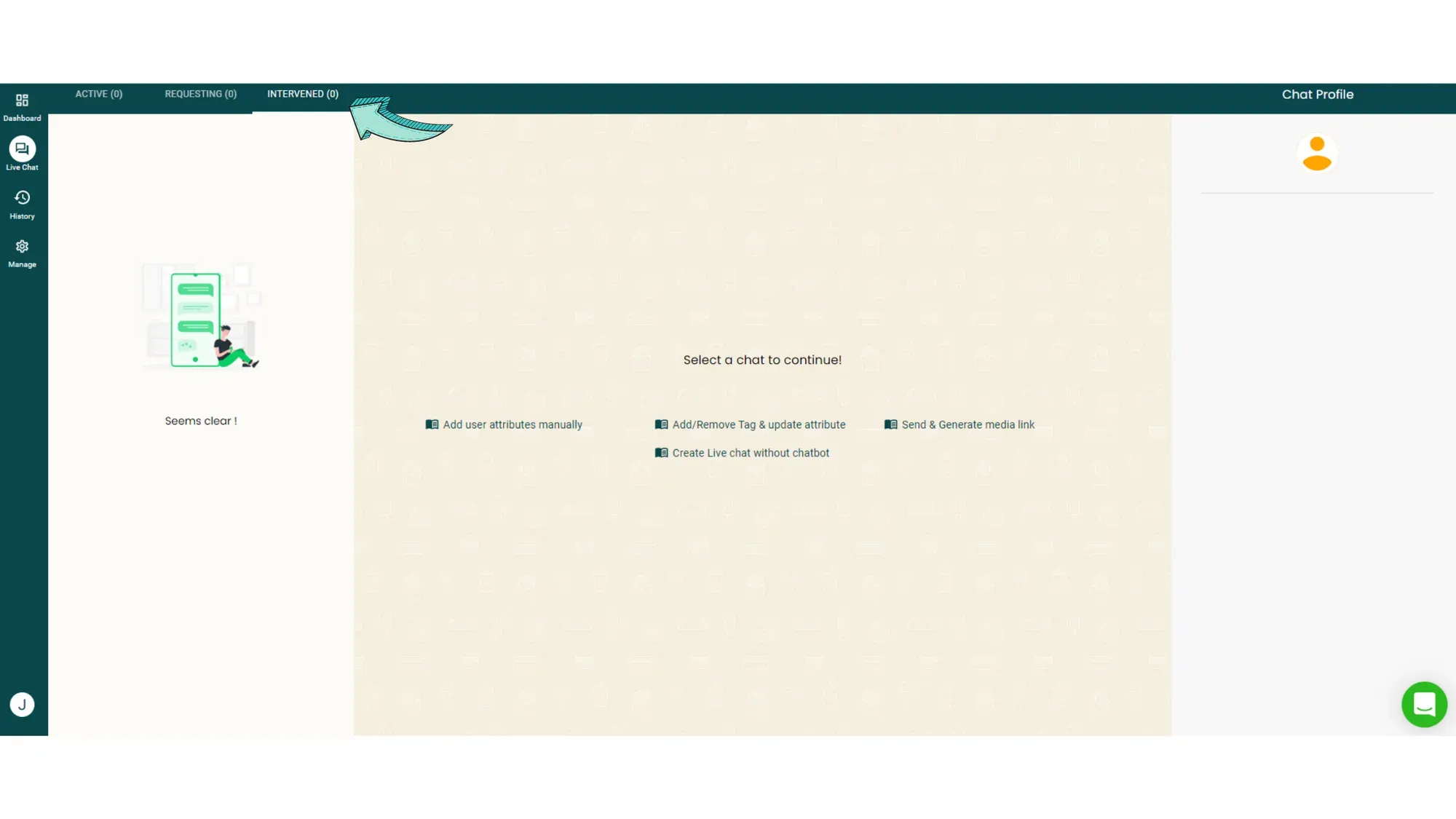
Now, let's suppose the business has kept the 'Auto-resolve' feature on, this is what will happen at the end of 24-hours👇
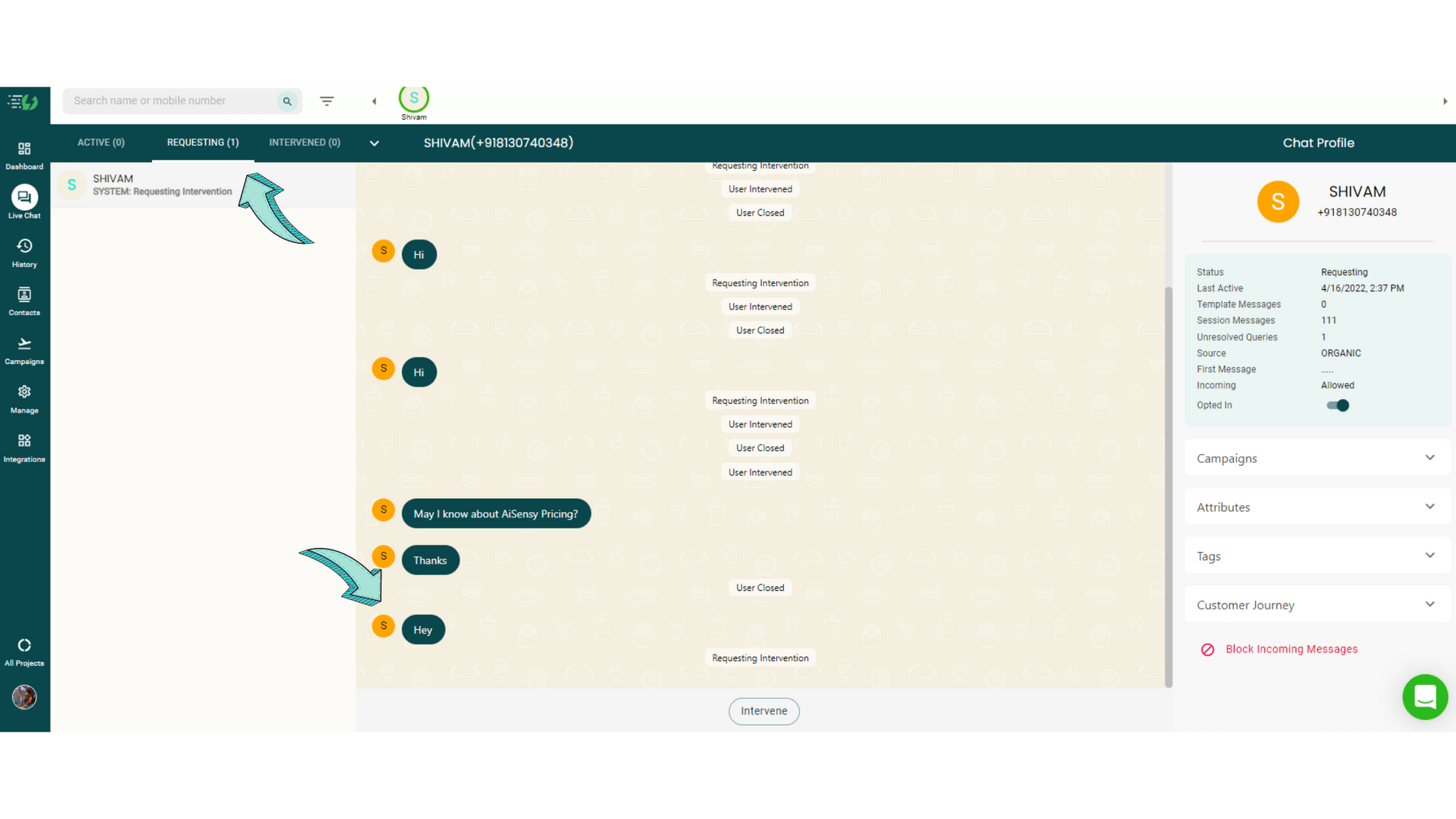
Since 'Auto-resolve' was on, the user was resolved automatically. Now, when they send a new message, Agent 2 is able to view the user and can intervene the chat!
As you can see, with the 'Auto-resolve' feature on, all unresolved chats automatically get resolved at the end of the 24-hour session window!