Check out how to add an extra layer of security for your Messegy account using 2 factor authentication.

You can now add an extra layer of security to your Messegy account with 2-factor authentication.
Here's the feature highlight:
➡️ Only project owners can enable/disable the 2FA.
➡️ Owners can edit or change the default 2FA number.
➡️ Once activated, it logs out managers & agents for added layer of safety.
➡️ OTP will be sent to the number that was used to register you on Messegy. This is valid for agents & managers.
➡️ Owners can edit the default 2 FA contact number as well as the contact numbers of both agents & managers. Meanwhile, managers can edit the contact information of agents.
How to enable 2 FA in Messegy?
Two-factor authentication can only be implemented by the project owner.
To enable 2FA, just follow the below steps:
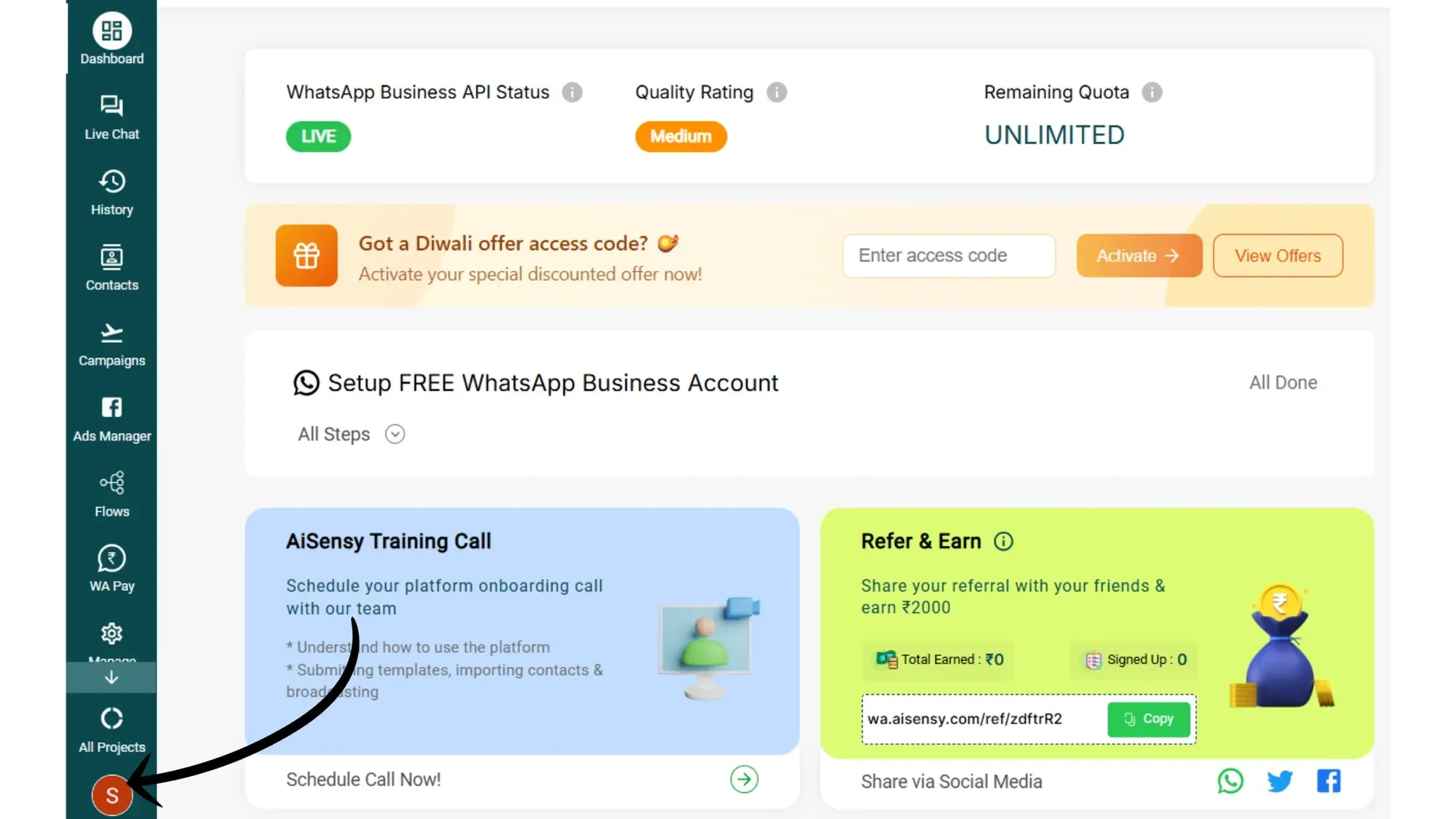
- In Messegy dashboard, go to your profile section
- Turn on the toggle to enable 2-factor authentication
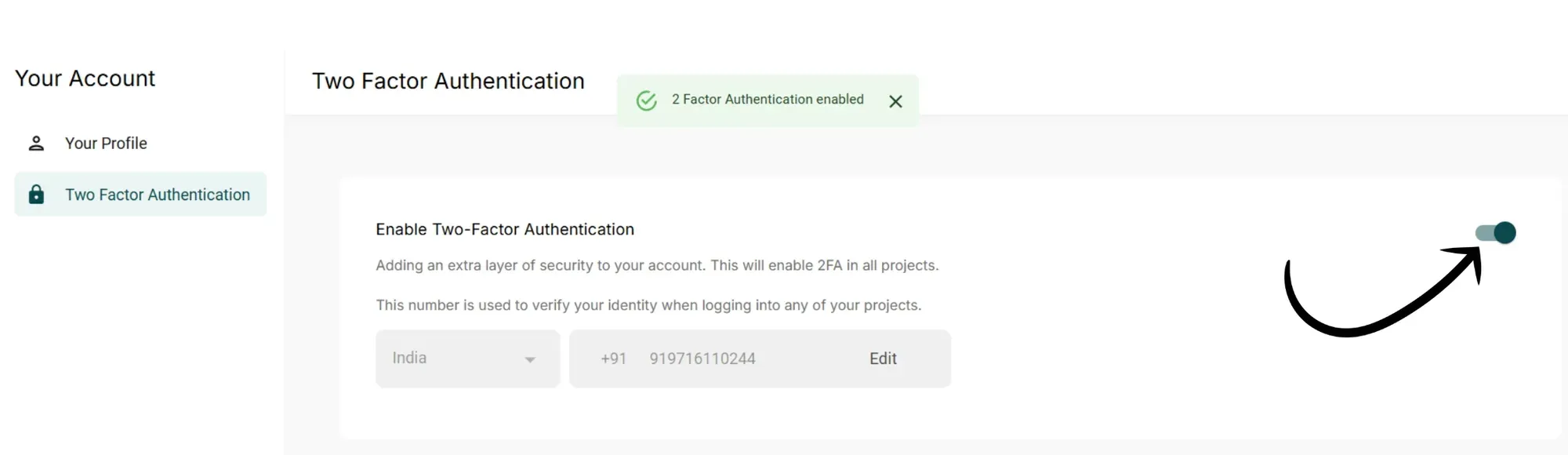
That's it! Turning on the toggle will enable 2-factor authentication for your Messegy account, and all your agents and managers will be logged out & will require to login again to access the account.
Here's how a manager/agent can login after the owner enables 2-factor authentication.
How Managers/Agents can Login After The Owner Enables 2-Factor Authentication
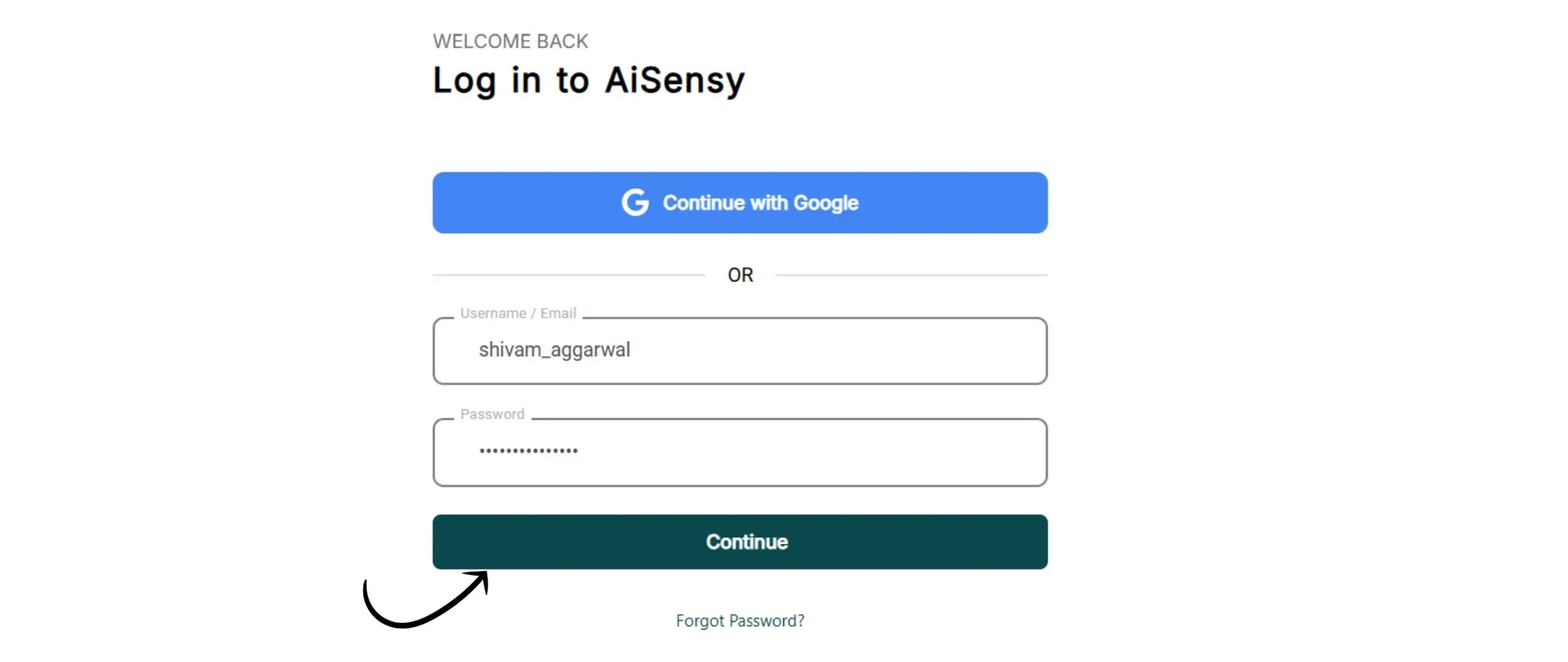
- Go to app.messegy.com/login and enter your login credentials
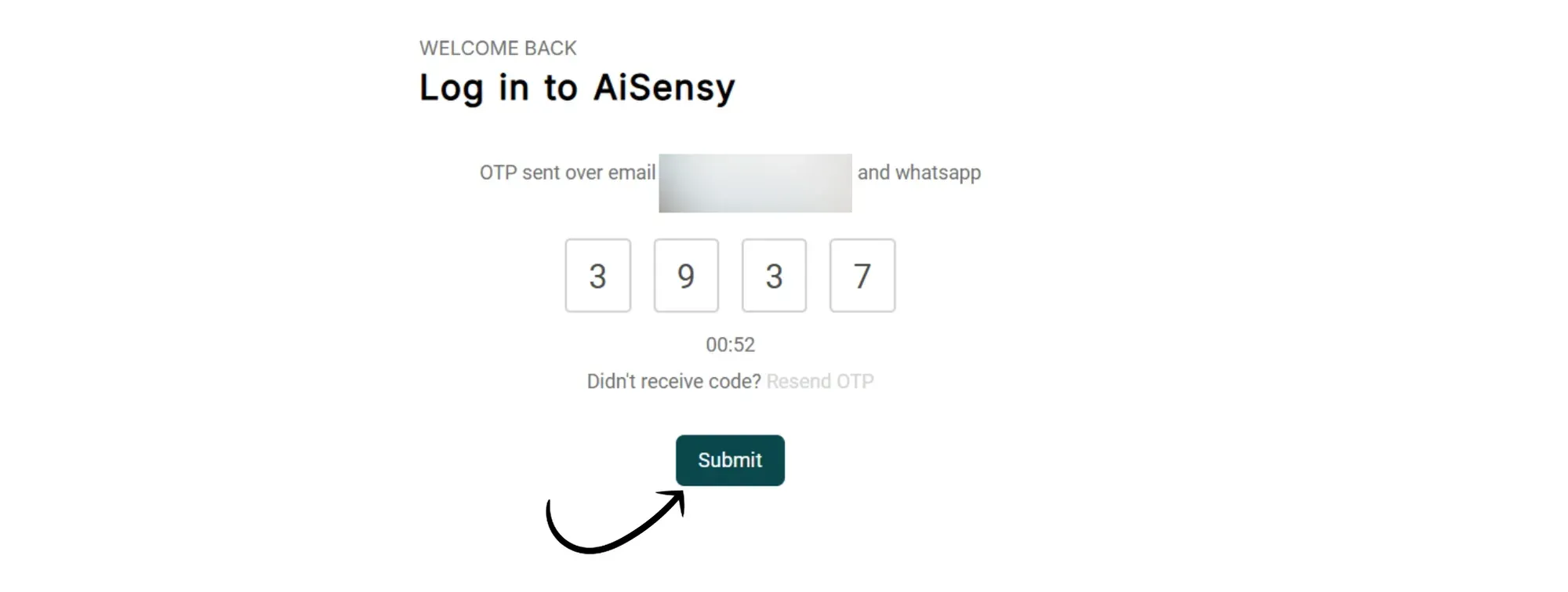
- Enter the OTP received on your registered contact number in Messegy
This contact number is the one that was used to create your account login access in Messegy.
You can manually edit or change the contact number as well! Owners can change the contact number for both agents and managers, while managers can edit the contact number for agents.