WhatsApp allows businesses to send pre-approved Template messages with media items like images, videos, files etc.
In this article, we'll show you how to create & send media-based template messages in Messegy App.
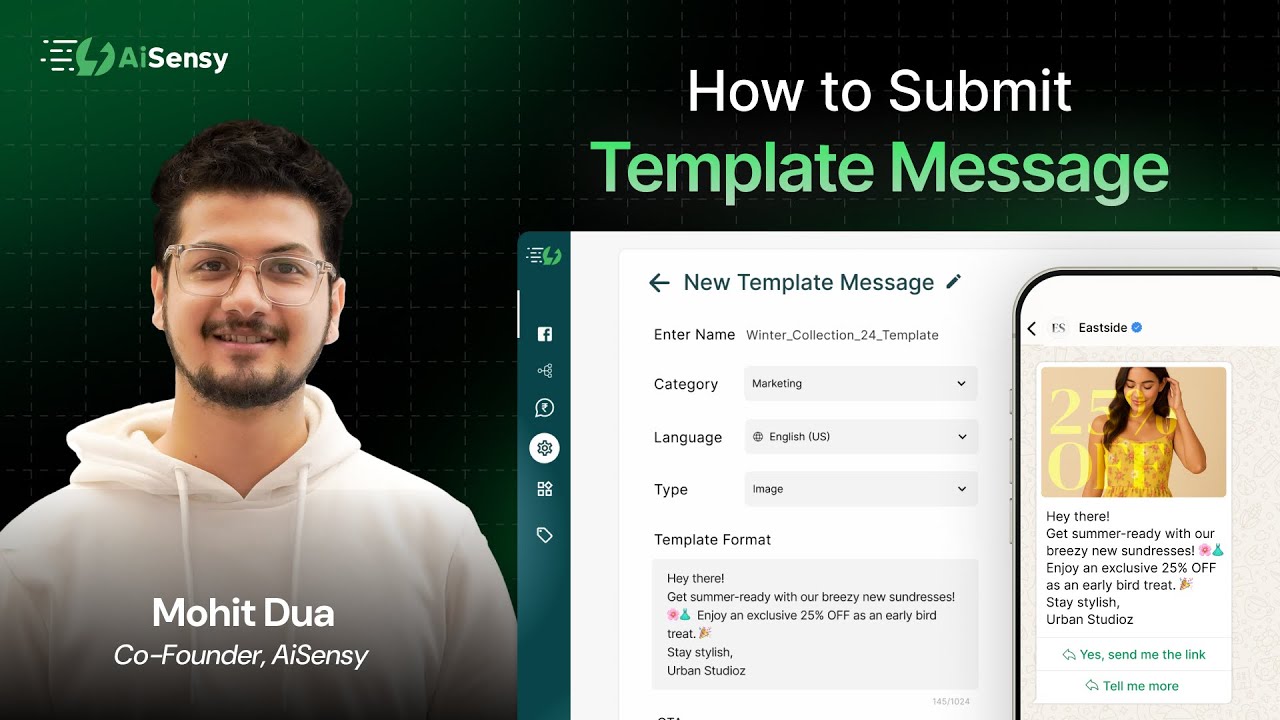
Watch our step-by-step video
Watch this tutorial to quickly create a media template message.
Alternatively, read the step-by-step process below.
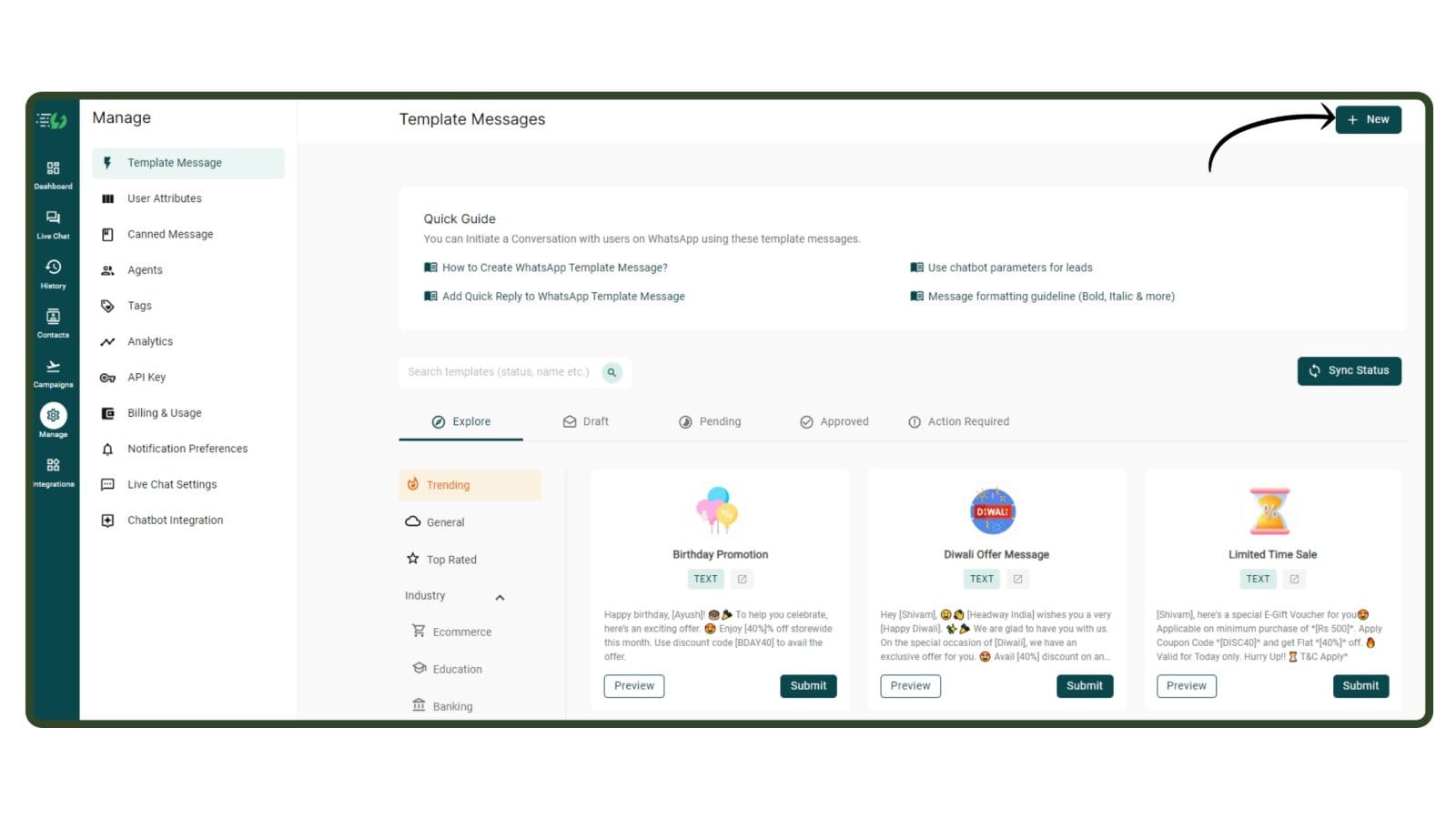
1. Click '+New' to create a New template
Go to Manage 👉 Template Message and click on the “+ New” button on the top right corner.
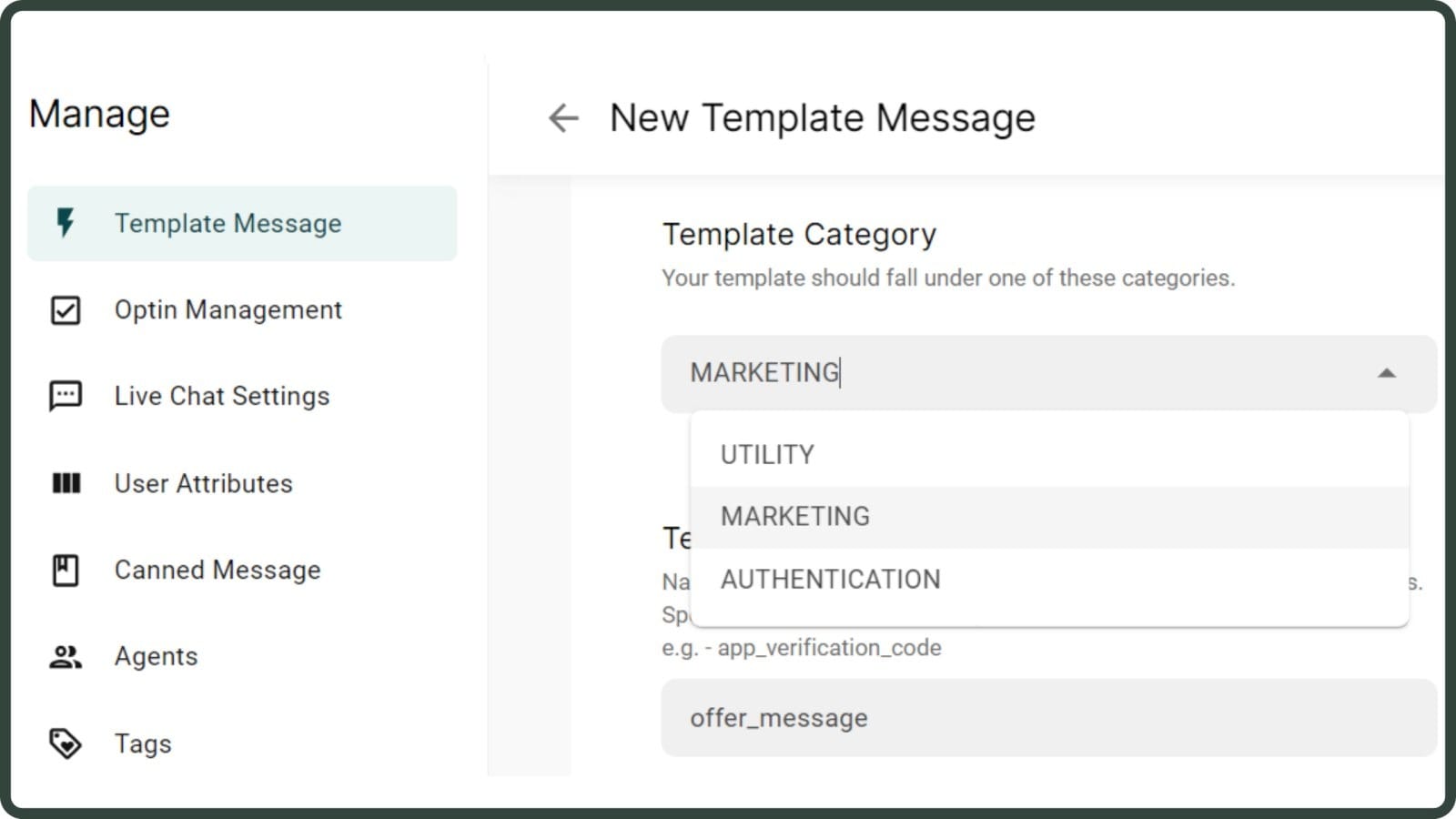
2. Choose your Template Category
Here, pick the category that best determines the theme of your template message - select from Utility (transaction-based), Authentication (OTP/ Login) & Marketing (promotional) type message.
3. Enter a Template Name
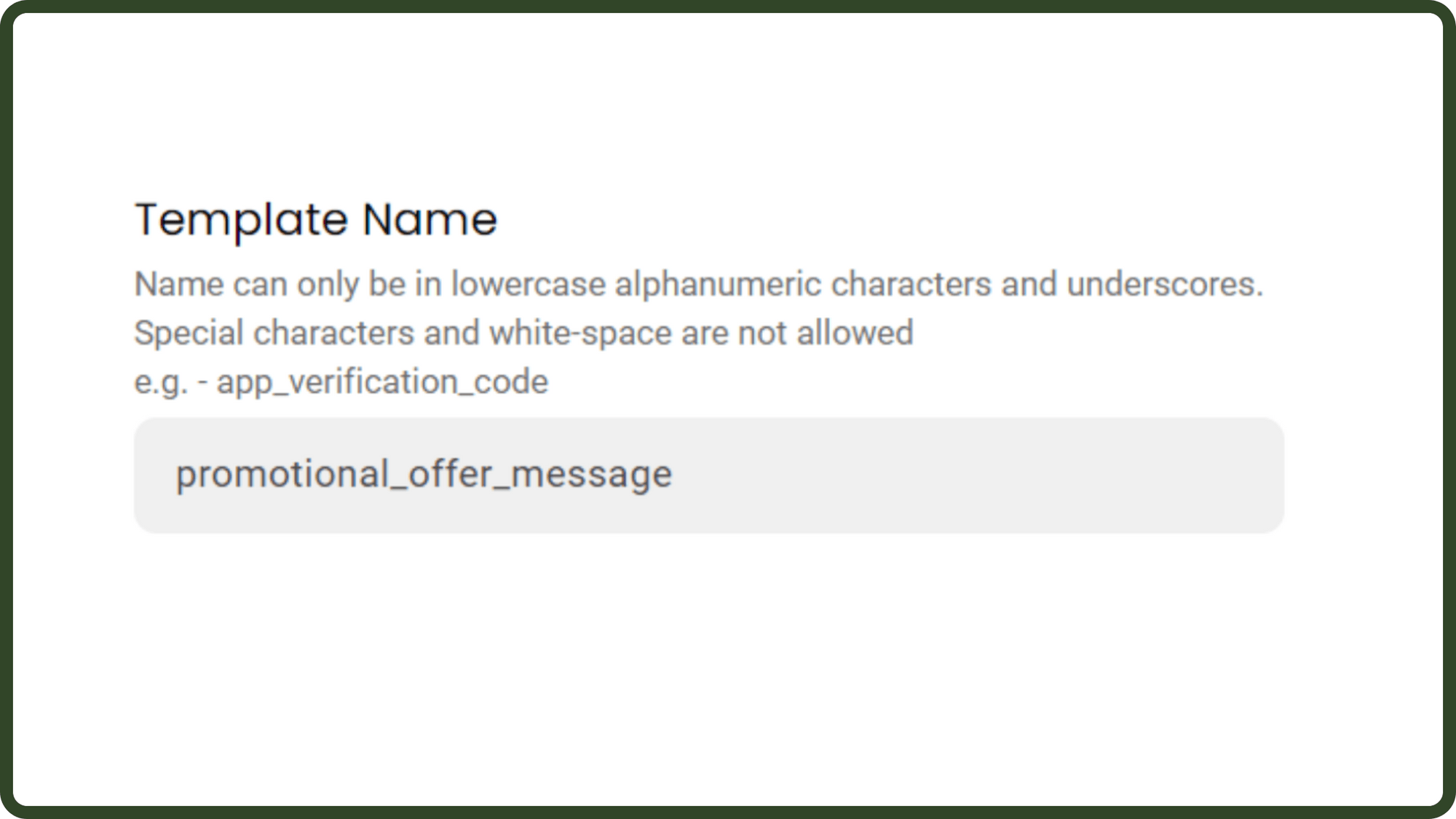
Template Name- It is the unique name you need to give to the Template message.
FORMAT – The template name can only be in lowercase alphanumeric characters and underscores. Special characters and white spaces are not allowed.
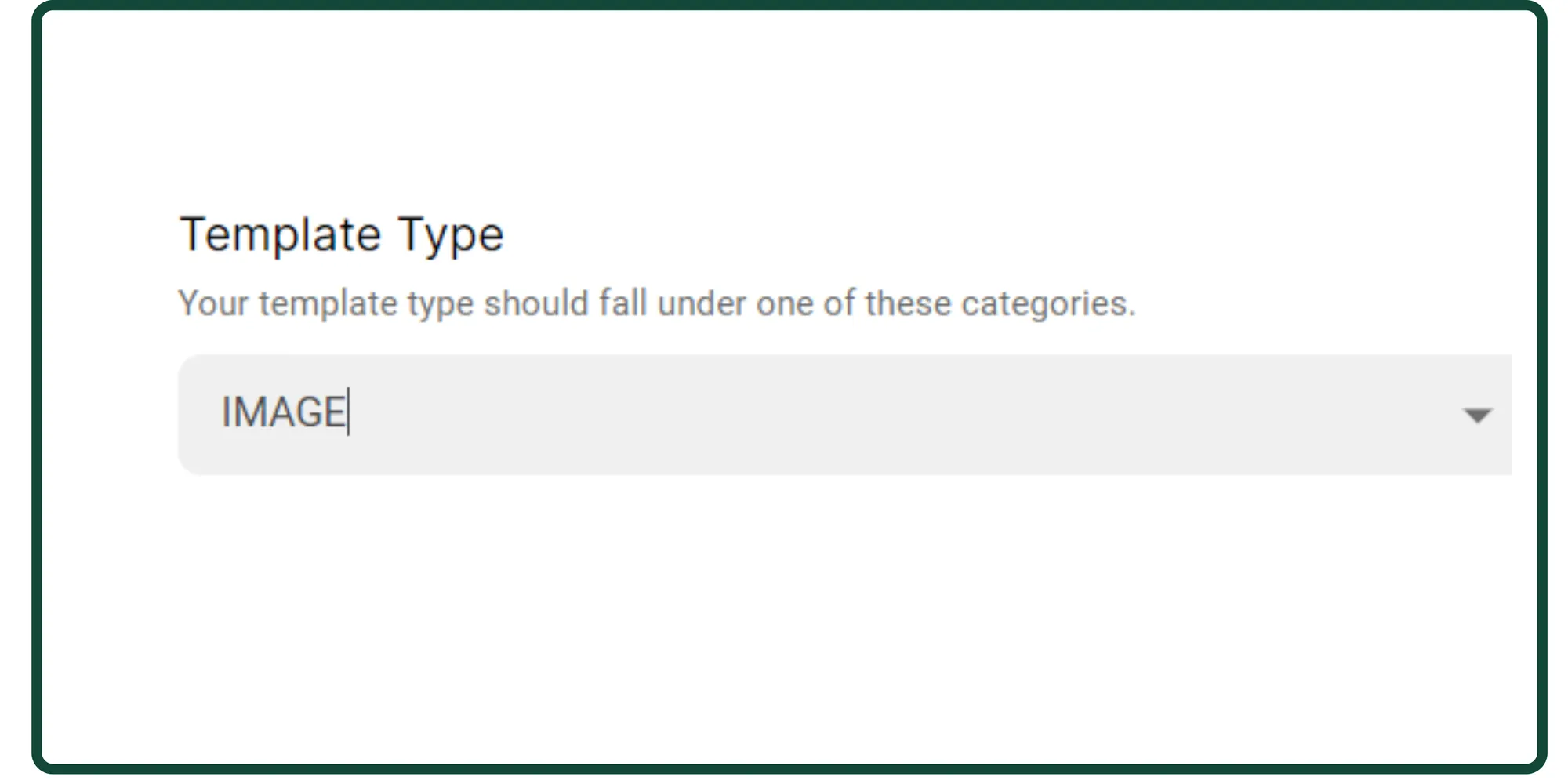
4. Under Template type, choose Image
Since you wish to send a Media-based template message, select image under template type.
Note: You can add images in a ratio of 16:9 or 1:1 with the max size limit of 5 MB.
Here's the size limit of different media items that you can share on WhatsApp:
-
Video: 16 MB
-
Image: 5 MB
-
Document: 100 MB
-
Sticker: 100 KB
5. Enter the Template format
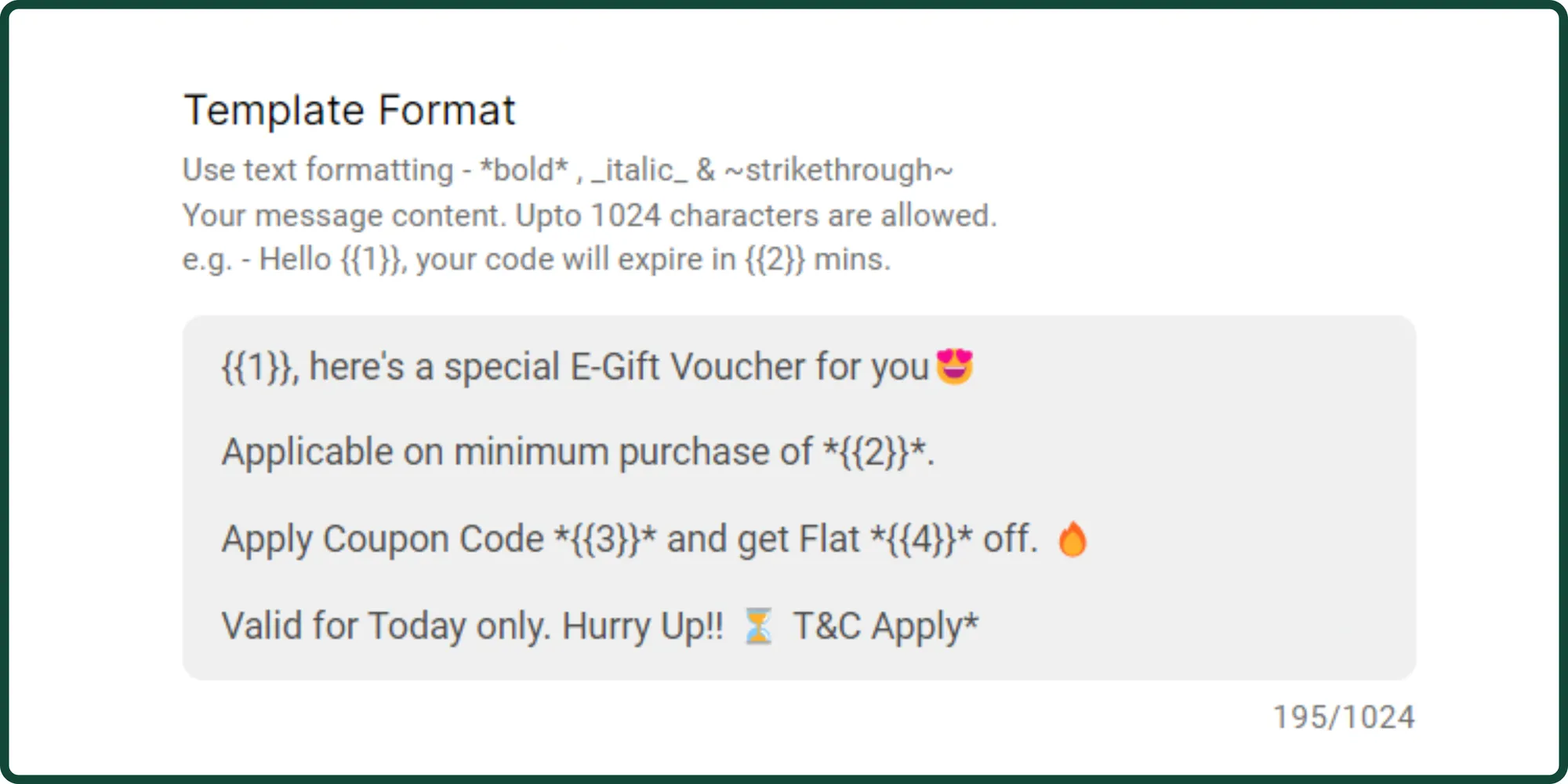
The template format is your WhatsApp template message content. The template message can have various dynamic values, unique to every user such as Name, OTP Number, Order ID, Payment Links etc.
These dynamic values are depicted by {{1}}, {{2}}, {{3}} and so on and so forth as shown in the image on the right.
If you want to make some text bold and italics, use the same rules applied in the WhatsApp App – putting asterisks (*) at the start and end of the phrase (Bold Text) and underscores for Italics (Italics Text).
FORMAT – The template message should not be more than 1024 characters.
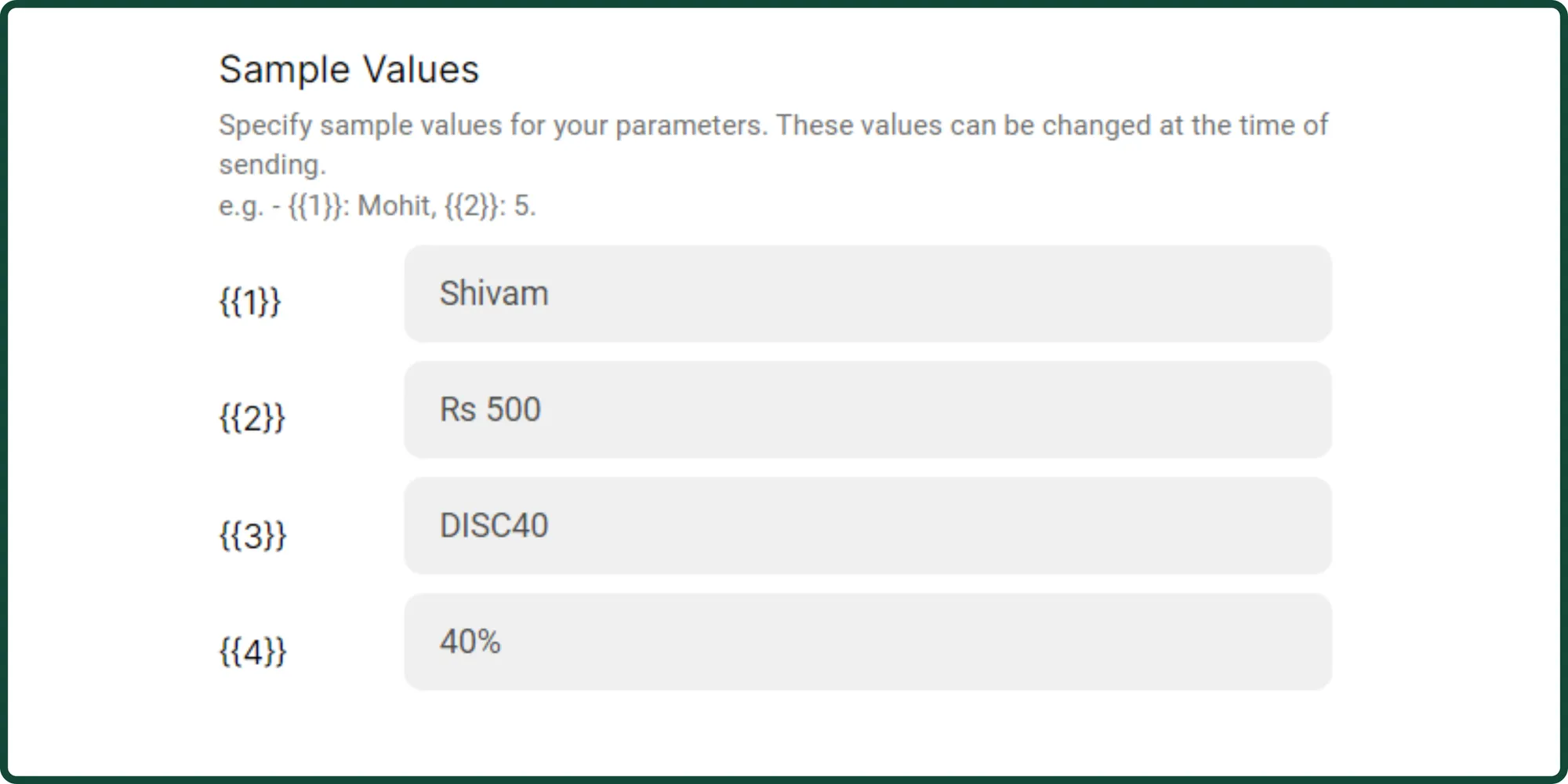
6. Add Sample values
These are sample values that for your parameters. You can change these values at the time of sending the template message.
7. Choose a Template language
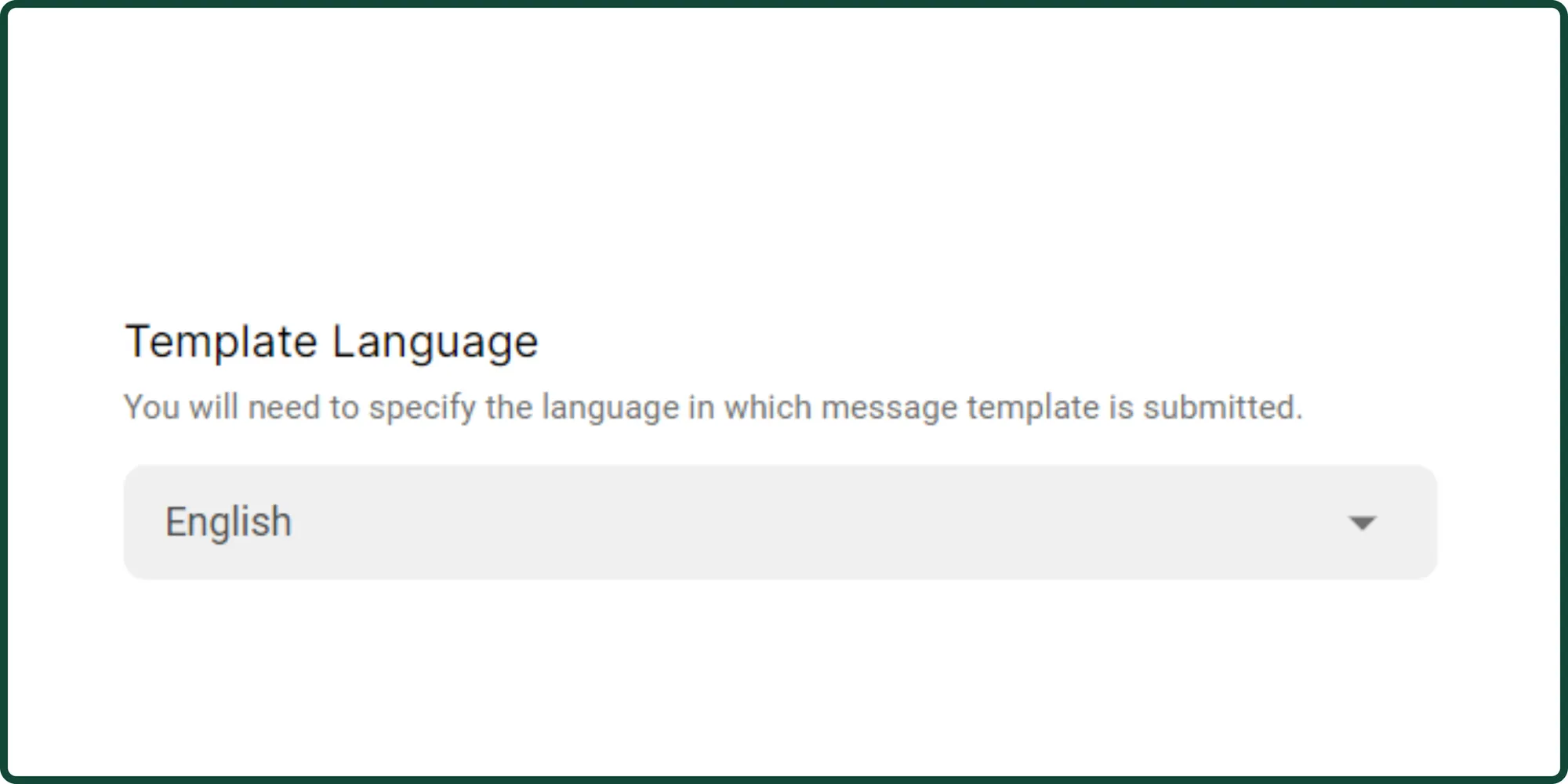
English is the default Template Message language. You can choose the language of your WhatsApp template message from all the global languages and vernacular as well.
For each template message, you can only pick one language.
8. Add CTA Buttons or Quick Replies (Optional)
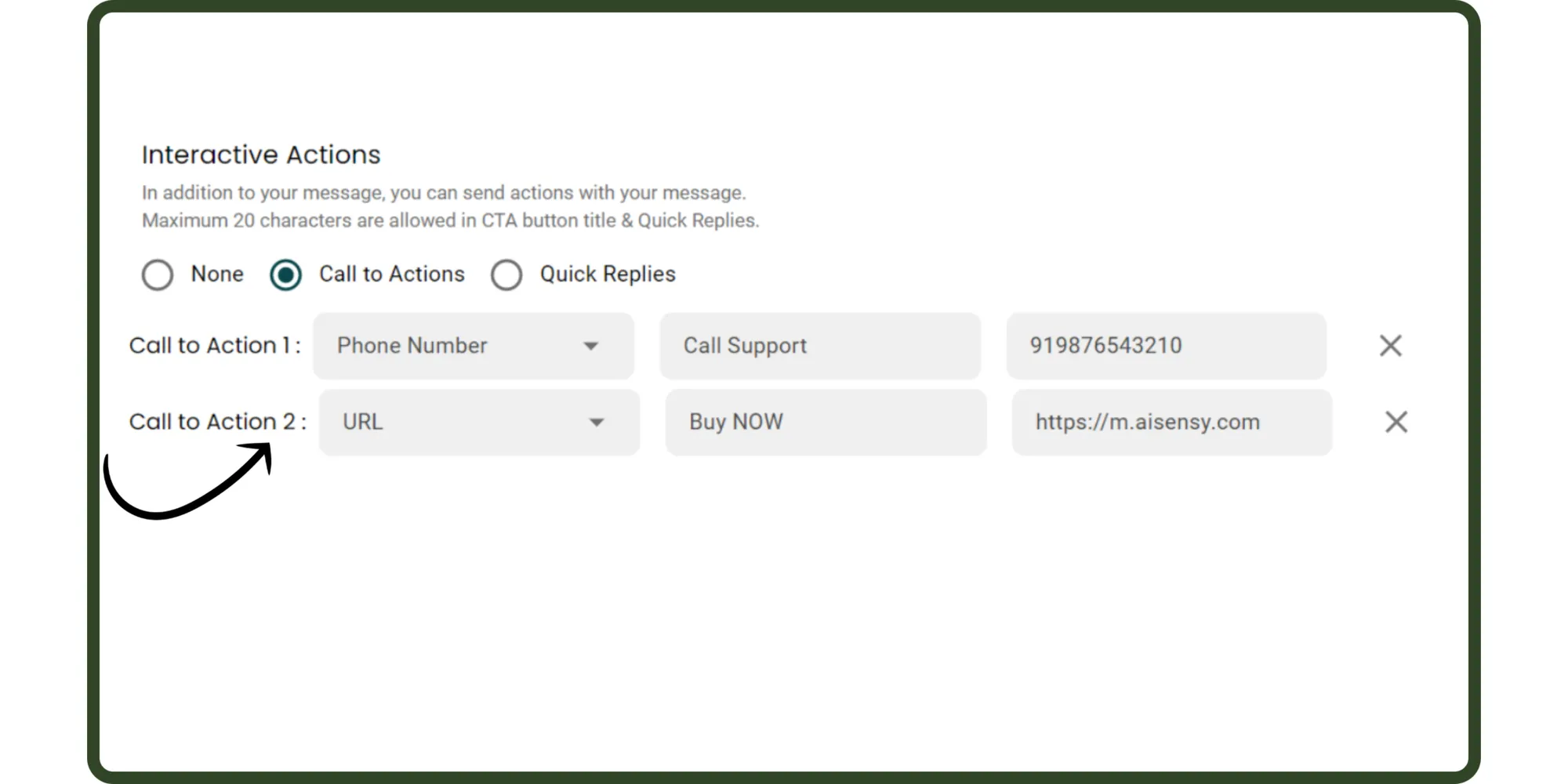
There are two types of Interactive Actions you can add to your message:
-
Call to Action
-
Quick Replies
You can either add "CTAs" or a "Quick Replies" to a WhatsApp Template Message. You can't have both in one Template Message.
Above, we've added 2 CTAs to our template message.
This means, you must add 2 CTAs at the time of sending the template message.
9. Submit the template message
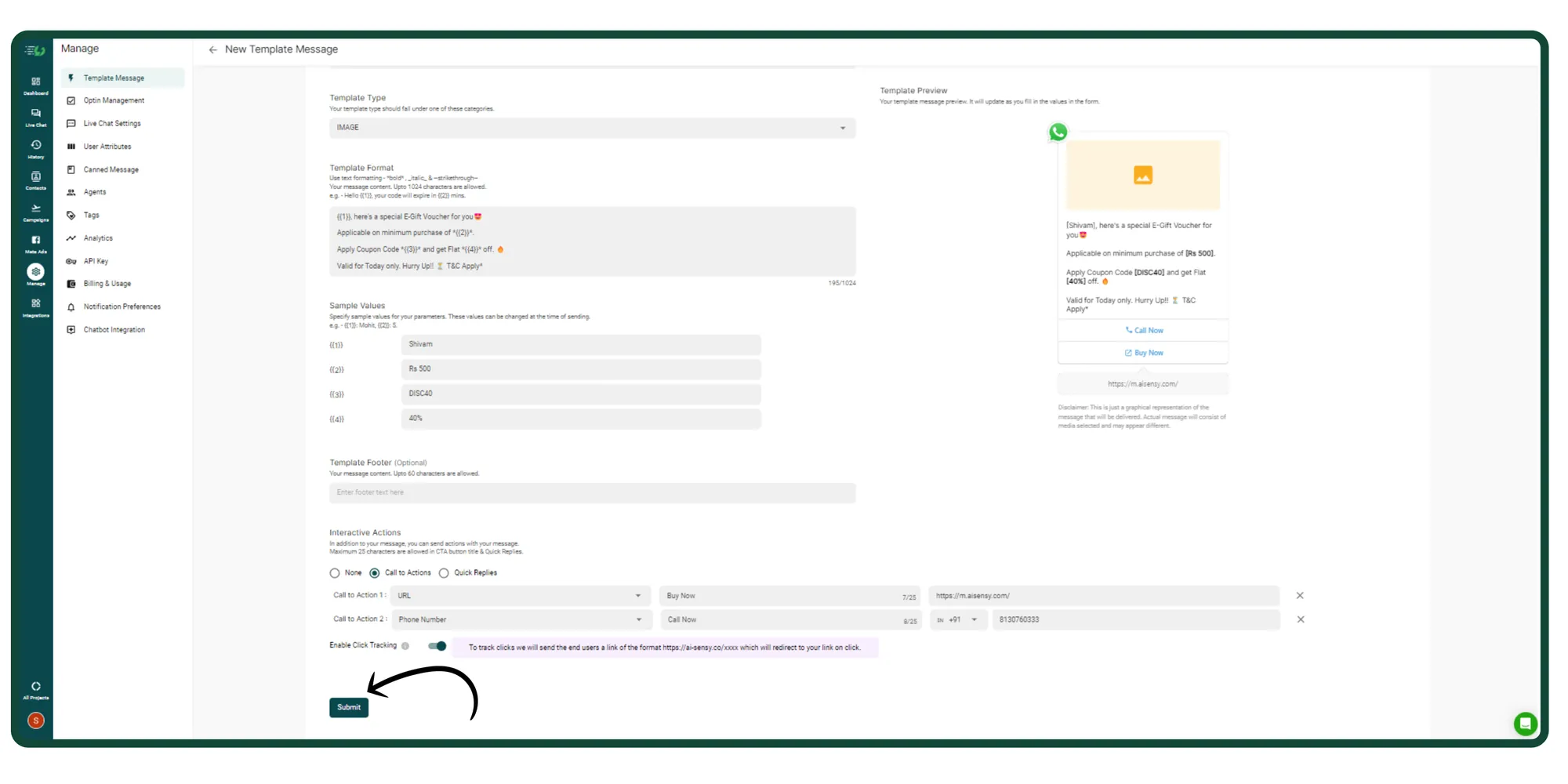
Finally, proofread the template message for mistakes or grammar errors before clicking the submit button. Once submitted, you can't make changes to the same WhatsApp Template Message.
Once you're sure the message is ready to be reviewed, click 'Submit'.
10. Send your media Template message
To send your Media template message, follow these steps:
-
Go to Contacts
-
Filter your contacts & select those whom you wish to Broadcast
-
Now, click Broadcast
-
Name the Campaign & Select your media template message.
-
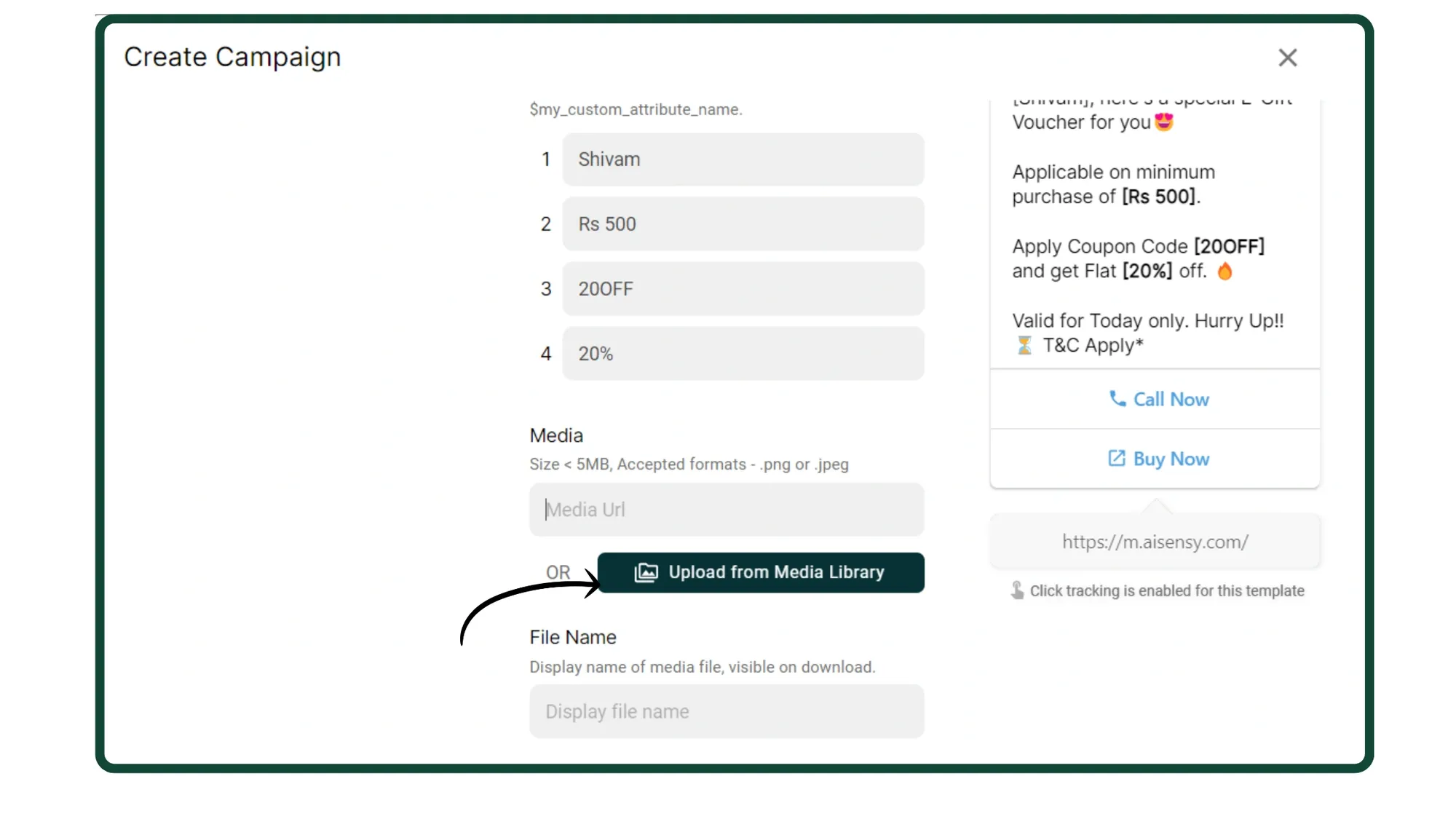
Last, add the media file you wish to send your users along with the text template as shown in the image below👇
Note: Media Library Storage Limits Based on Your Messegy Plan:
-
Basic Plan – Up to 1GB storage
-
Pro Plan – Up to 5GB storage
-
Enterprise Plan – Up to 10GB storage
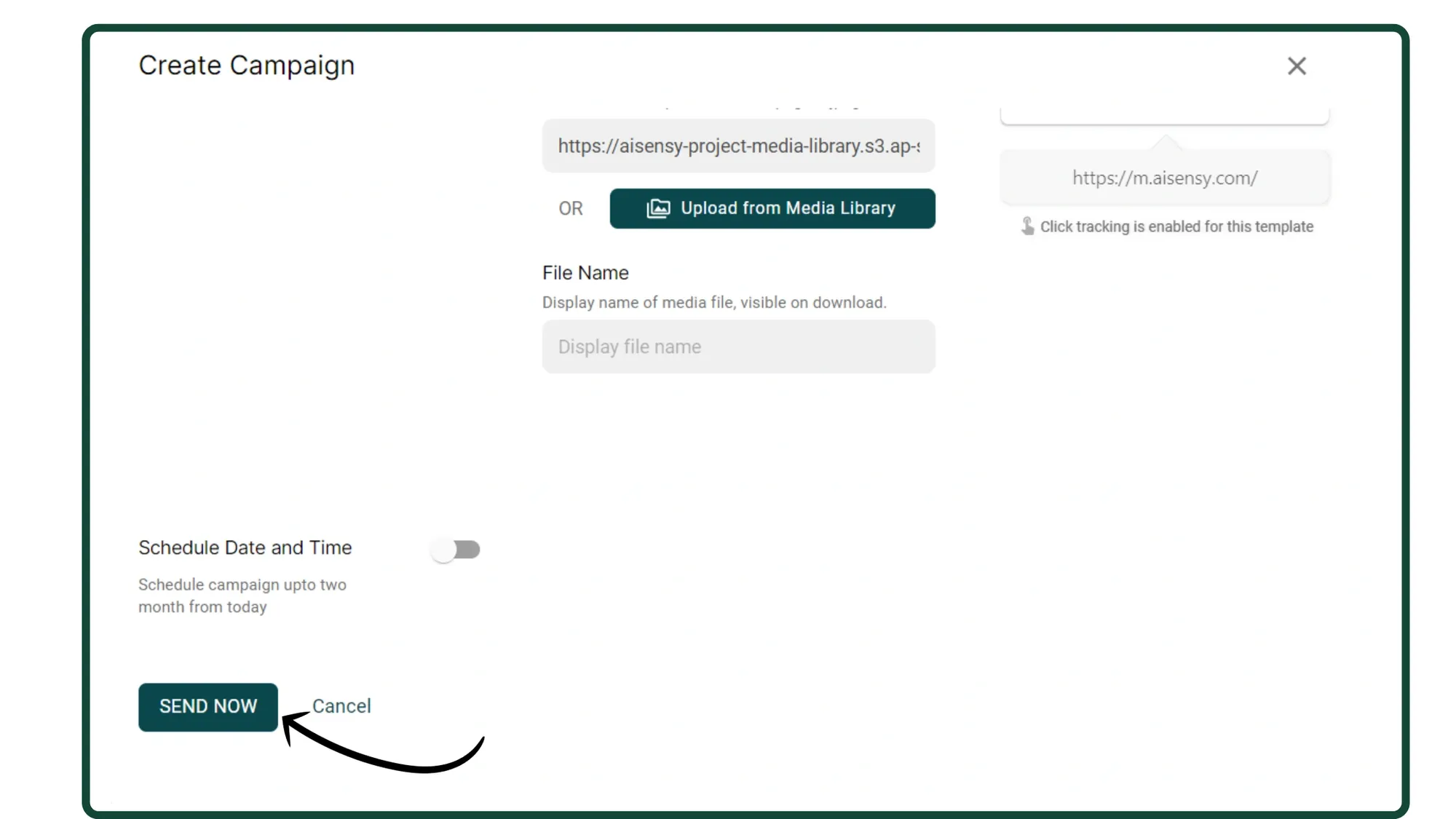
11. Press 'Send Now' to send your Media Template
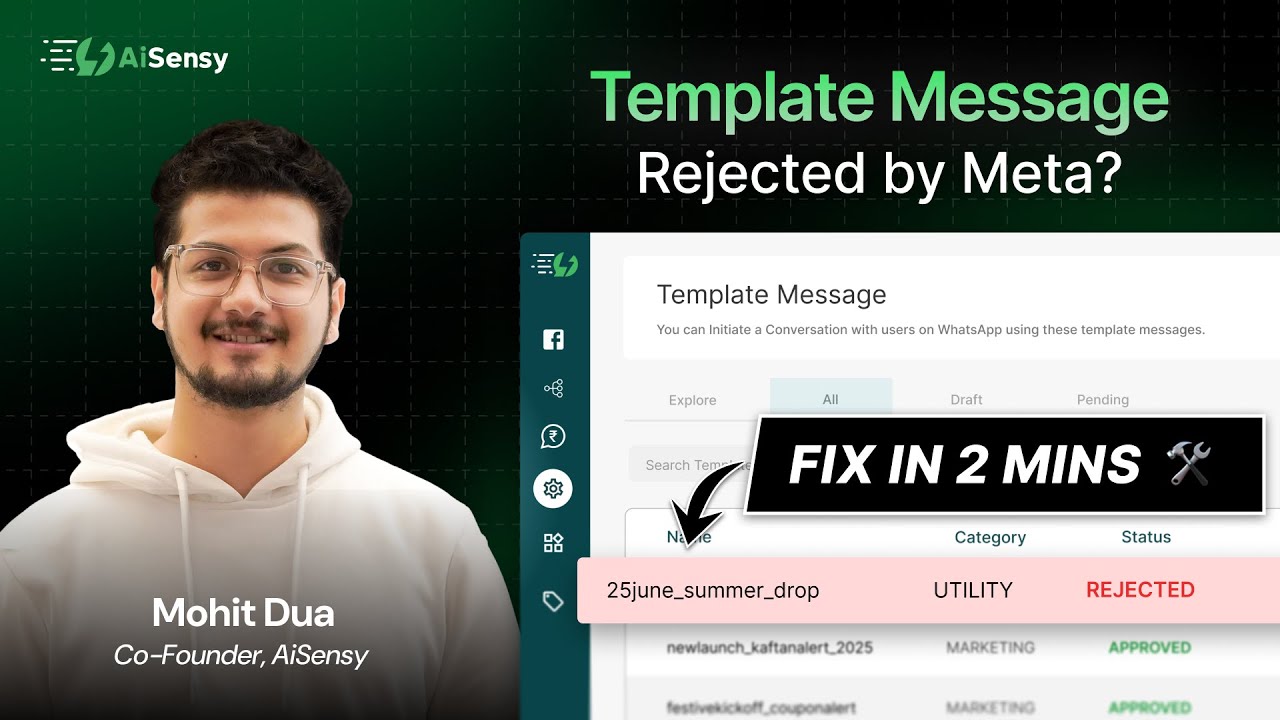
Template Message Rejected by Meta?
Is your WhatsApp template message getting rejected by Meta? Don’t worry — this quick guide will help you analyze, fix, and resubmit rejected template messages using Messegy.