You can now send Carousel messages on WhatsApp to your customers with Clickable buttons (Quick Reply and CTA buttons) through Messegy.
Learn How
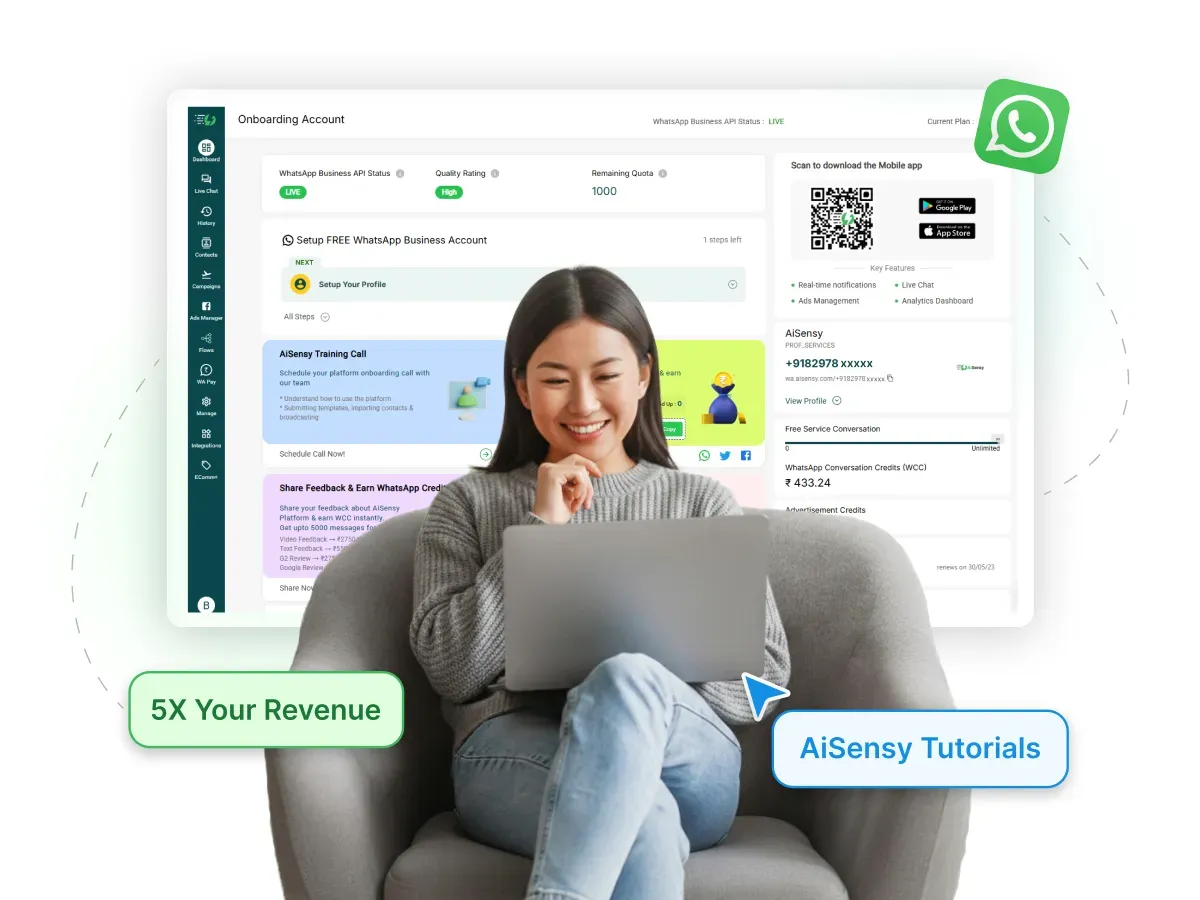
You can now send Carousel messages on WhatsApp to your customers with Clickable buttons (Quick Reply and CTA buttons) through Messegy.
Like this👇
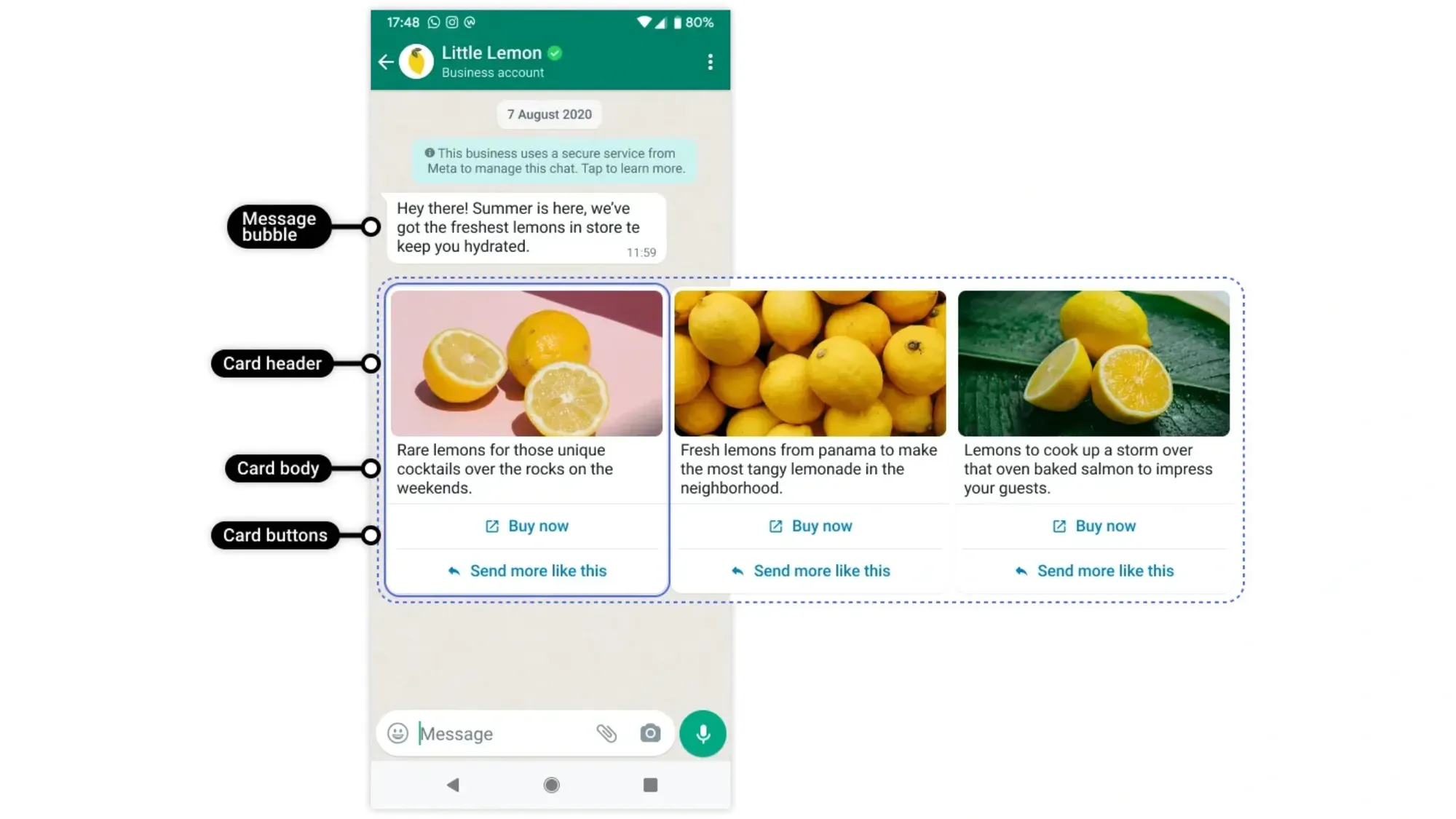
You will be able to easily up to 10 products to your customers in a carousel format as well as have them purchase your products right on WhatsApp through the WhatsApp Pay Integration.
Wondering how to create the Carousel Template message?
In this doc, we'll tell you the step-by-step process to create a WhatsApp Carousel message in Messegy.
Overview
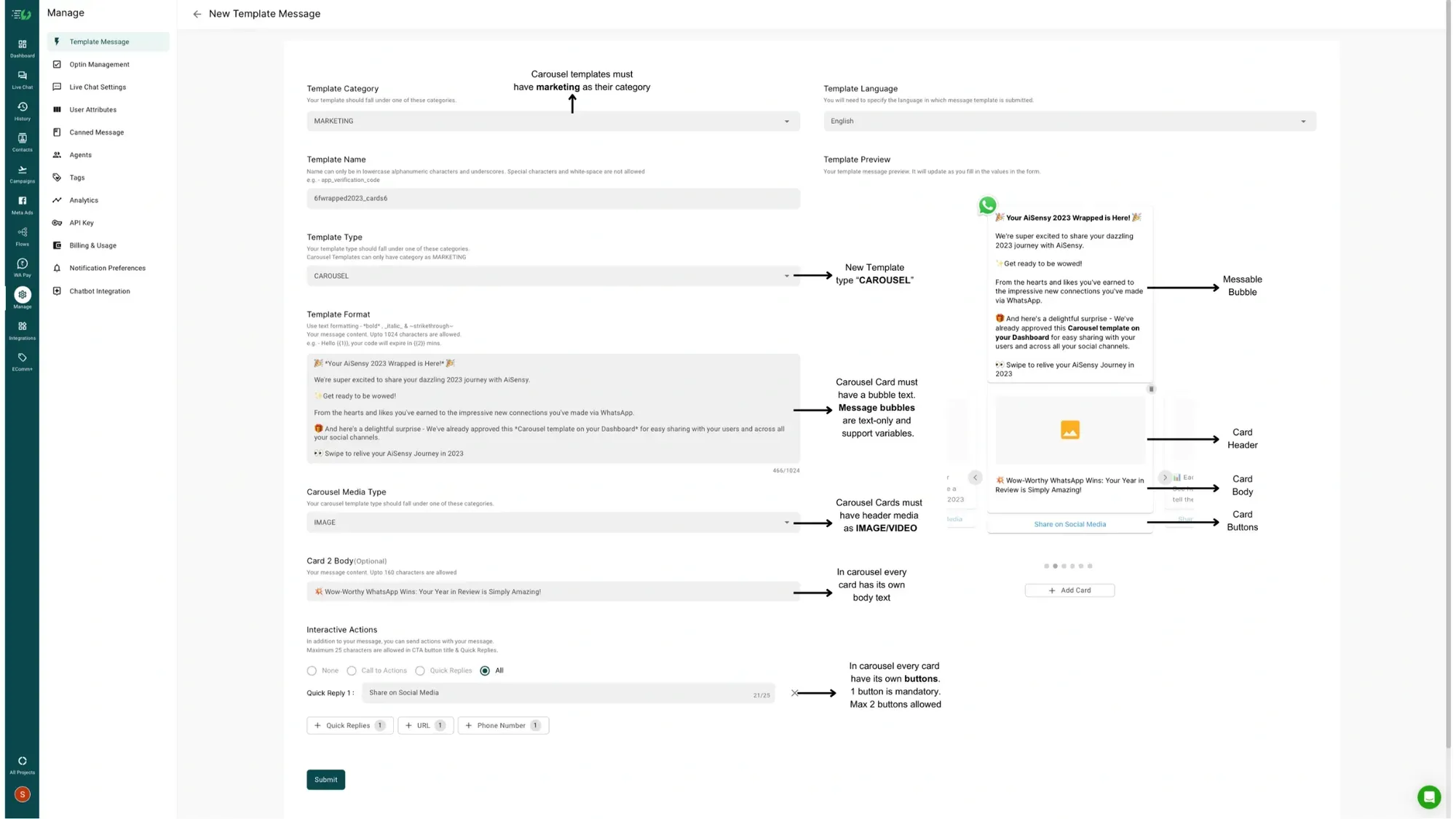
The image below gives a complete overview of everything you need to know about creating a Carousel Template message in Messegy.
How to create a WhatsApp Carousel Template in Messegy
Follow these steps to create a WhatsApp Carousel Template in Messegy Dashboard.
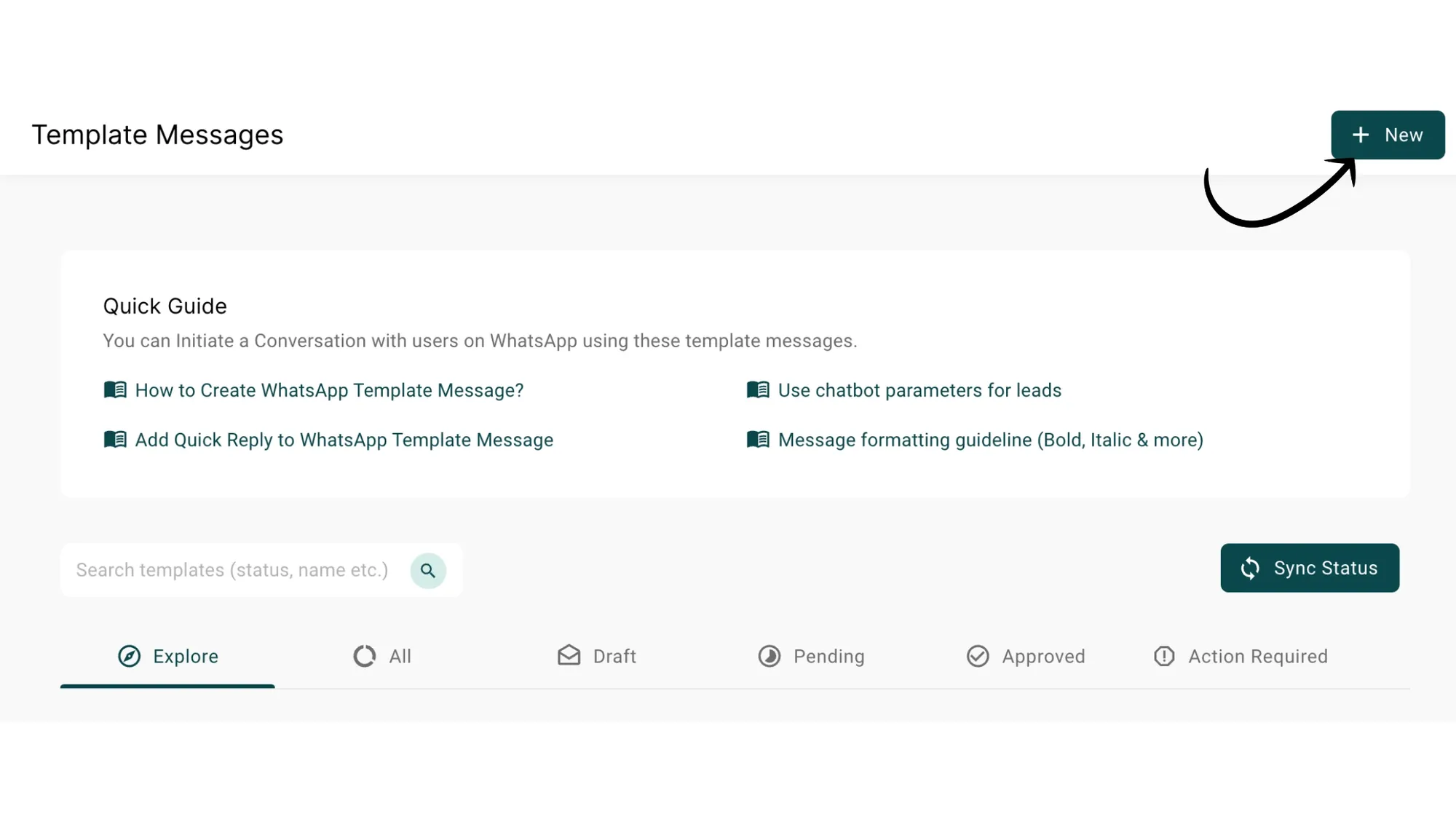
1. Go to Manage and Tap on "Template Message"
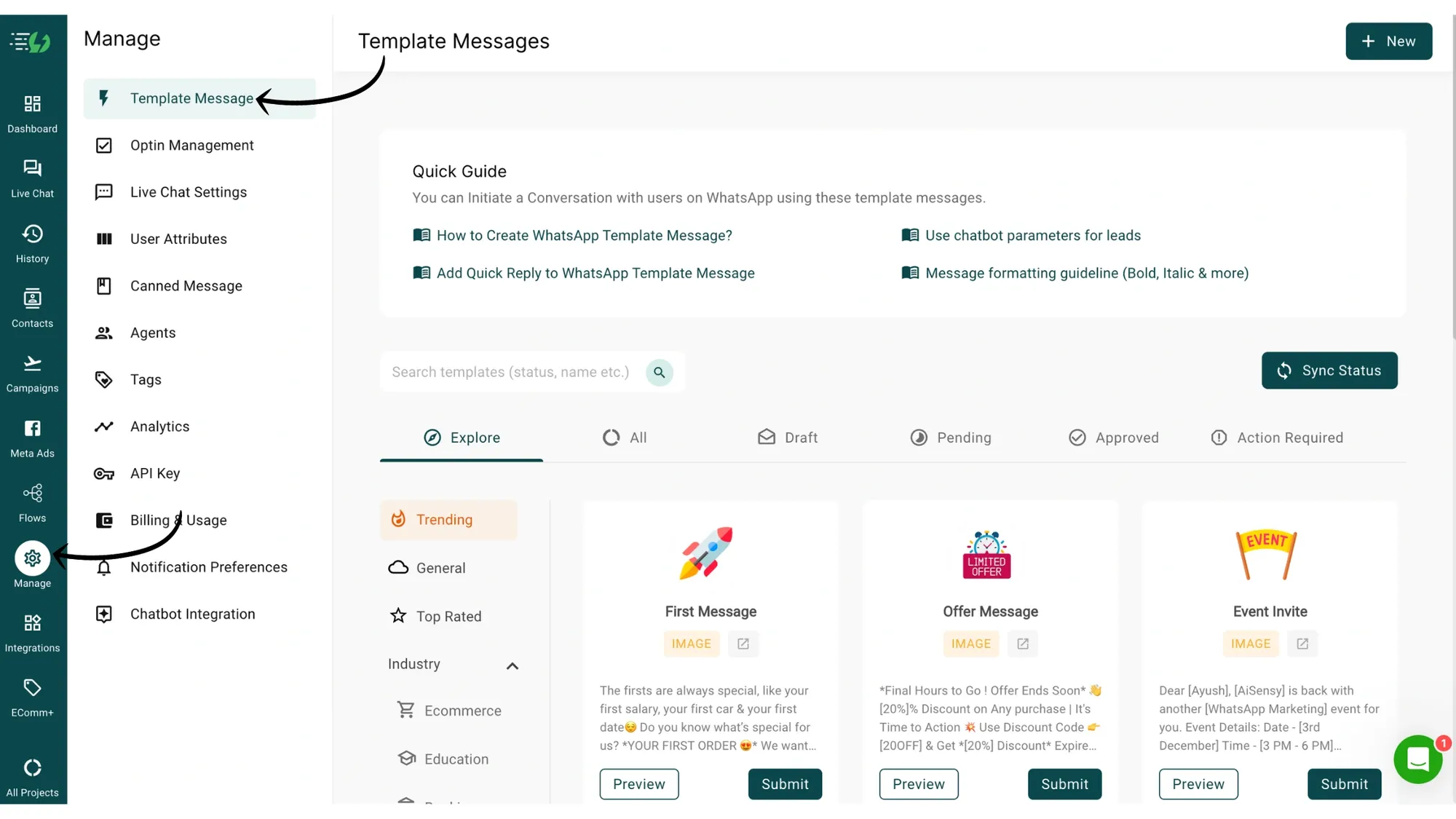
2. Click "+New" to create a New Template Message
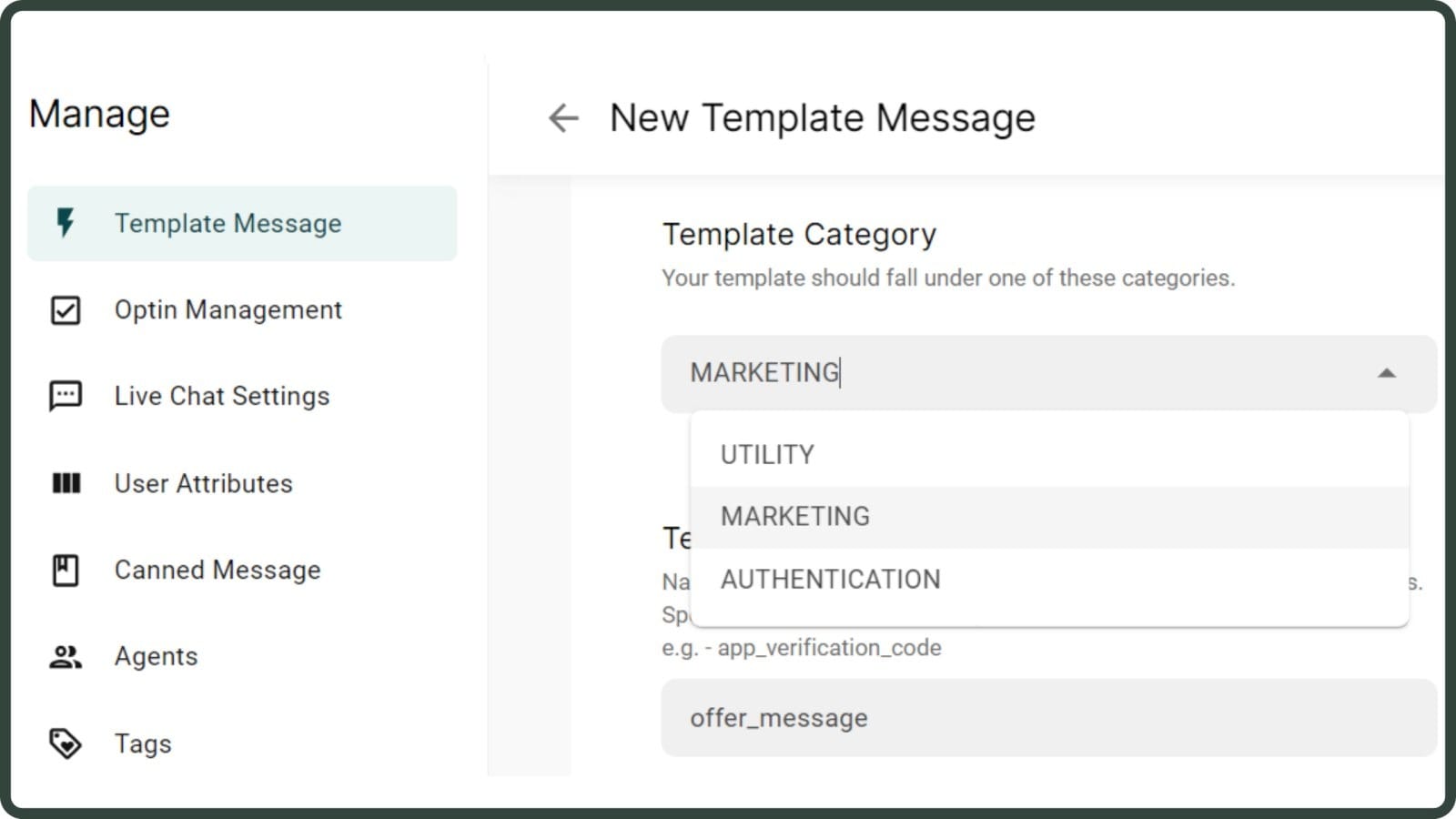
3. Choose "Marketing" under the WhatsApp Template message category
There are various template categories according to the different use cases of WhatsApp Template Messages.
Given the pricing updates coming to WhatsApp API applicable since June 1, 2023, templates in Messegy will now be classified under Utility, Authentication & Marketing.
-
Utility - Transaction-focused messages used to confirm/ cancel a transaction or a subscription.
-
Authentication - OTPs & login code messages are used to authenticate a user. (Not available for Indian Numbers)
-
Marketing - All messages that relate to a business's products & services (except for transactional messages)
Since we wish to send a promotional carousel message, we'll select Marketing under the Template Category.
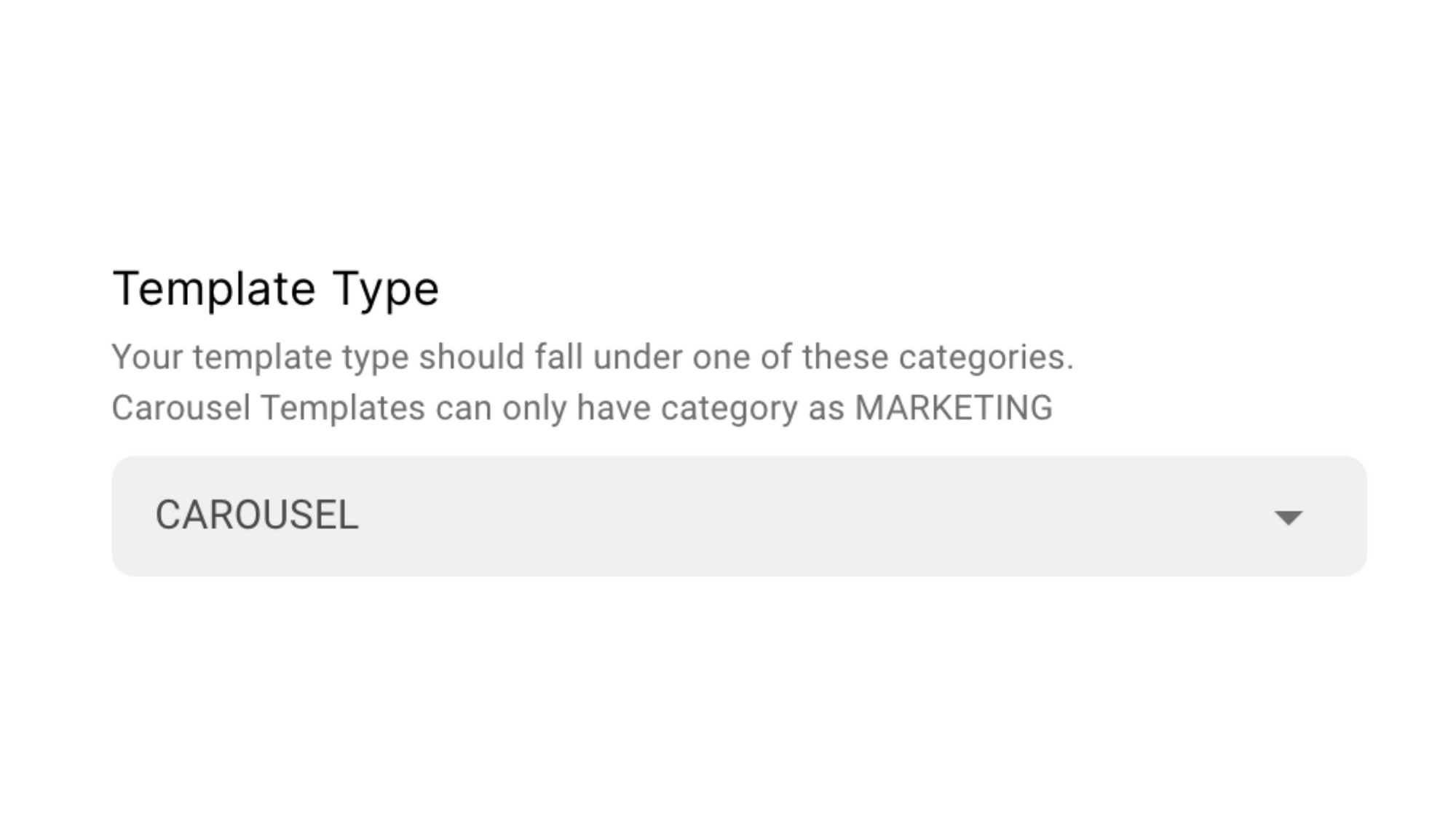
4. Under Template Type, select Carousel
This defines the type of WhatsApp template message you want to send. The different types are TEXT, IMAGE, CAROUSEL, LOCATION, VIDEO & FILE.
Since we are creating a Carousel WhatsApp Template message, choose Carousel under the template type.
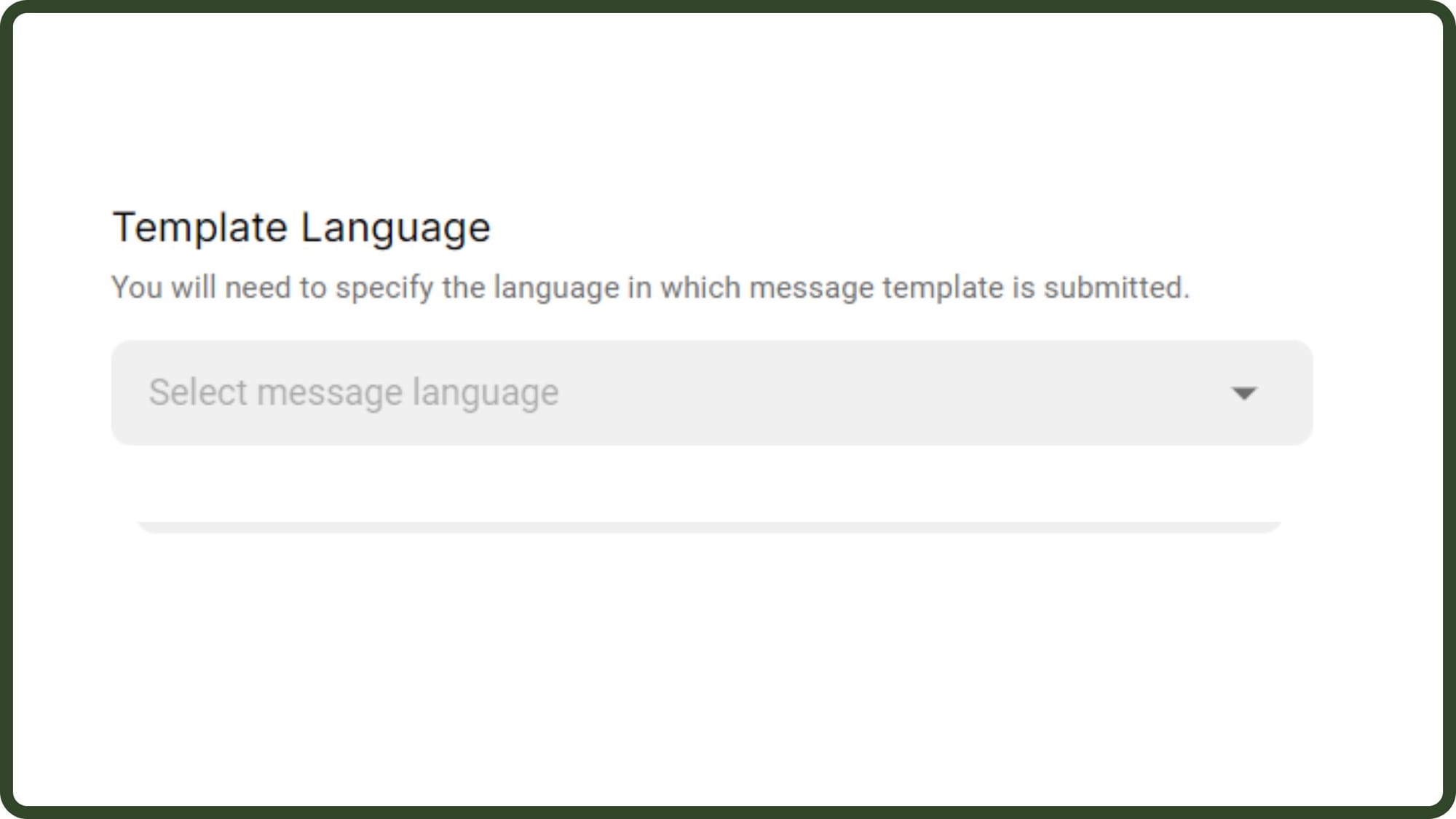
5. Select your Template Language
You can choose the language of your WhatsApp template message from all the global languages and vernacular as well.
For each template message, you can only pick one language.
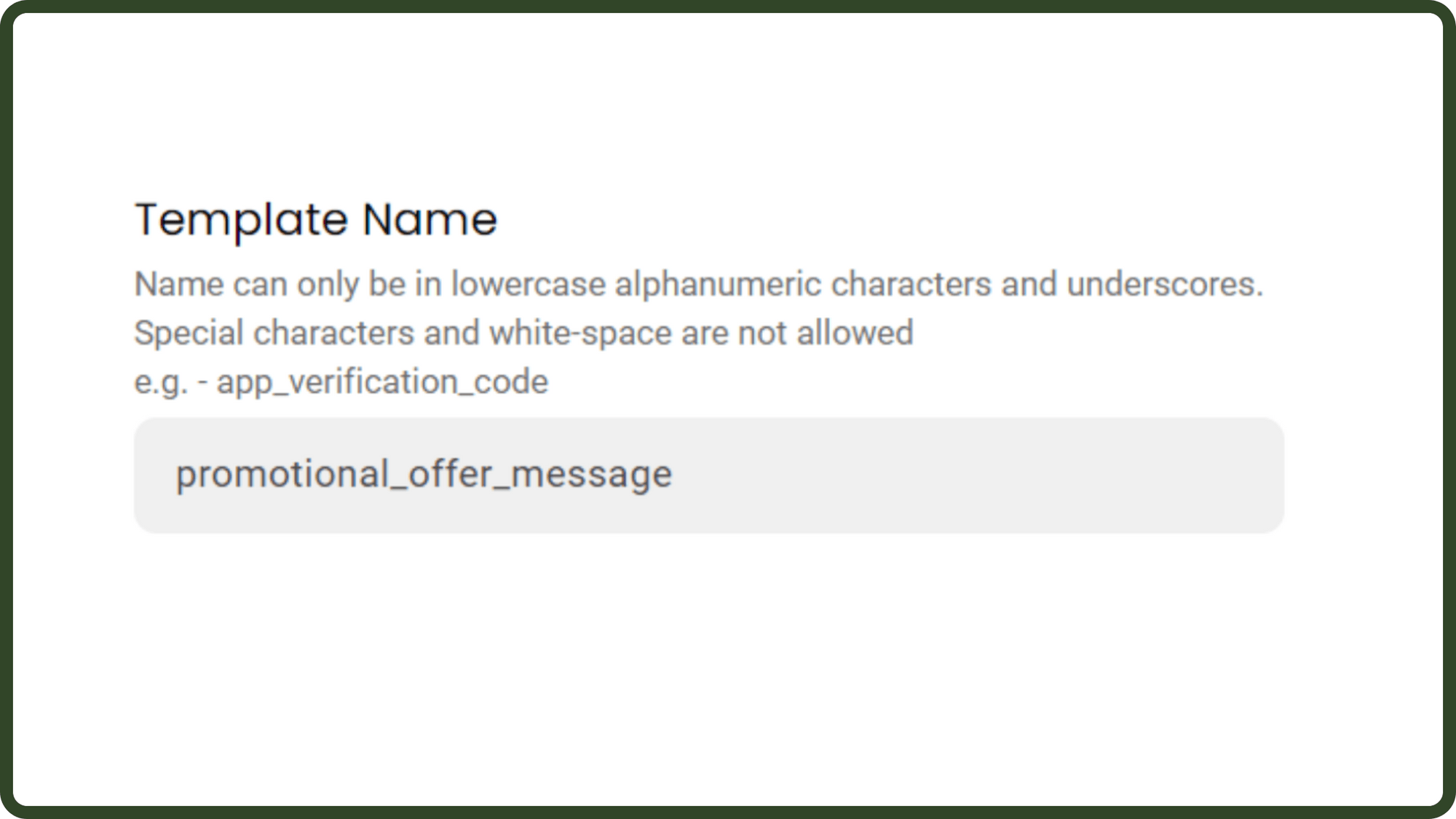
6. Name your Carousel Template Message
FORMAT – The template name can only be in lowercase alphanumeric characters and underscores. Special characters and white spaces are not allowed.
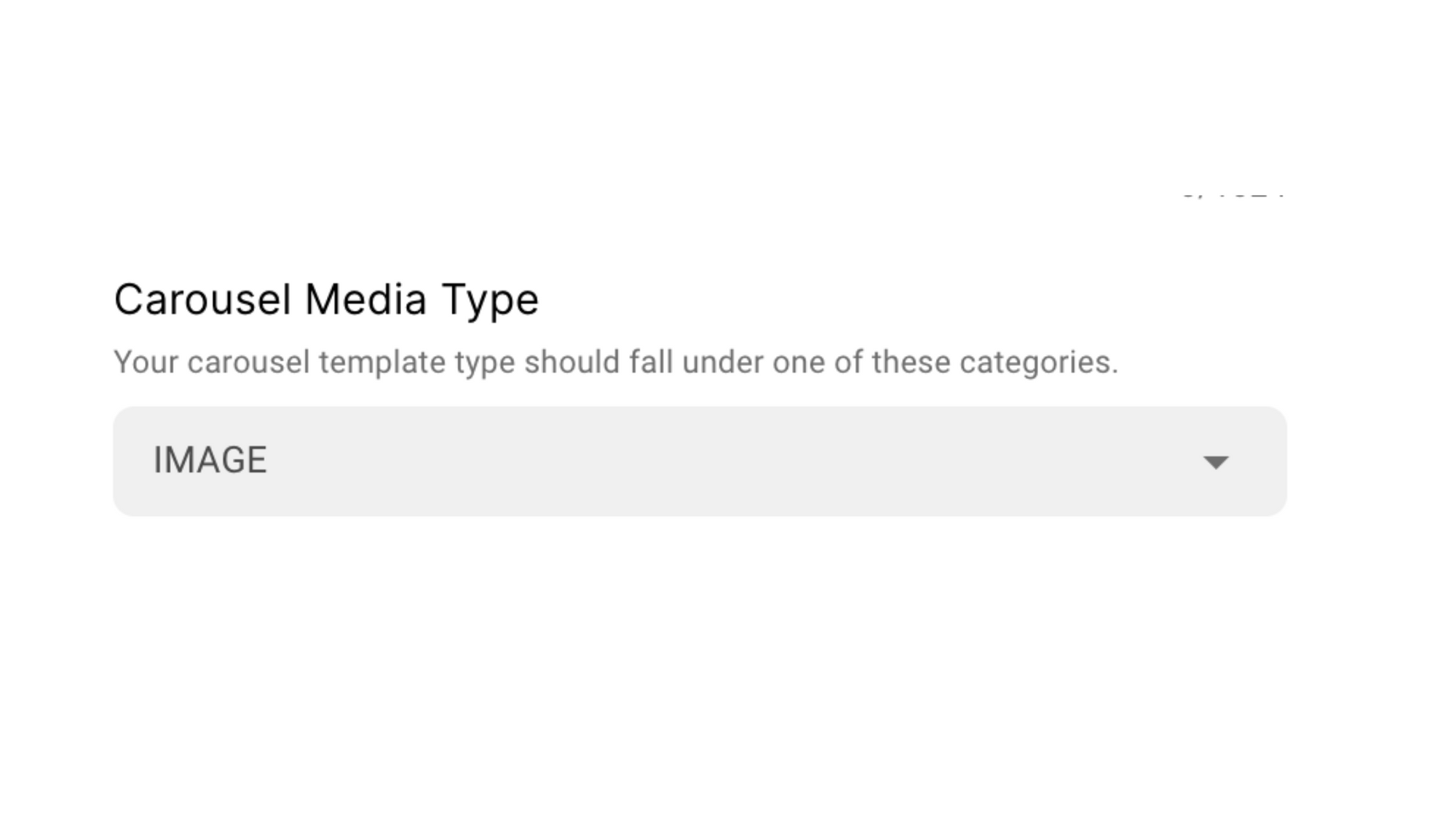
7. Pick your Carousel Media Type (Image/ Video)
... lastly you can invite your team and collaborate to create something super amazing. What are you waiting for? Get started now!
8. Enter content for your Carousel WhatsApp Template under "Template Format"
The template format is your WhatsApp template message content. Write down the template message that you want to send to users after getting approved by WhatsApp.
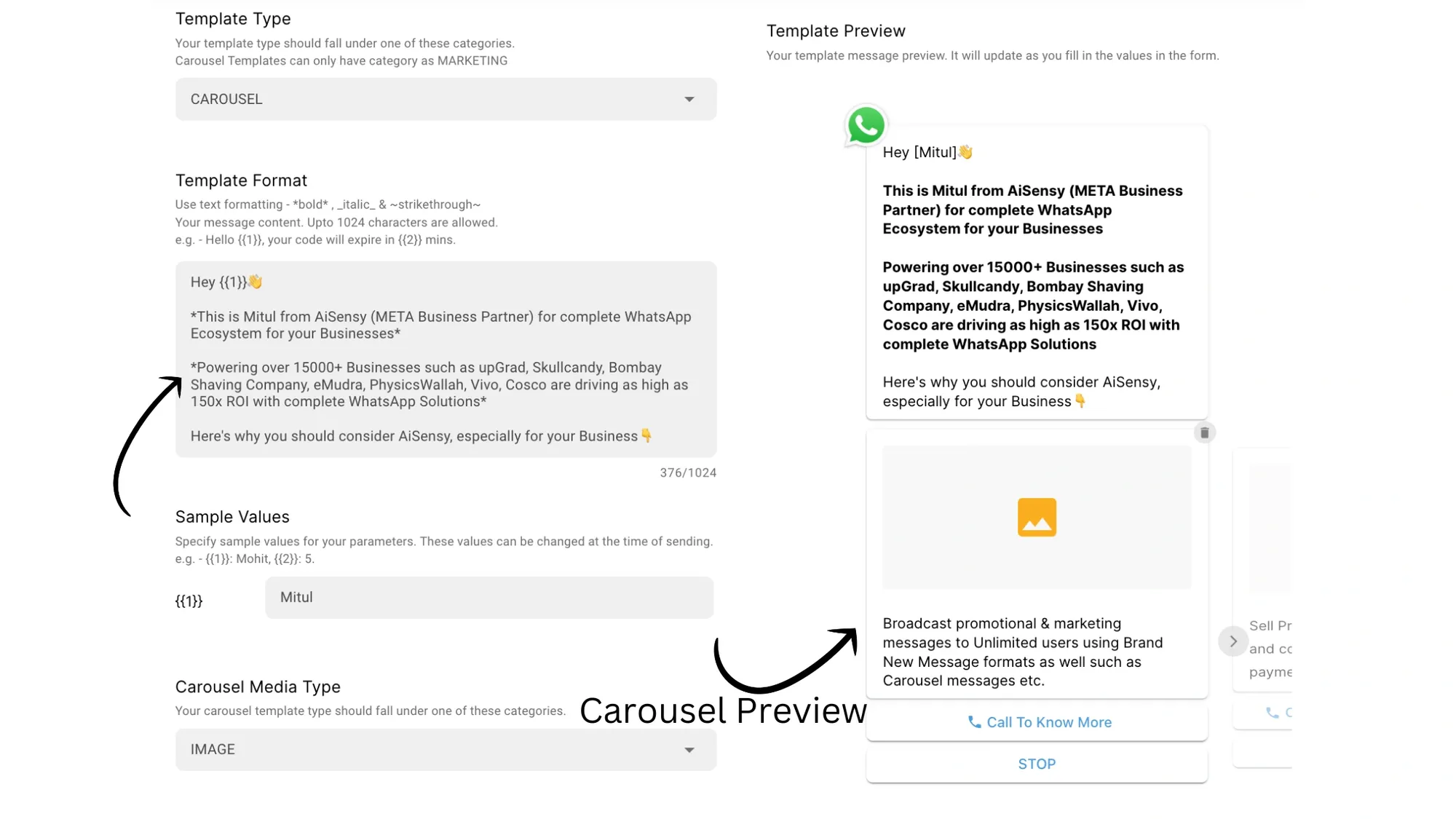
Note: Adding text to the Carousel body is Mandatory.
When creating a Carousel Template message, you need to add content in the main body and fill in content for each Carousel card you wish to send to the users.
In the above image, you can see that the Template Format includes the main copy of the Carousel message.
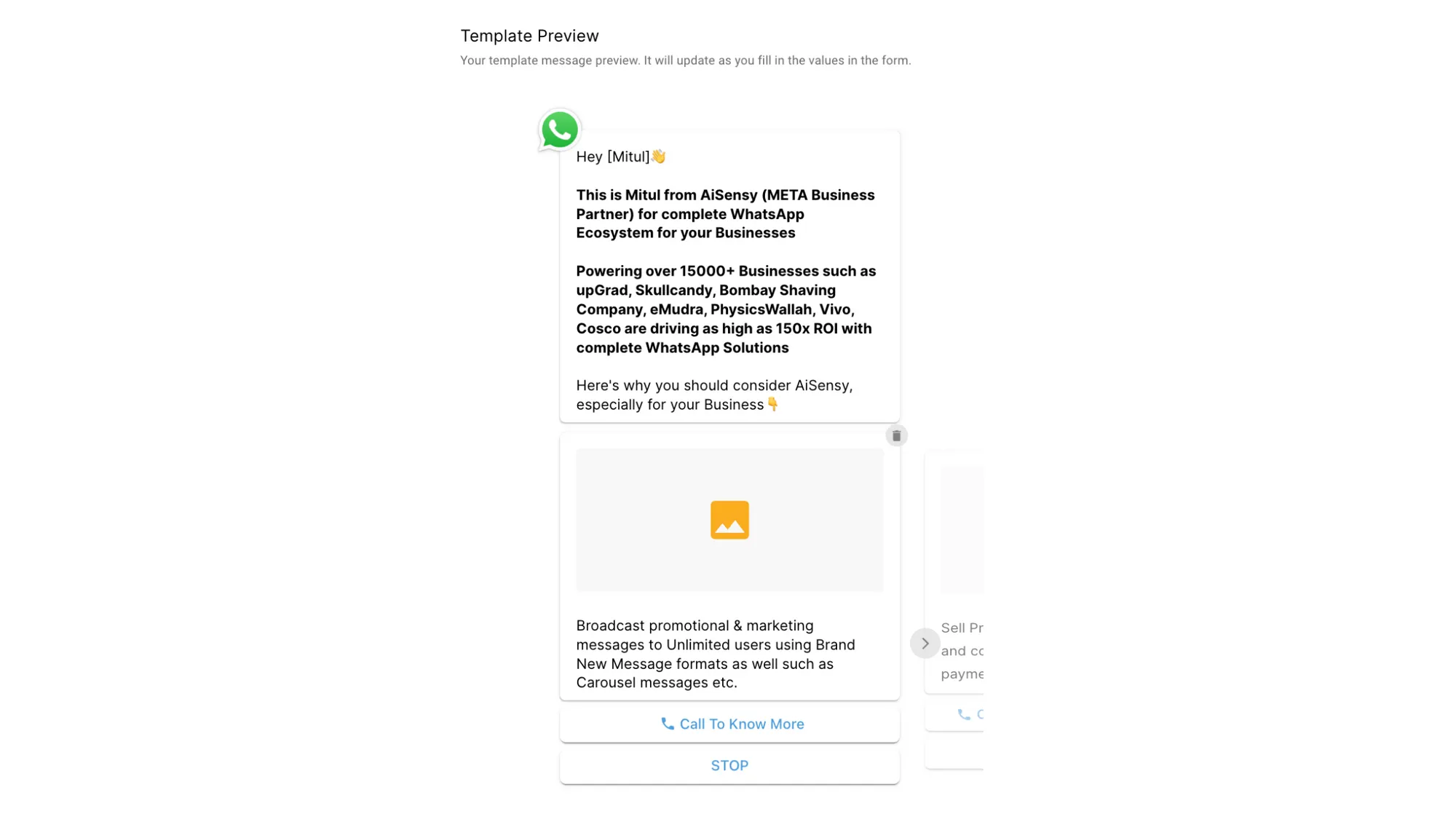
However, to add content to each Carousel Card, you need to add it separately in the Card Body like this:
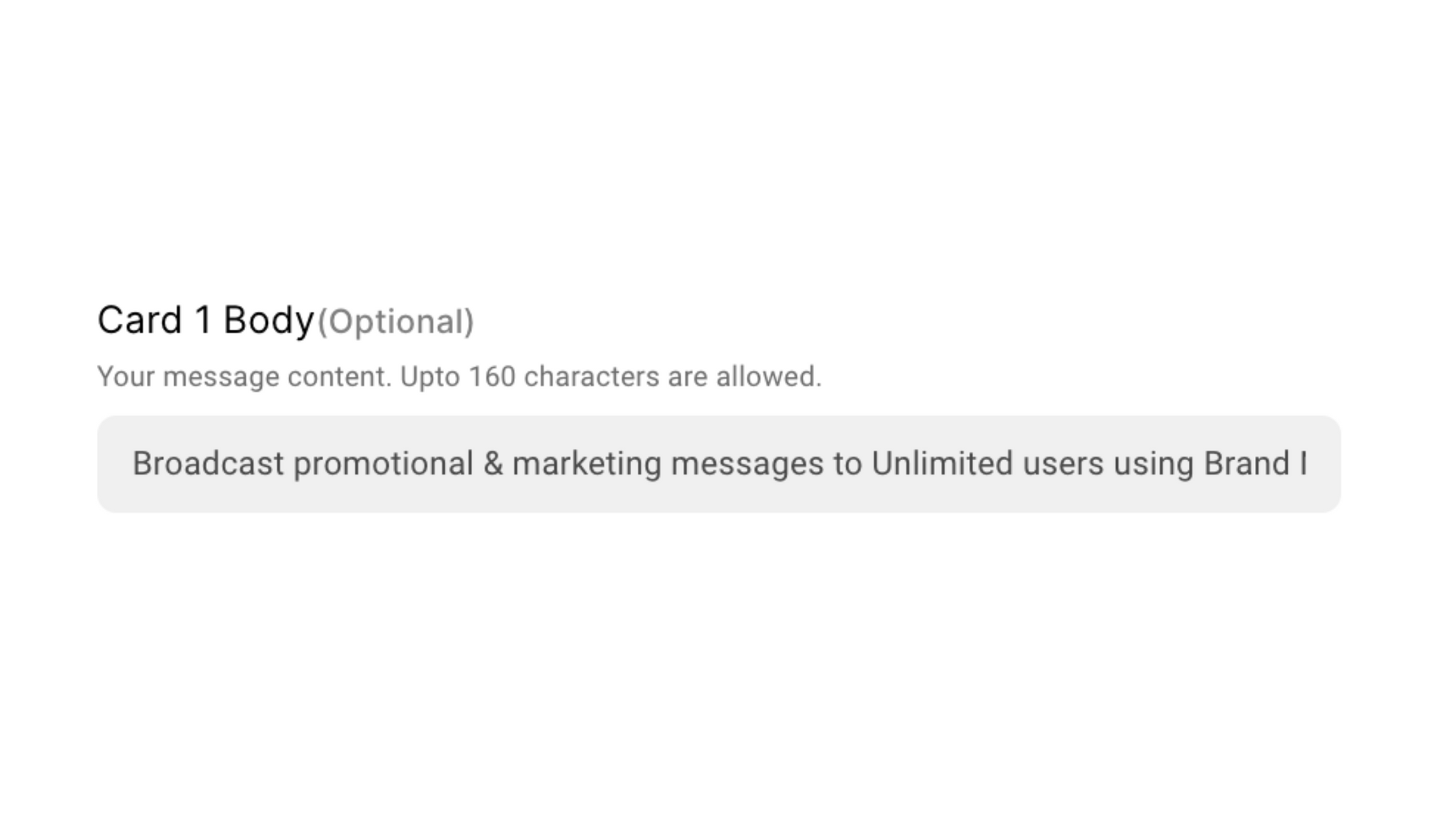
Template Preview Sample
You can add content to each of your Carousel cards, customizing it depending on the product/ service that you are promoting. You can add a maximum 10 cards to your Carousel message
Note: Adding Content to the carousel card is not mandatory. Images and at least 1 Clickable button (CTA / Quick Reply button) is mandatory.
Note 2: If you're wondering about how to add images to these Carousel messages, don't worry!
You don't need to add images while creating the Carousel template. Images will be attached at the time of sending the Carousel Template.
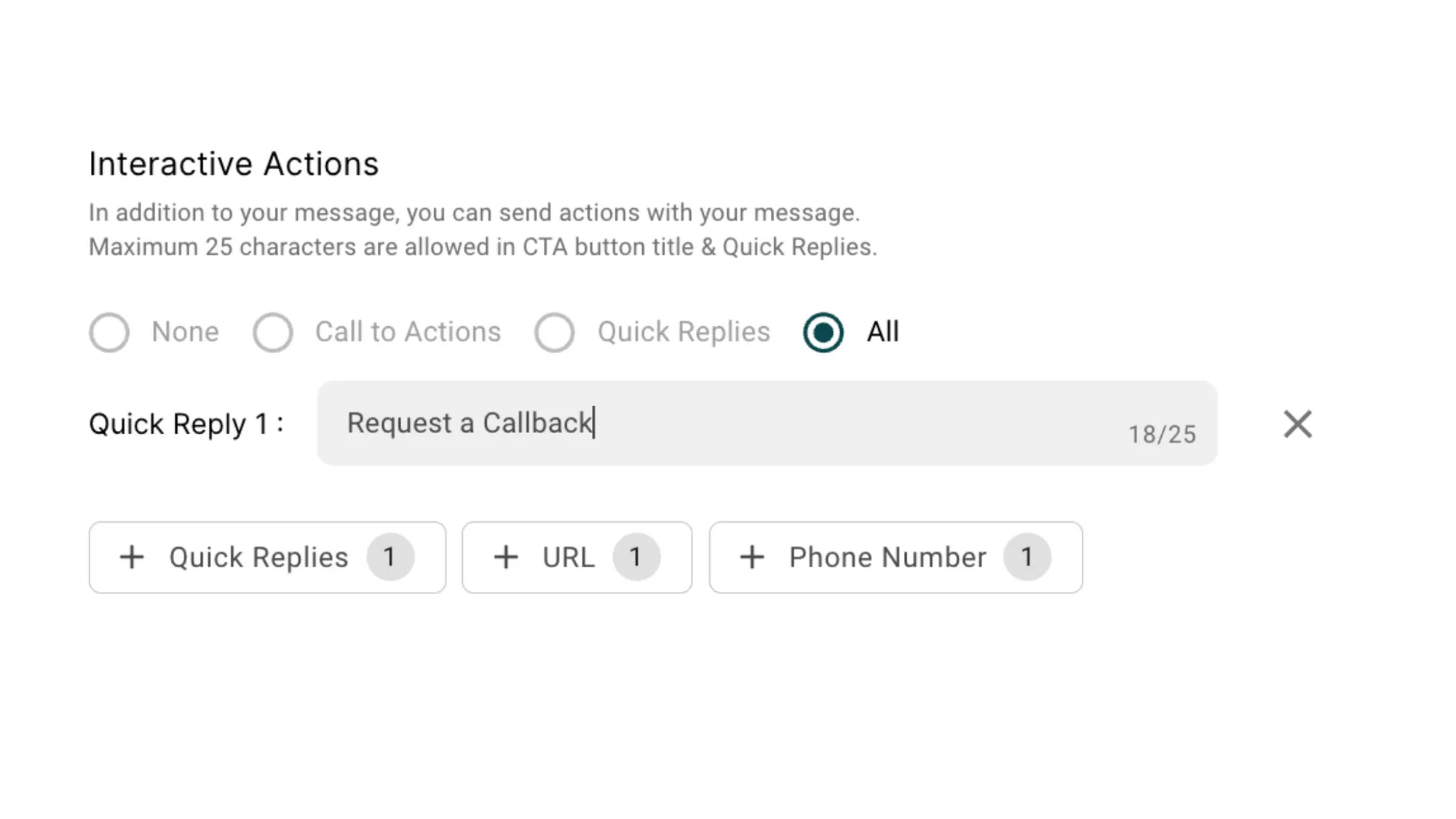
8. Add Interactive Actions to make messages more actionable
You can send a maximum 2 Clickable buttons with your Carousel message.
You can't send a Carousel Template without attaching a Clickable button. Minimum 1 button should be attached while sending a Carousel Template message.
This can be 2 CTA buttons, 2 Quick Reply buttons or 1 CTA button and 1 Quick Reply Button as well.
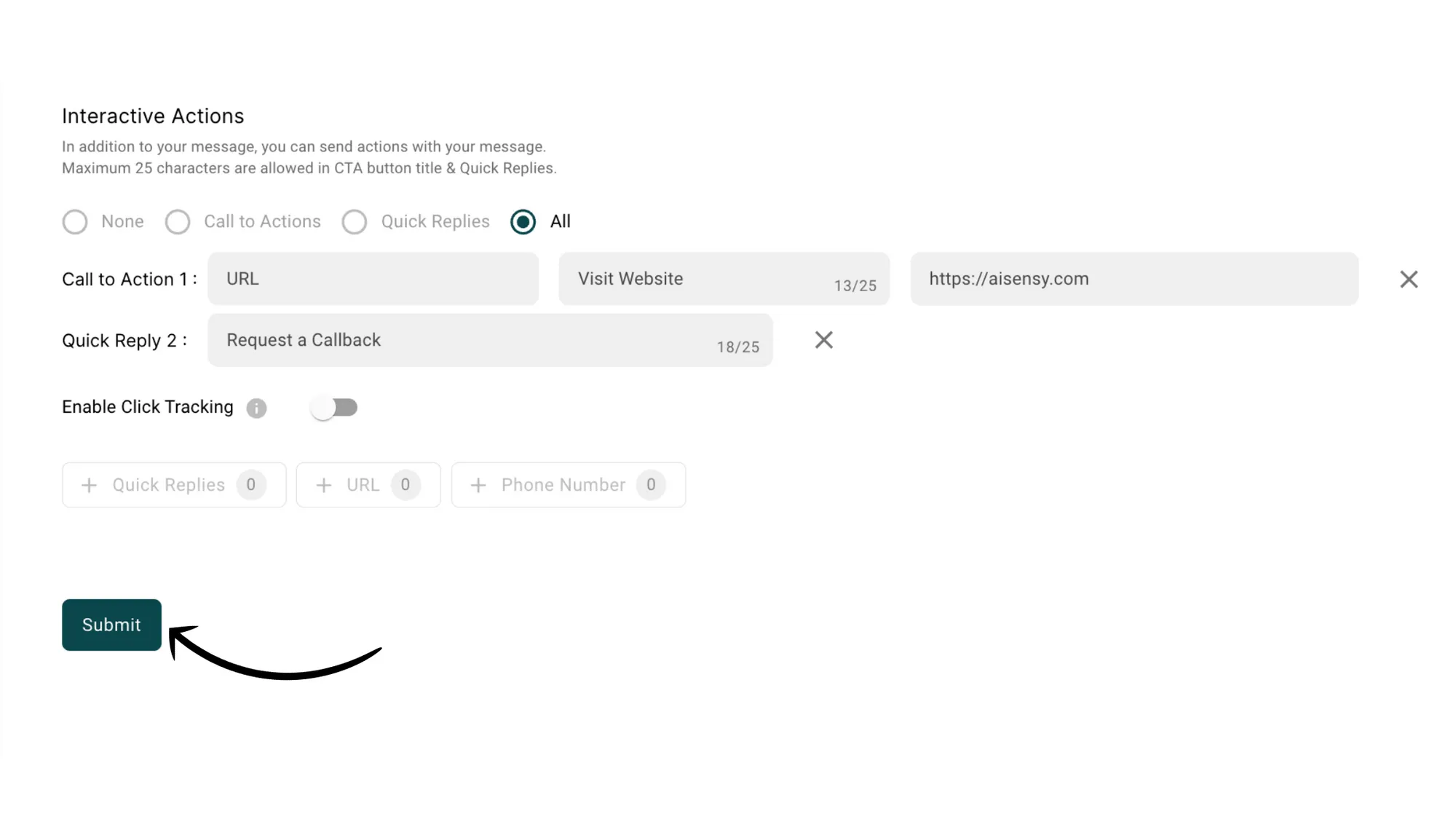
Call to Action: There are 2 types of Call to Action buttons namely URL and Phone Number. A template message can have a URL or a Phone Number or a URL & a Phone Number both as CTA. You can not have two CTAs of the same type with a template message.
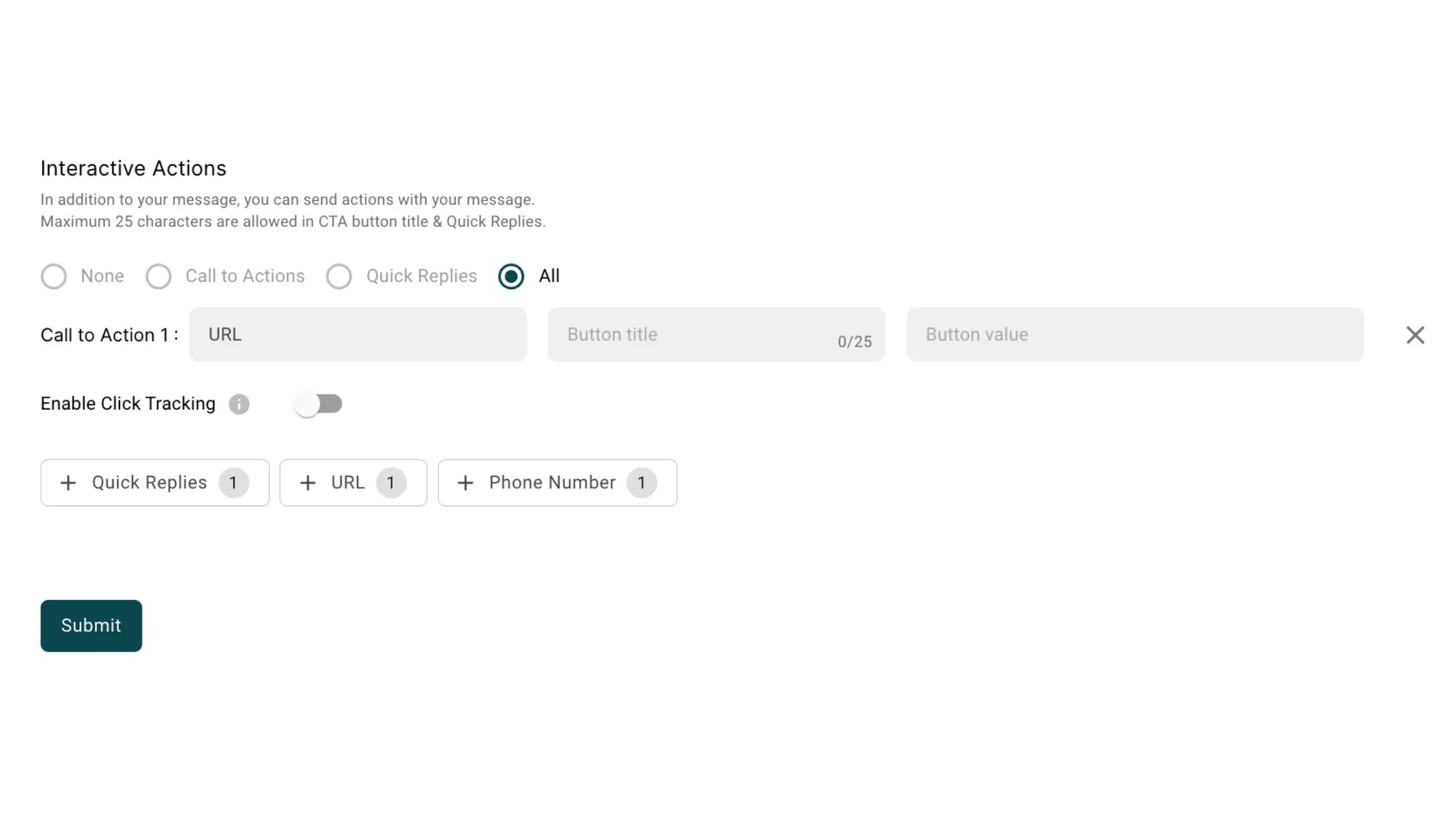
a) URL as Call to Action
After choosing the URL as the action type, you have to write the Button Title that appears as the clickable button and Button Value is the redirection link. The redirection link can be Static or Dynamic in nature.
Example of static button value: https://messegy.com/docsExample of dynamic button value: https://messegy.com/{{5}}
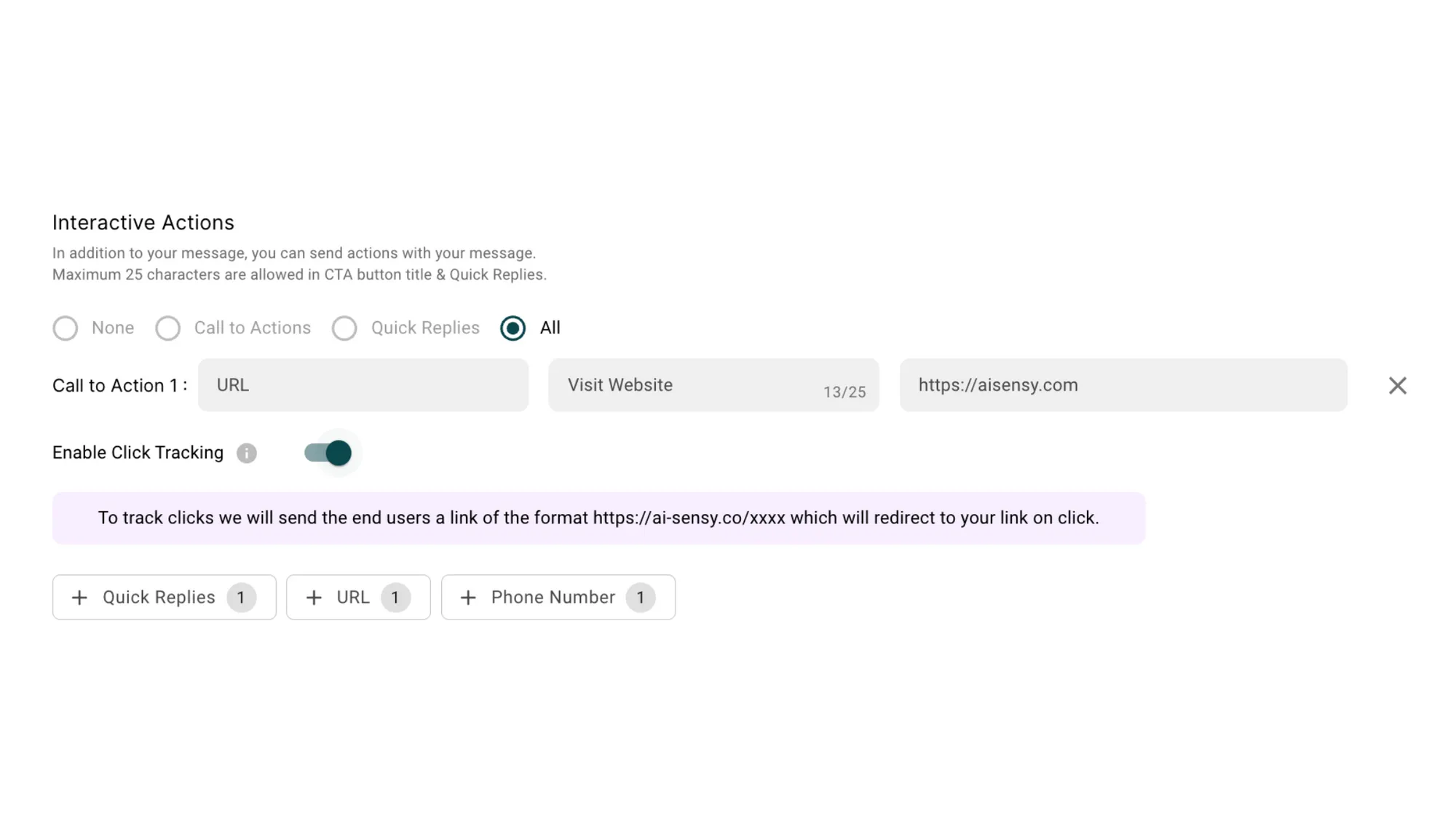
b) Phone Number as Call to Action
After choosing the Phone Number as the action type, you have to write the Button Title that appears as the clickable button and the Button Value is the Phone Number.
Note that the Phone Number must be written along with the country code without the plus (+) sign. If the number is submitted without the country code, it violates the format and gets rejected by WhatsApp.
Quick Replies
These interactive action buttons are the user response buttons. This means if the user clicks on these buttons, the text in the buttons becomes the user’s message.
There can be a maximum of 2 Quick Replies that can be sent with a Carousel template message (limited by Facebook itself) and can have a maximum of 25 characters.
The WhatsApp template messages with the Quick Reply buttons can be used to take feedback from the customers or to make customers choose between two or more given options.
9. Submit your Carousel Template message for approval
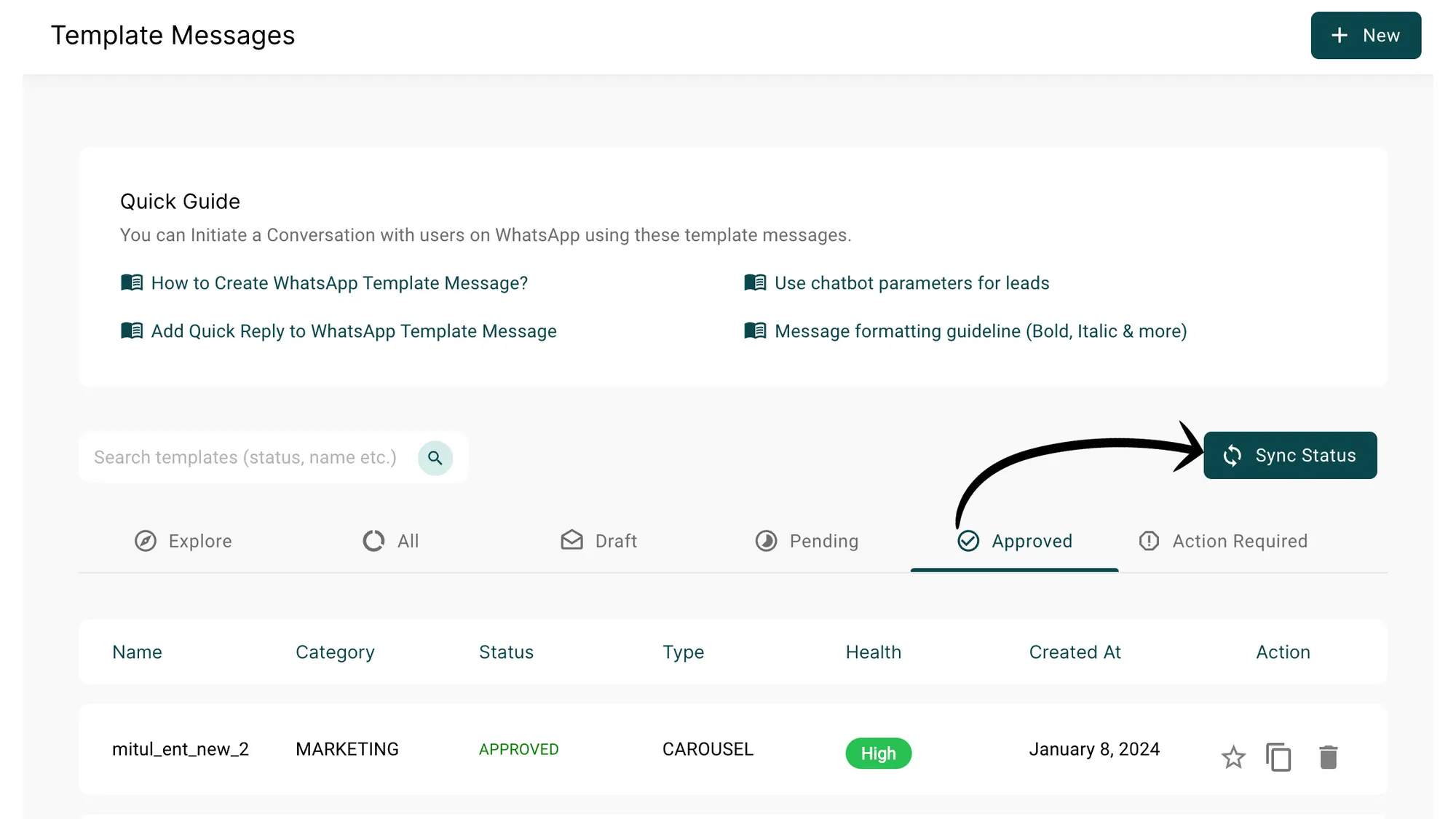
10. Sync with WhatsApp to know the approval status
WhatsApp Template Messages typically take 1 minute - to 24 hours to get approved!
After submitting template messages, hit the "sync with WhatsApp" button to update the status of the Template Message after submitting.
If it still doesn't show, refresh the tab once & then check the approval status.
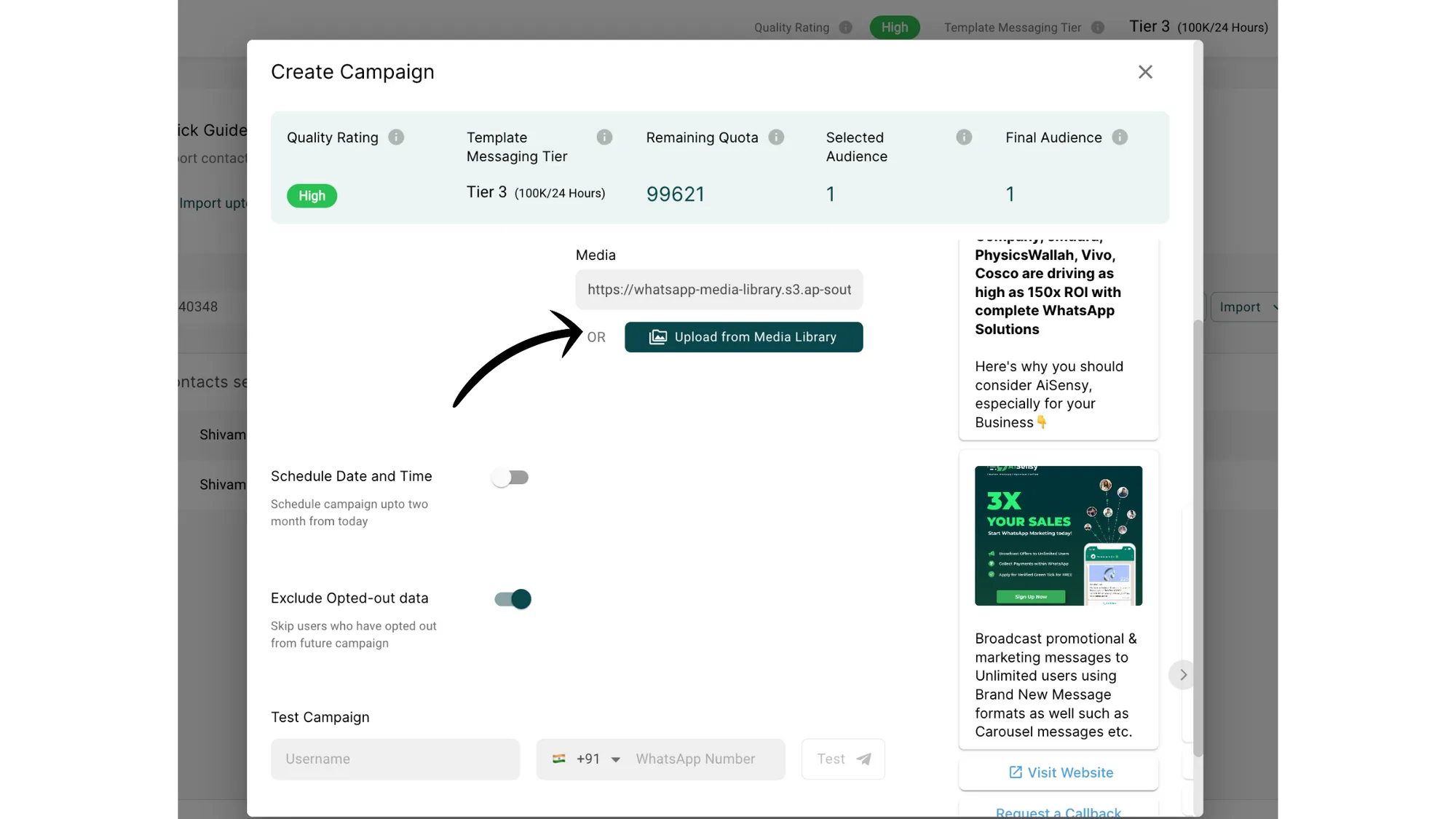
11. Add relevant images while sending your Carousel message
For each Carousel card, you need to add unique images.
Once you've added all the images, simply press send. That's it! You've successfully sent a Carousel card message to your customers.
WhatsApp Template Message Guidelines
WhatsApp Template Message allows Businesses to reach out to their customers by sending them notifications on WhatsApp. In order to send these templates to users, we need to get them approved from WhatsApp.In case your template messages are getting rejected, here are a few reasons why:
WhatsApp doesn't allow spamming and harmful content. So, these are two things on what Business cannot send a Template Message:
-
No threatening content
-
No data collection
WhatsApp Template Messages cannot contain threatening or abusive content. For example, Template Messages that threaten customers with legal action if they don't pay back their loans are not allowed.
Moreover, businesses can't collect data using WhatsApp Template Messages. Though you can certainly conduct polls and surveys, you can't ask for sensitive personal information such as credit card numbers through Template Messages.
In addition to the content constraints above, you need to comply with WhatsApp Template Message formatting rules.
Formatting rules you should know before creating a WhatsApp Template Message
-
Proofread your content for spelling and grammar before submitting it for review. Messages with incorrect spelling or any grammatical errors may prompt customers to view these messages as spam
-
Make sure to use variable parameters (e.g., {{1}}, {{2}}, etc.) and that they have the correct number of curly brackets (i.e., there need to be 2 brackets on the left and 2 on the right of the variable)
-
Make sure the parameters (e.g., {{1}}) contains some text with itFor example: ✅ Correct Format:Hello {{1}}❌ Wrong Format:Hello{{1}}{{2}}
-
Make sure the language selected matches the content of your message template
-
If you select Spanish as the message template language but the content is in English, your message template will be rejected
-
Ensure that your content is in one language. A mixture of languages such as "Hinglish" or "Spanglish" will not be approved
-
If you’re going to submit a message template for testing your API connection, please ensure it’s in the correct format. Any other variation will be rejected
-
Message template name: test
-
Content: Hello {{1}}
-
Refrain from using a URL shortener for your links (e.g., bit.ly, TinyURL, or goo.gl) because they obscure the intended link destination
-
The URL domain in your links should belong to your business.
-
Refrain from using extra spaces at the end of your template or double spacing in between your content. Generally, this spacing results in the rejection of the message.
-
Refrain from adding double-line space between your texts. For example;Correct Format:
-
Hello {{1}},How may I help you?
-
Incorrect Format:
-
Hello {{1}},How may I help you?
-
Avoid using Emoticons in Quick Reply Buttons.
-
Phone Number as Call to Action: The Phone Number must be written along with the country code without the plus (+) sign. If the number is submitted without the country code, it violates the format and gets rejected by WhatsApp.