Pabbly is one of the best automation & integration tools that allows you to automate API Campaigns easily.Here, we'll tell you how you can connect Pabbly with Messegy to automate API-based campaigns on WhatsApp👇
Learn How
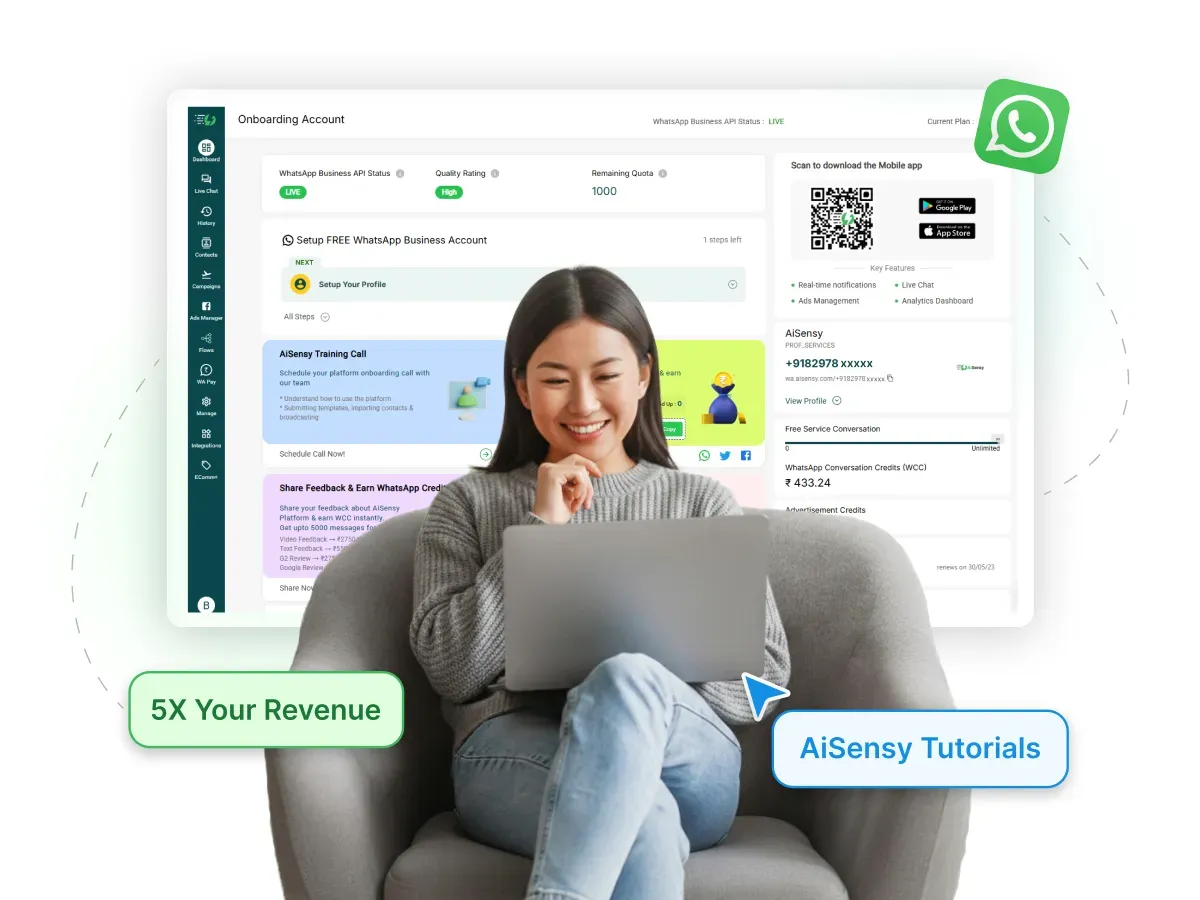
How Pabbly Works!
Pabbly acts as an intermediate between two applications, transferring data from one app into another. Basically, it works on triggers & actions. A trigger on one app will lead to an action on the other app.Here are some trigger examples for better understanding:1. A customer purchases something from your store.2. A person books an appointment.3. A person makes a payment.Here are the actions that you might want to follow:1. Deliver notification on WhatsApp for the same event2. Add the person to your Messegy contacts3. Add the person to your CRM.and much more...Let's understand this with an example of how you can connect an Application like Hubspot to WhatsApp Campaigns via API with Pabbly.
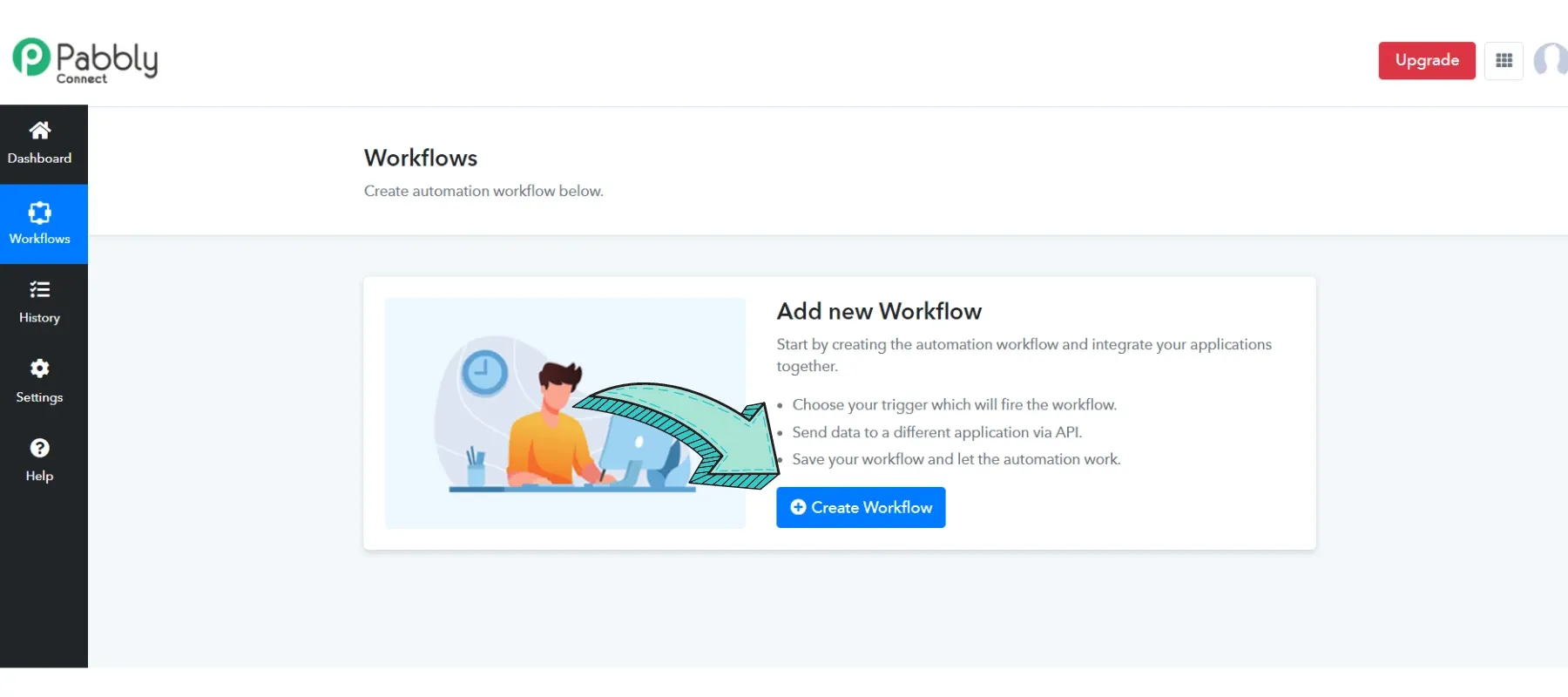
Go to Pabbly Connect & create a "Workflow"
The first step is creating a Workflow. Here, you'll connect your CRM or other software with Messegy's WhatsApp Campaigns and create sequences to automate API campaigns.
Pabbly Connect
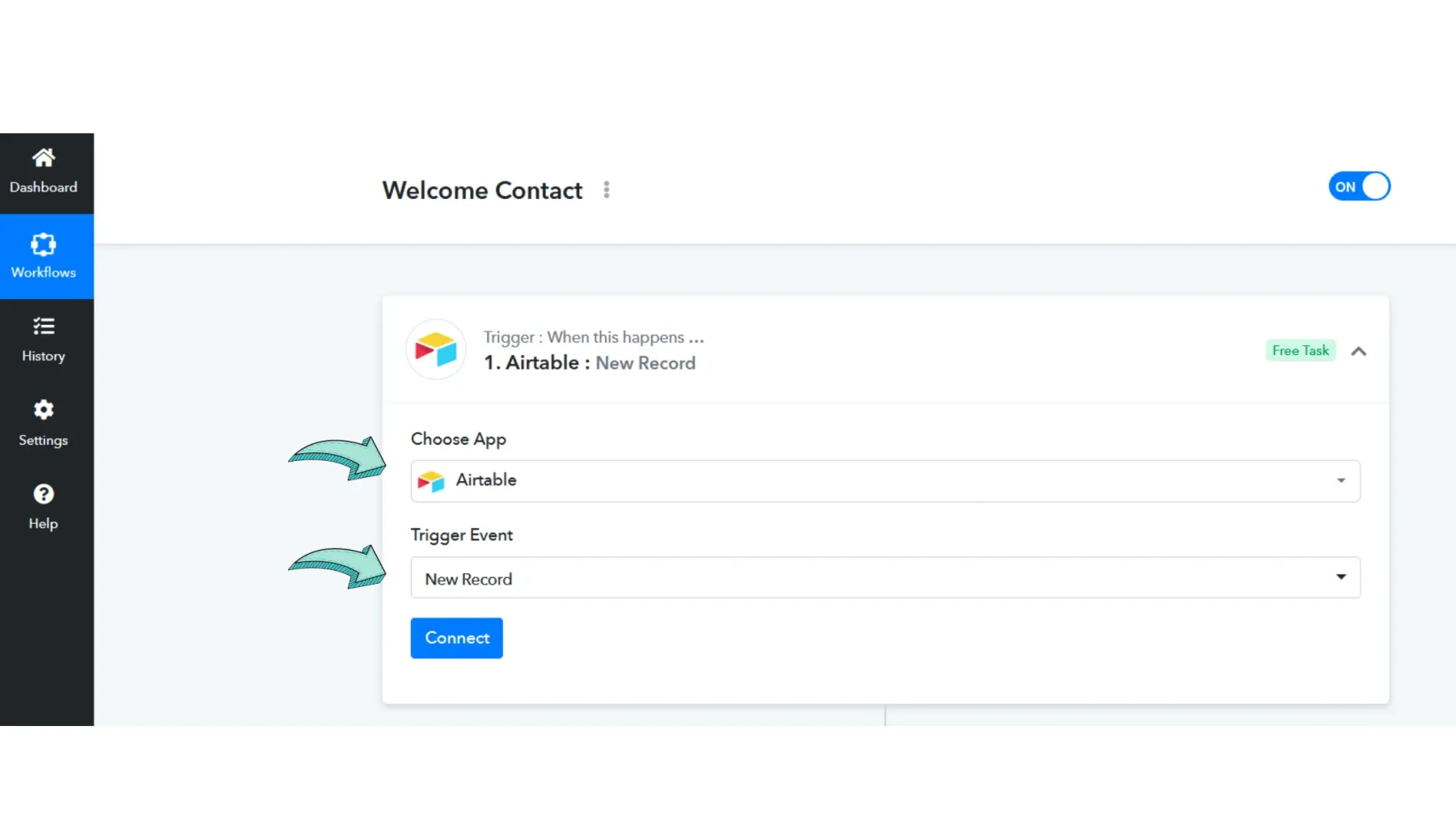
Choose App name & select Trigger Event
Next, choose the application you want to connect to & select a trigger event.Triggers are basically events based on which a user will be sent an API Campaign. For Example, if the user signs up on your platform, a welcome message will be sent.Press 'Connect' Add your Airmeet API Key to link your Airmeet with Pabbly.
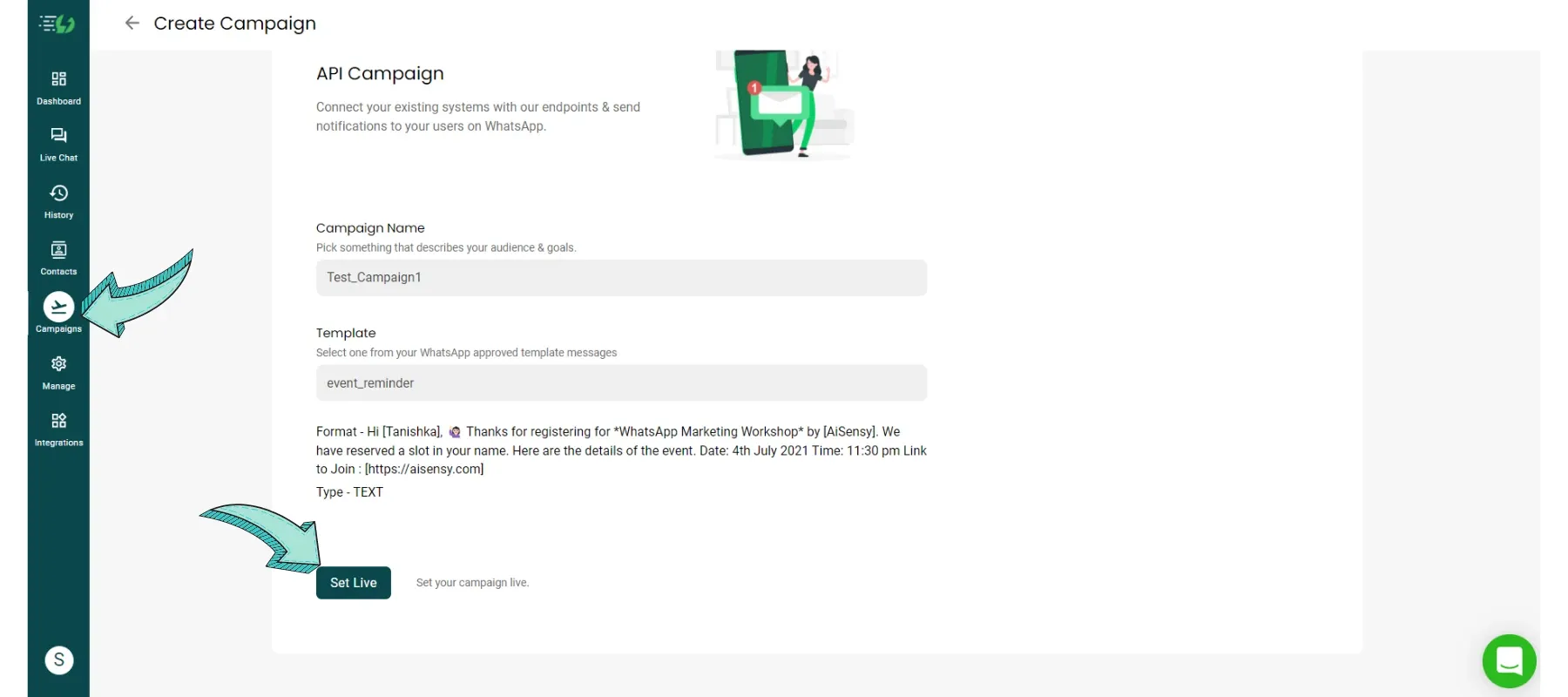
WhatsApp API Campaign in Messegy App
In Messegy app, go to Campaign & create an API Campaign. The image on the right shows a sample Campaign created.You need to pick a pre-approved WhatsApp template Message & create a Campaign Name. Don't forget to "Set Live" the Campaign before adding it to the JSON Body.
Template Message Guide
Setting up Actions
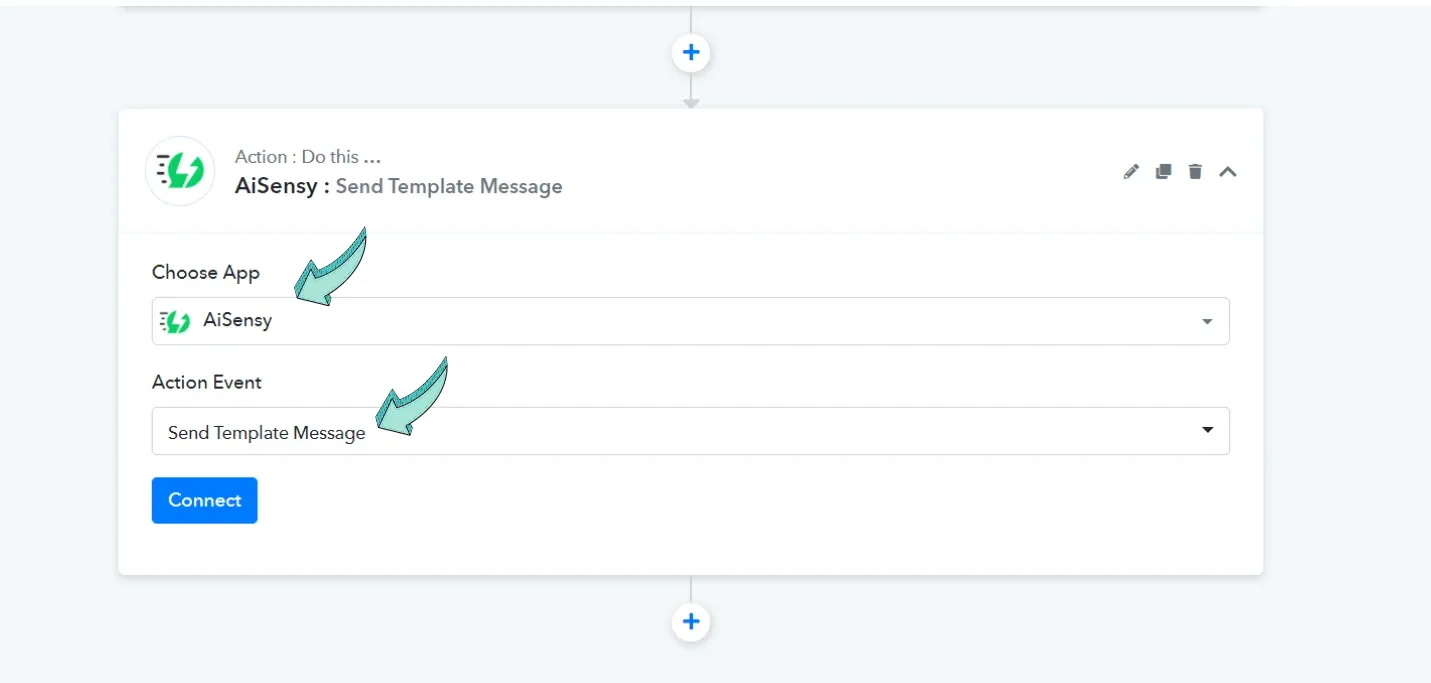
In this step, you'll be setting actions for the Trigger.- Find & select "Messegy" in 'Choose App'.- Set 'Send Template Message' as Action Event.After this, click 'connect' & copy paste the API Key from Messegy App to here.
Copy Paste API Key
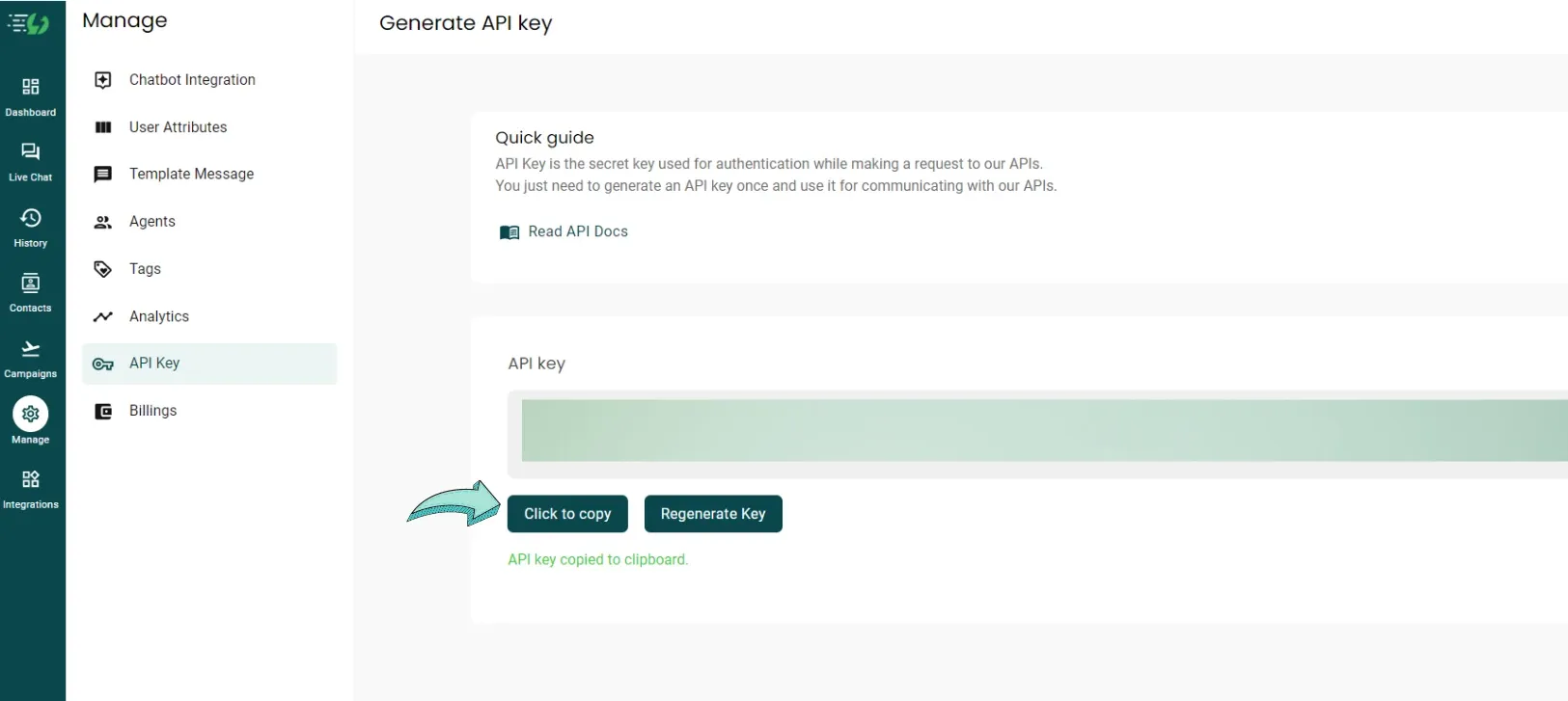
After choosing the Action, click 'Connect' & copy-paste the API key from the manage section in Messegy App.
Add Campaign Information
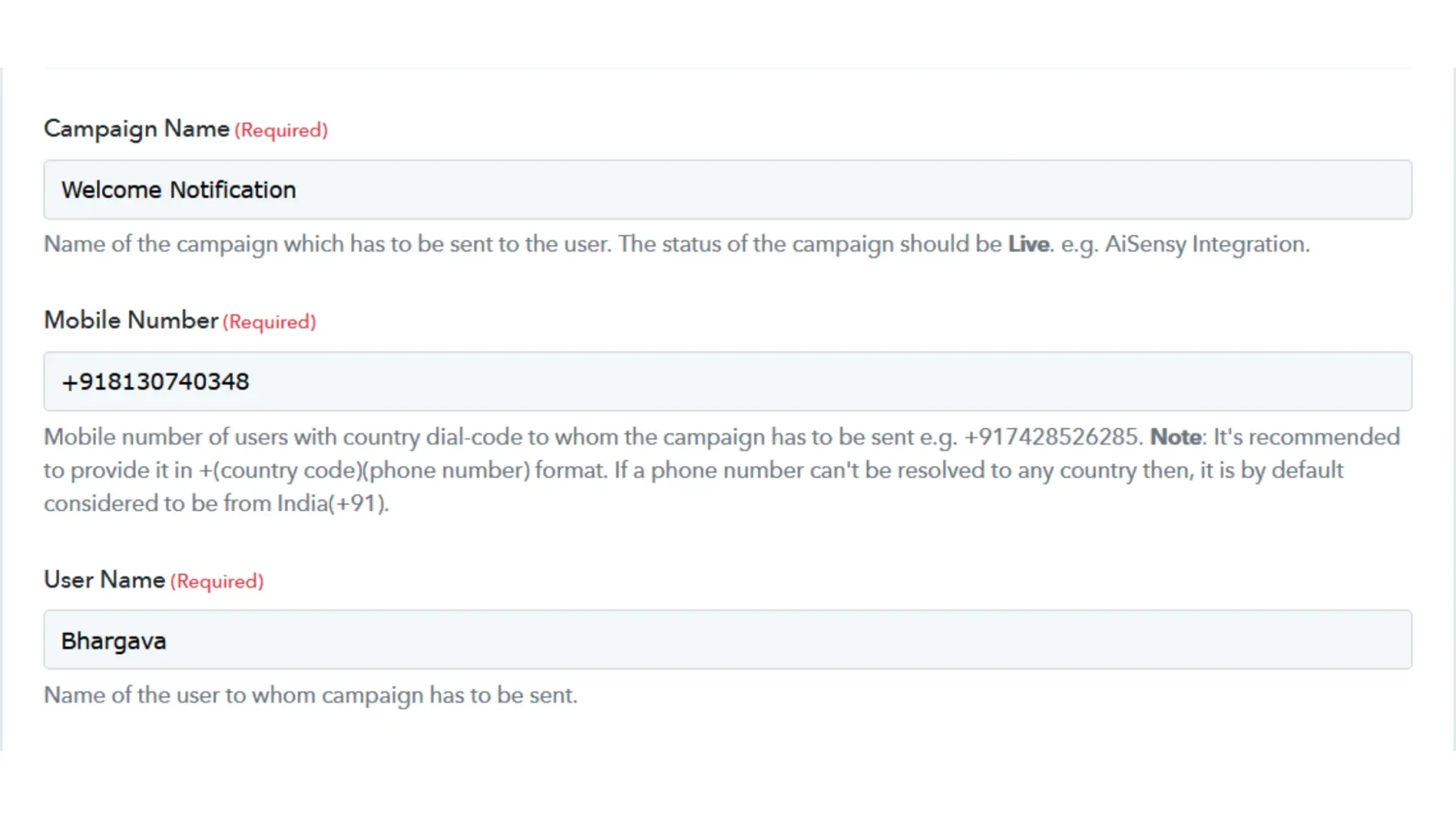
Here, add your Campaign name exactly as it shows on Messegy Campaign Page.Add the name & Mobile Number of the user along with their country code.
Add Source & Tags
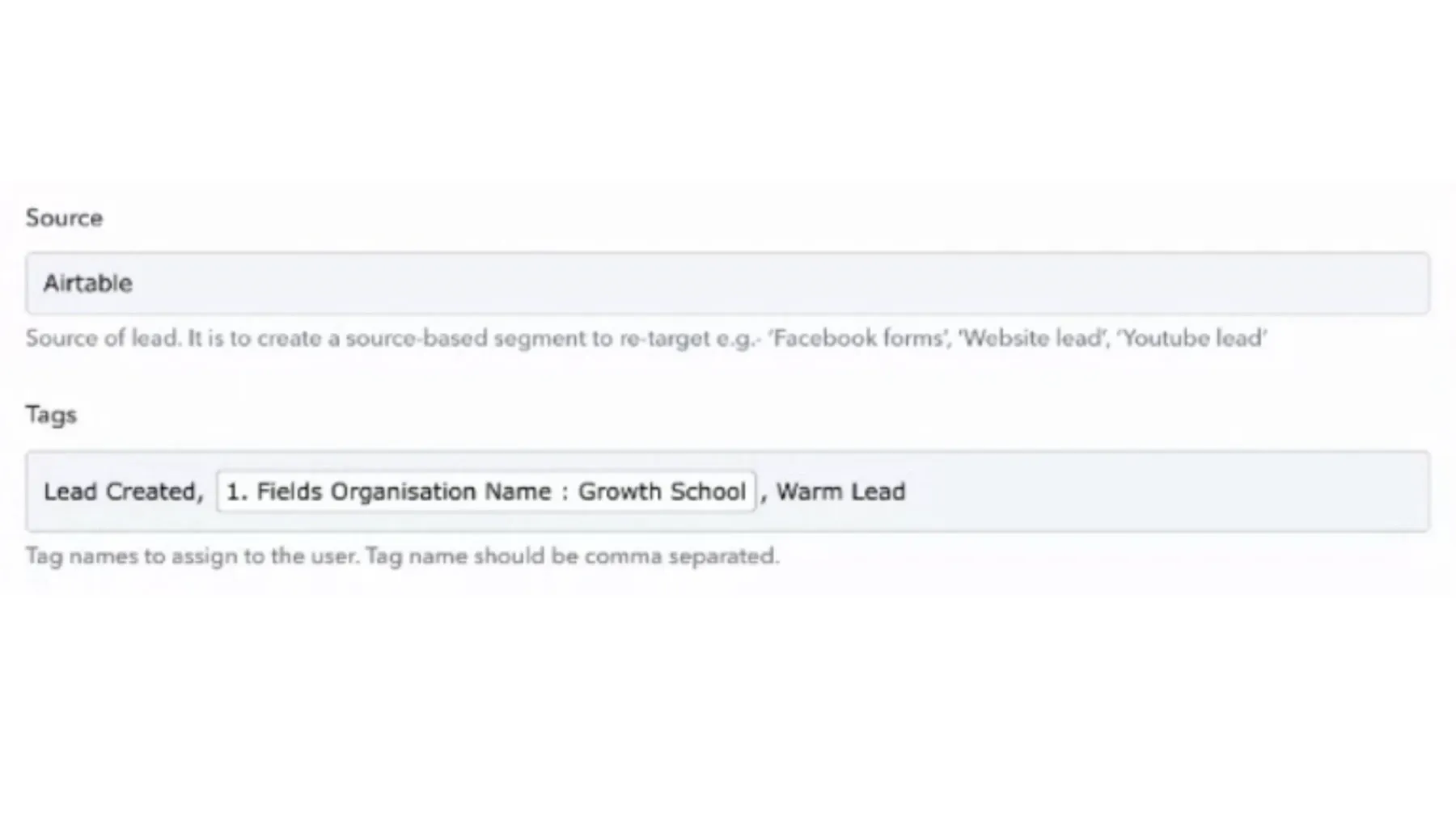
In the source, add the name of the app you're connecting with Messegy, which in this case is Airtable!Next, map the tags as shown in the image to the right. Separate each tag with a ','
Add Parameters & Attributes
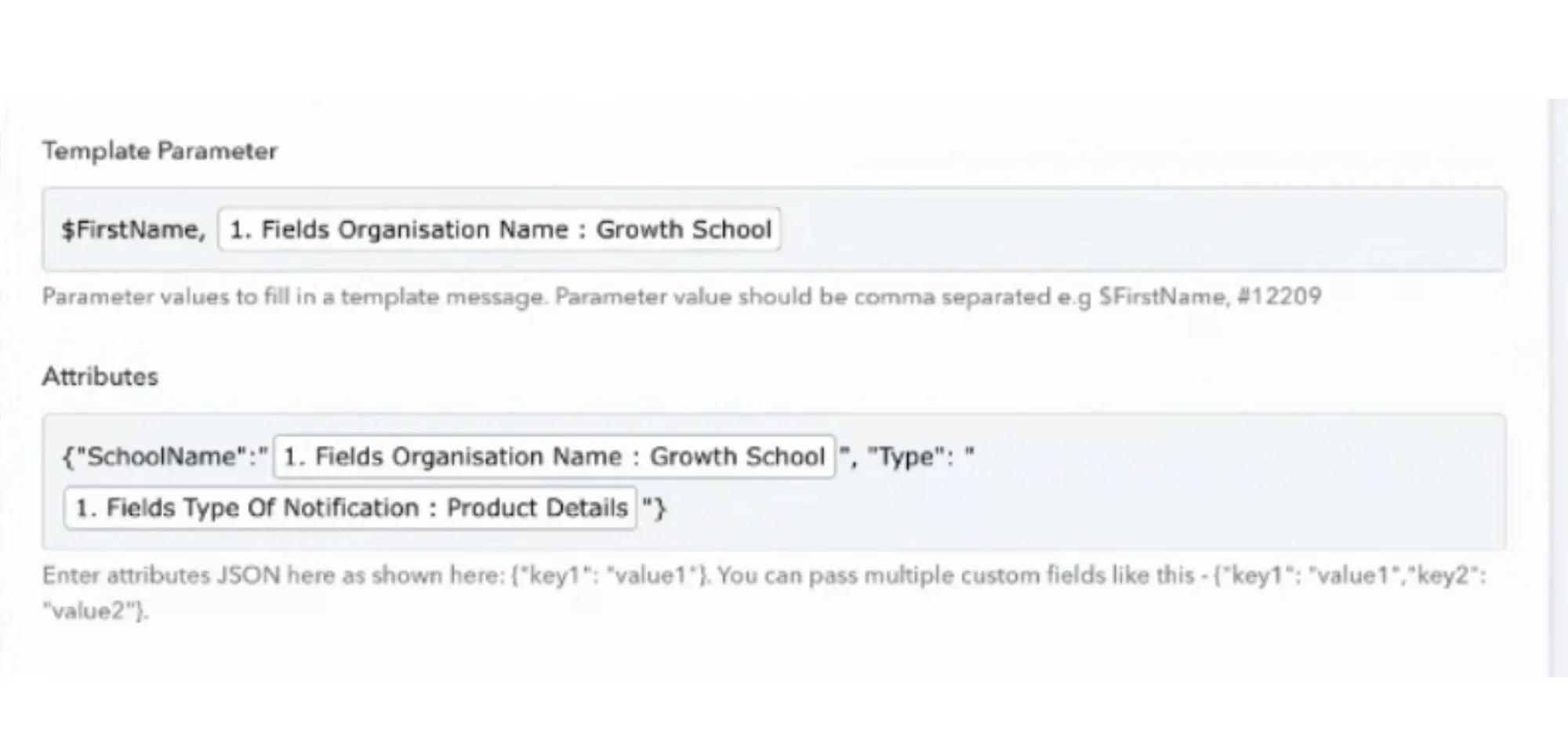
Here, map the template parameters. Make sure to separate each parameter with a ',' comma.Next, map the attributes between '{}' curved brackets and separate each attribute with a comma ','
Save & send test Request
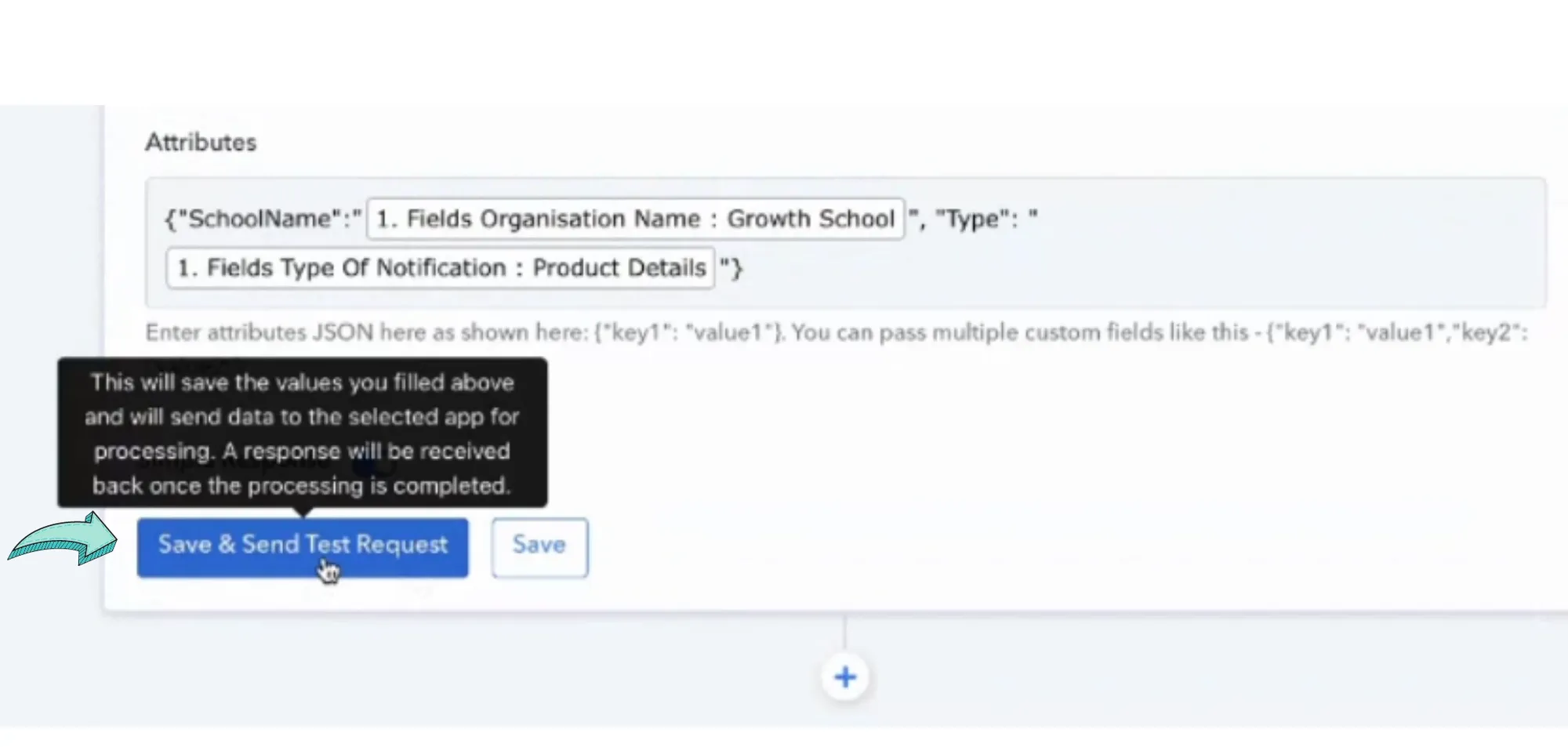
Last, save and send a test request to check whether the Campaign is all set or not.If all goes well, you'll get a success message. If there are errors, you'll receive an 'error message' mentioning the reason for failure.Revise the campaign & check for underlying errors. If the error still persists, you can connect with our customer support team for further help.
Customer Support
Things to remember!
- Optional fields are not necessary for the request payload.- The medial URL provided in the media object should be publically accessible, otherwise, the request will be rejected.- The length of the template params array should be equal to the number of params required in the campaign whose name is provided in the campaign name field. Otherwise, the request will be rejected.- Tags should be created in your project before using them. It can be done by anyone with manager level access.- If a tag doesn't exist in your project, the campaign WILL fail. The same goes for Attribute.- Only add media if your message contains a media file. Otherwise, ignore it!- Attributes should be added to the project before using them. It can be done by anyone with manager level access.If an attribute doesn't exist in your project, it will be ignored.
Ready to get Started?
Get Started for FREE. No Credit Card needed.⚡️Powered by Official WhatsApp Business API
Book a DemoStart for FREE