Discover how to add interactive quick replies to your WhatsApp template messages in Messegy. Elevate customer interactions with our step-by-step guide.
What are Quick Reply Buttons?
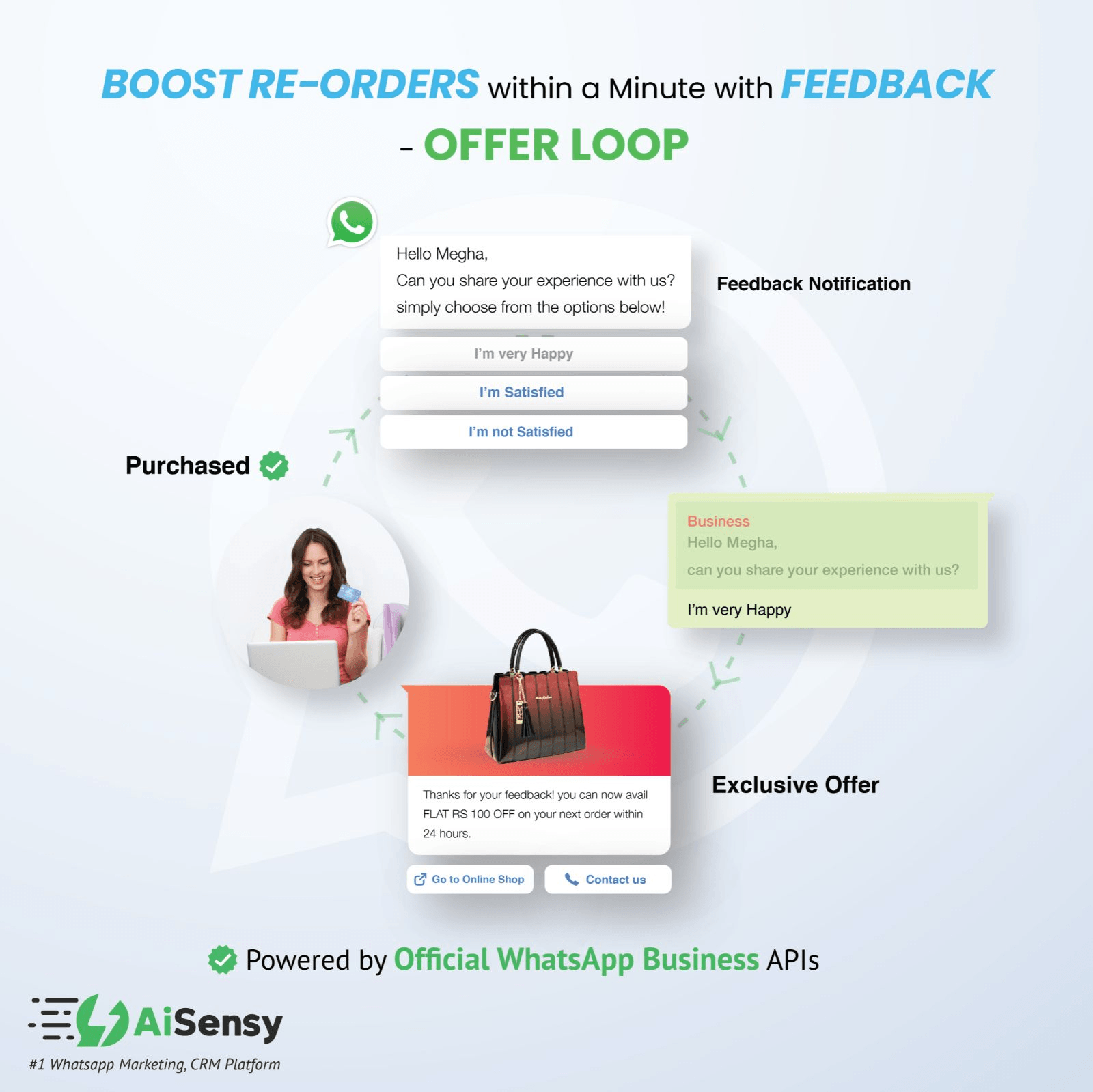
Quick Replies are buttons attached below a WhatsApp message clicking which allows your user to send a message without typing it out.E.g. For taking customer feedback, you can add Quick Replies at the end of the message such as, "I am very happy", "I am Satisfied", "Not Happy".You can add a maximum of three Quick Reply Buttons in a WhatsApp Template Message.The image on the right describes the use of Quick Reply Buttons by taking the example of Feedback Notification.It describes how you can use Quick Reply Buttons in your WhatsApp Template Message. It's also a great strategy to boost re-orders if you run a WhatsApp Ecommerce Store!
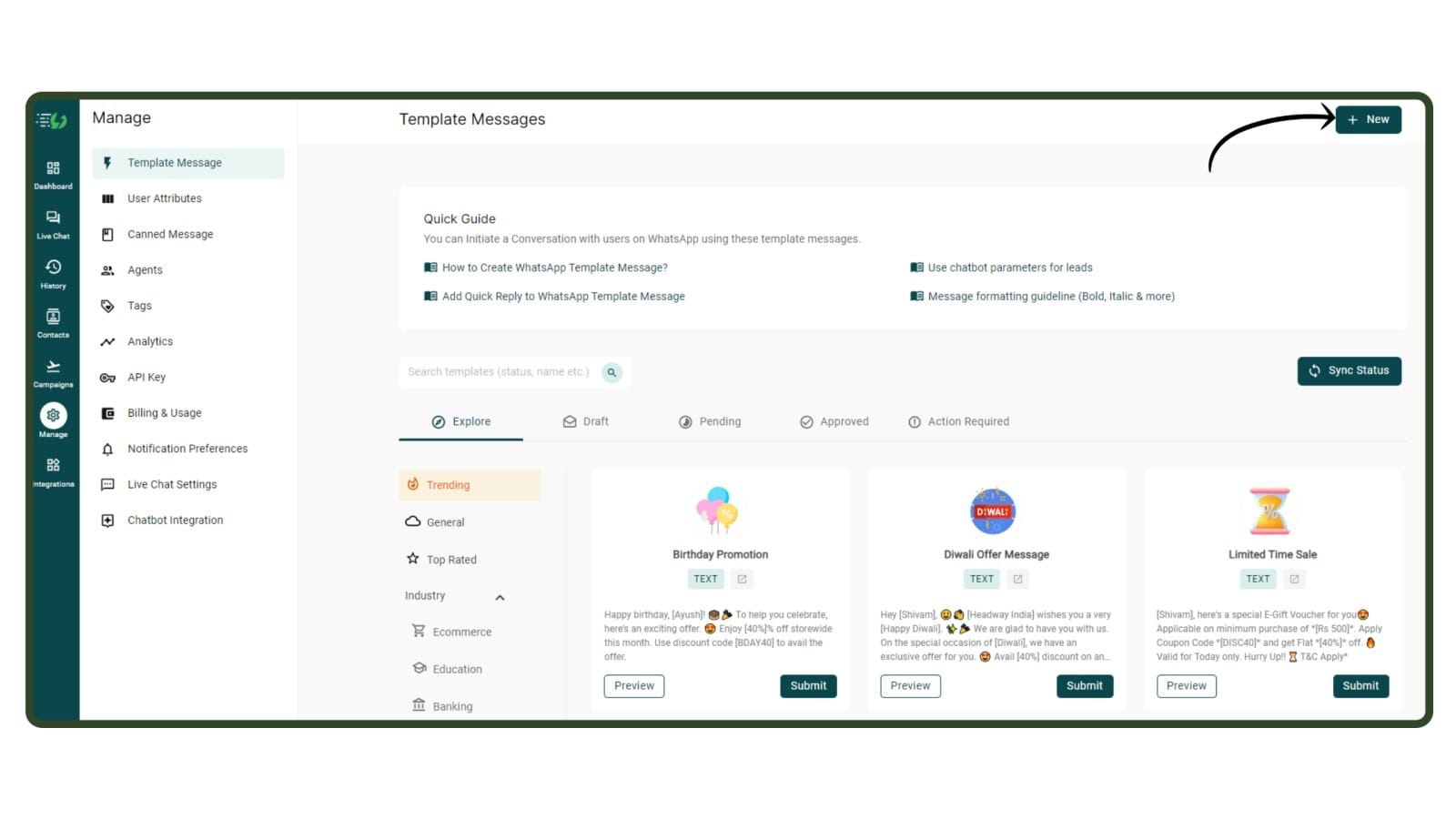
Go to Template Message Section & click 'New'
First, go to manage 👉 Template Message 👉 Click New.You can also choose from 100+ pre-approved templates from the Explore section.
Template Message Library
Frame your WhatsApp Template Message & go to Interactive Actions
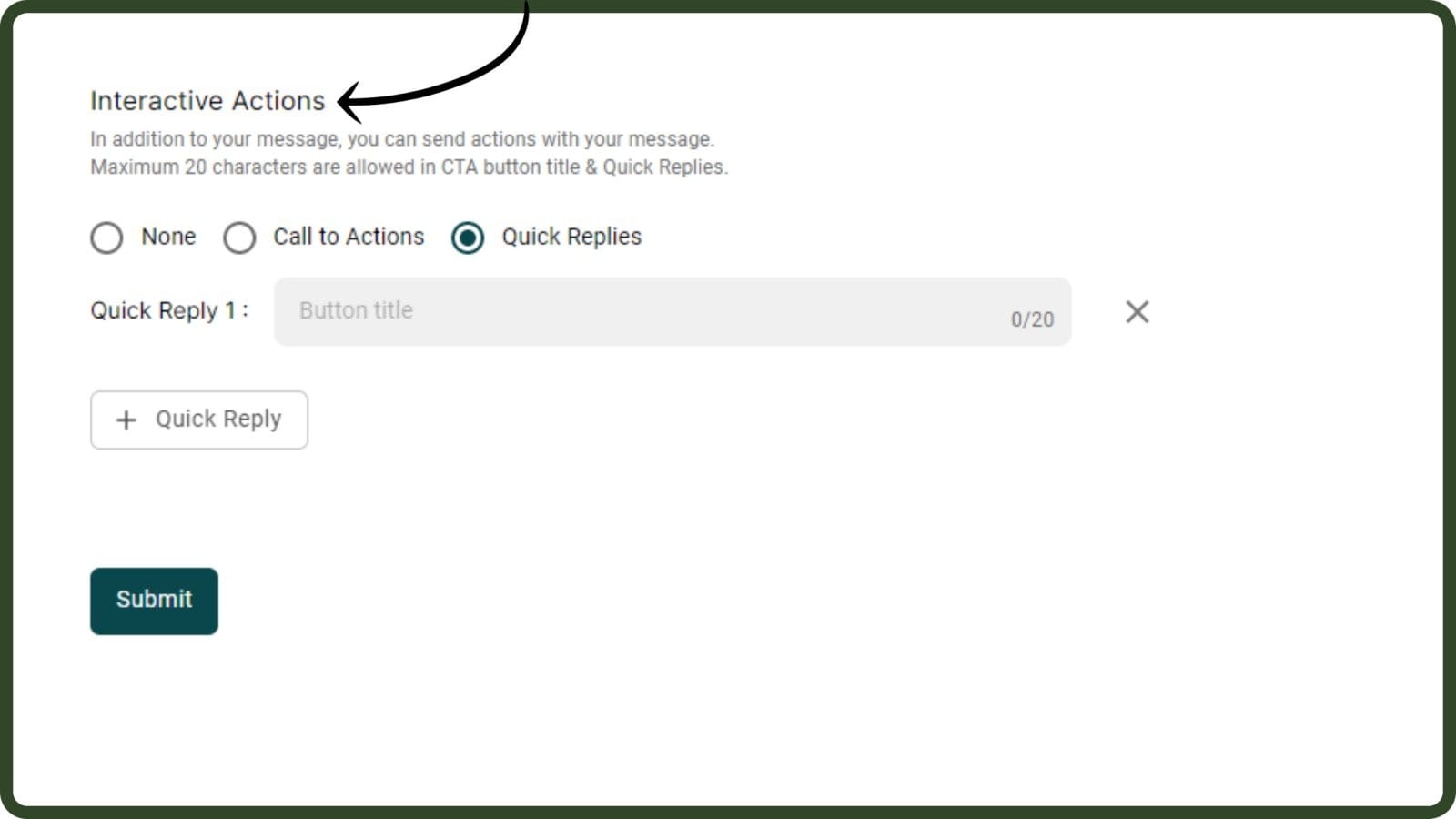
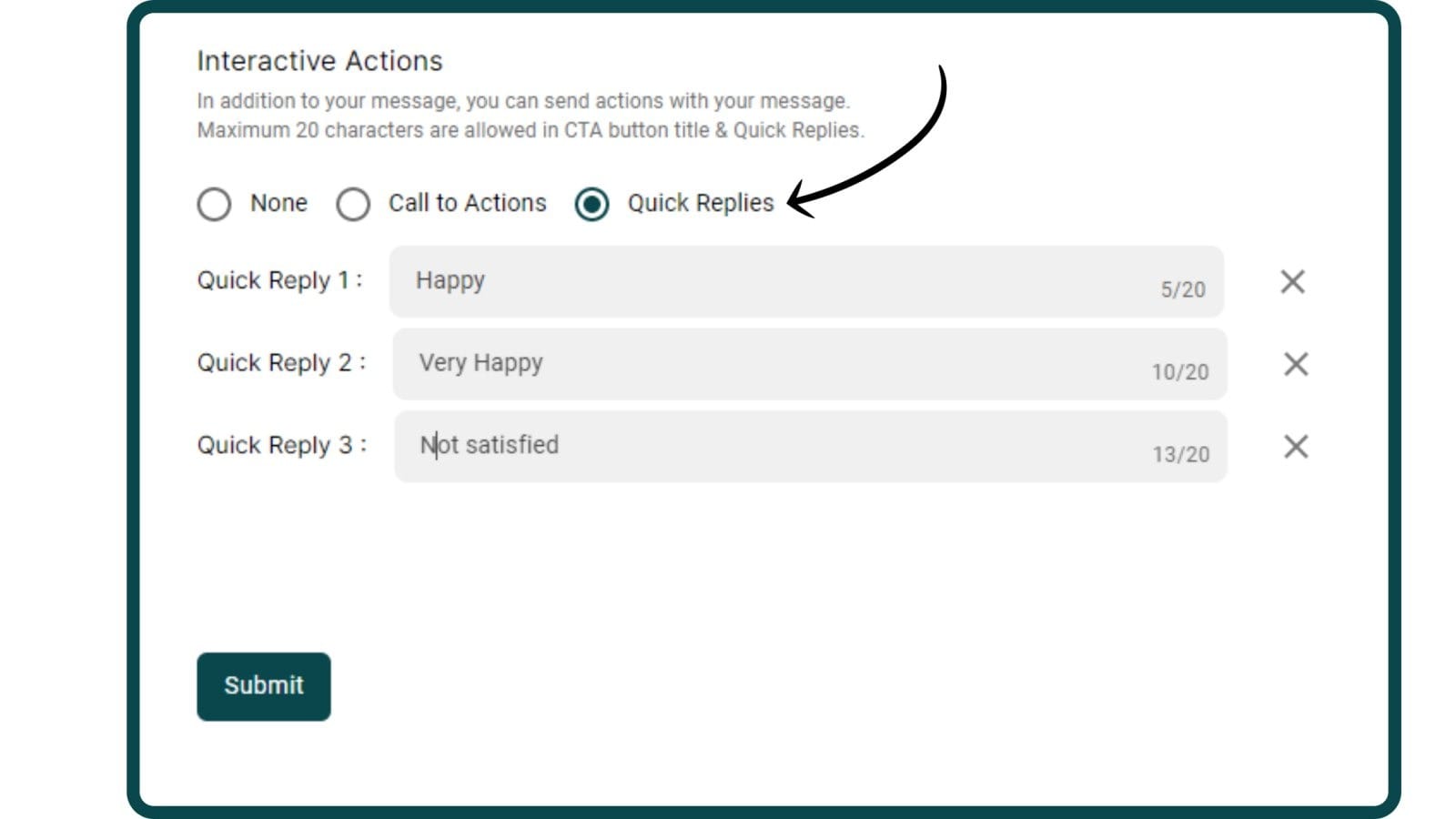
Next, frame your template message by filling the necessary fields. To know how, check out the complete guide on how to create a WhatsApp Template Message.In this example, we'll frame a Feedback Template Message & include three quick actions as shown in the image above.So, scroll down to Interactive Actions & choose the Quick Reply Button.
How to create a WhatsApp Template Message
Add Quick Replies
Last, add quick replies as suitable. We've added 3 Quick Replies, which is the maximum number of quick replies you can add to a WhatsApp Template Message.The Three Quick Replies we've added are:1. I am very Happy2. I am satisfied3. I am not HappyYou can add a quick reply with a maximum of 20 characters. Also, you can't add emojis to quick replies. Once you finalize your Quick replies & proofread your Template Message, click submit.
Click Submit
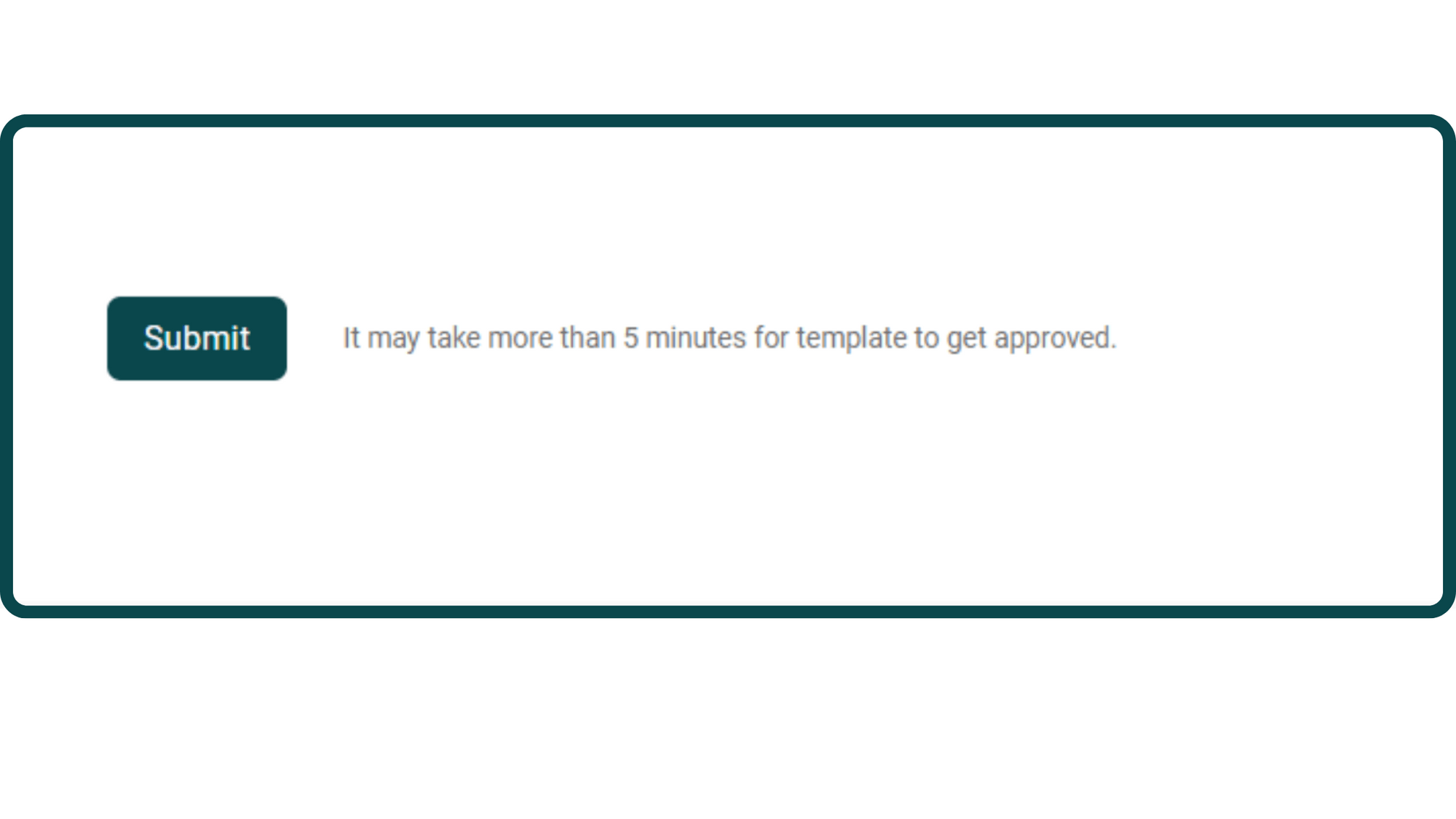
Finalize your quick replies & proofread your template message once.Once you do that, hit 'Submit'. Template Message generally takes 10 minutes to 24 hours to get approved from WhatsApp.
Sync with WhatsApp to know the approval status
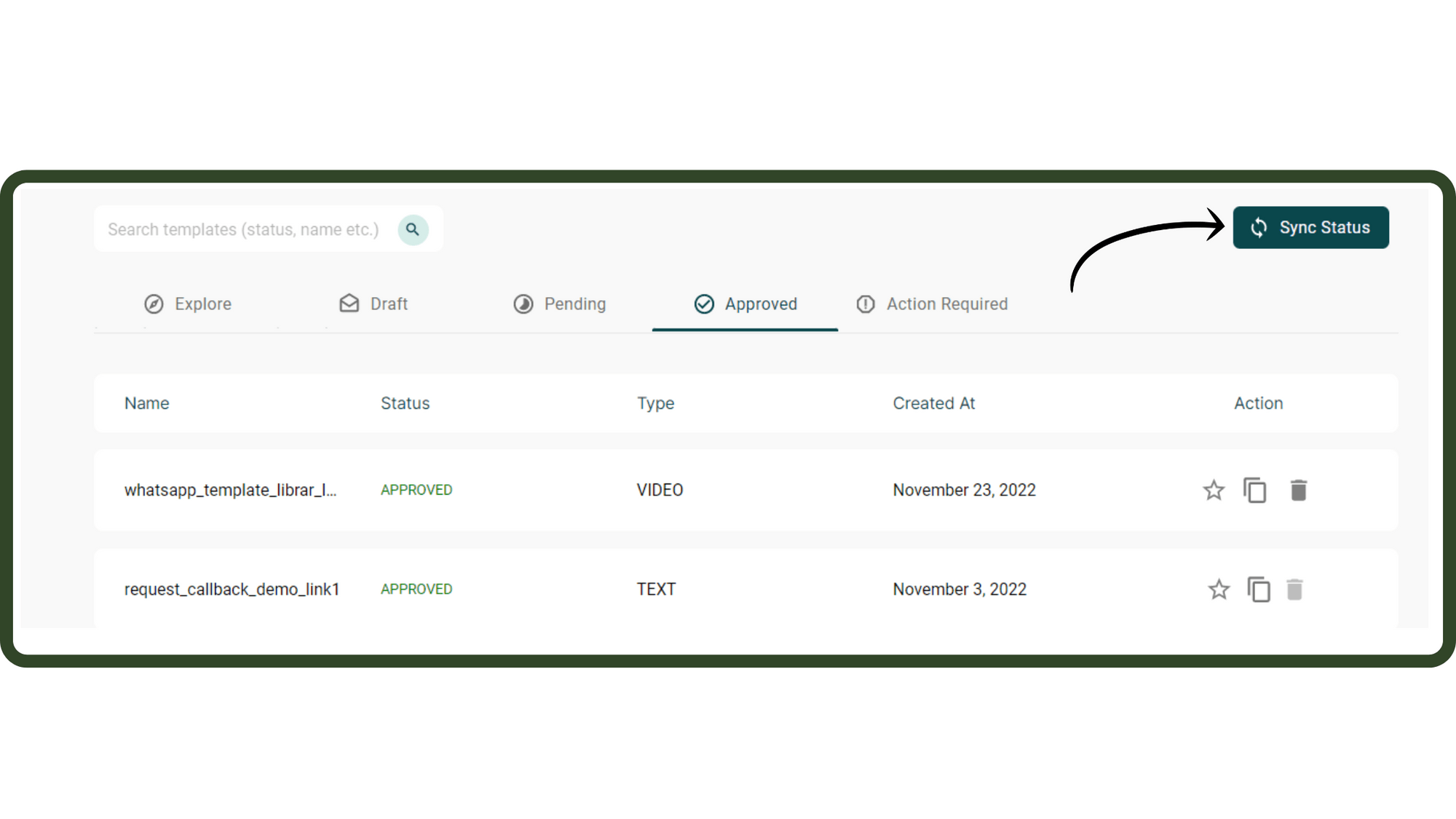
After submitting template messages, hit the "sync with WhatsApp" button to update the status of the Template Message after submitting.
Ready to get Started?
Get Started for FREE. No Credit Card needed.⚡️Powered by Official WhatsApp Business API
Book a DemoStart for FREE